Deploy NetSpeek Edge on VirtualBox
Installing the NetSpeek Edge VMDK Image or OVF in VirtualBox
Before you begin ensure you’ve downloaded and installed the following:
- VirtualBox
- The latest Edge Client deployment package from your distribution source
- This package is delivered as a
.zipfile, and when extracted contains a.vmdkimage and a.ovfdeployment file.
- This package is delivered as a
Note
NetSpeek uses VirtualBox internally to deploy Edge VMs in some labs and testing scenarios, and we make the VMDK file and this documentation available to the public as a courtesy. Our VirtualBox installation for Edge is intended for testing or small-scale lab use, and is a secondary priority for documentation and development compared to enterprise-manageable hypervisors such as VMware.
We remain interested in hearing about any challenges you encounter with a VirtualBox deployment, and will provide support where we can.
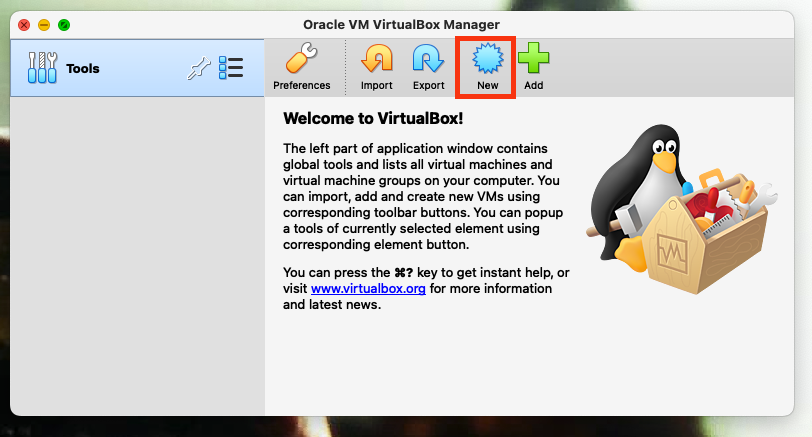
1. Create a New Virtual Machine
Click New in VirtualBox to begin creating a new VM.
Note
This guide is based on MacOS, and uses the .vmdk file exclusively. See the end of this document for some additional considerations for scenarios requiring the .ovf file, such as deploying on an Ubuntu Linux host.
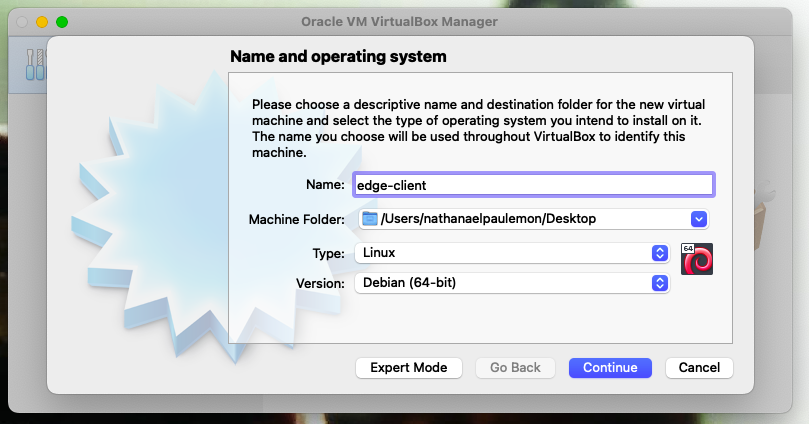
2. Set Name and OS Type
- Name:
edge-clientor your preferred display name in your hypervisor – there is no functional impact to name selection - Type:
Linux - Version:
Debian (64-bit)
Then click Continue.
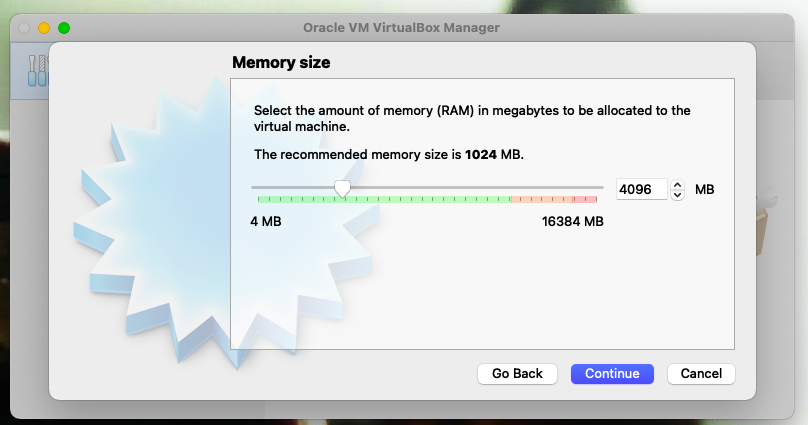
3. Allocate Memory
Set memory to 4096 MB (4 GB) or more.
4. Attach an Existing Virtual Disk
- Choose Use an existing virtual hard disk file
- Click the Folder icon
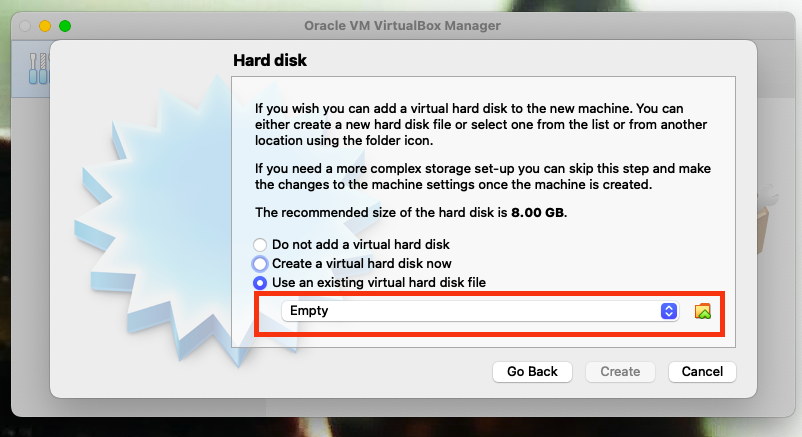
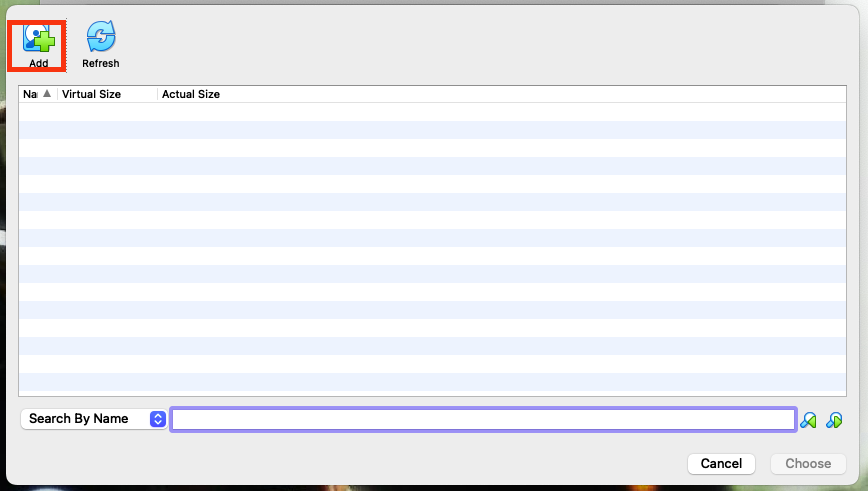
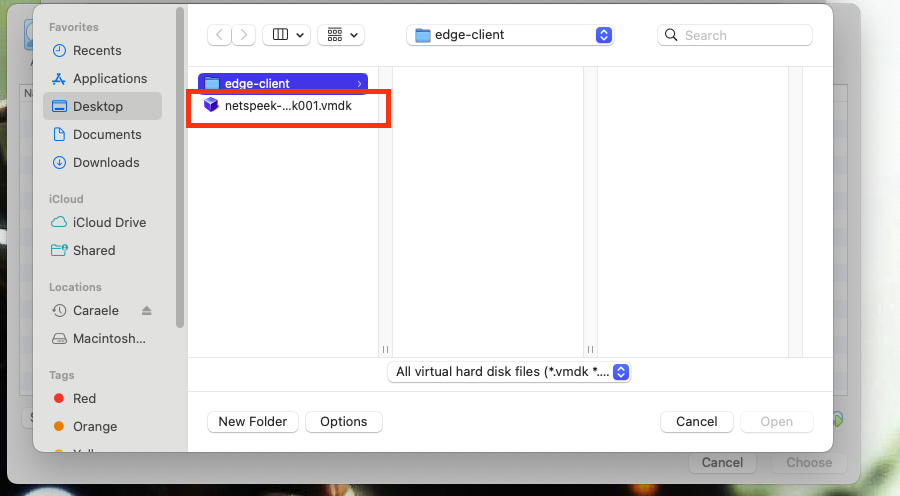
5. Add and Select the .vmdk File
Click Add, then browse to and select your Edge Client .vmdk file.
6. Configure Networking
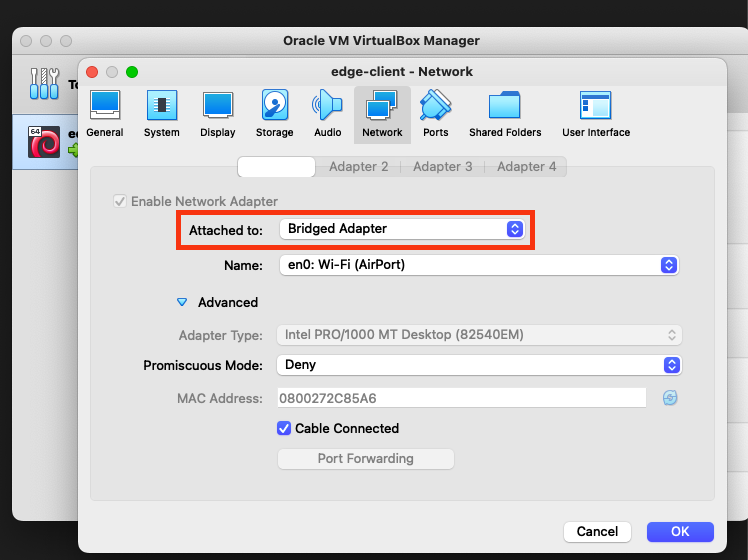
Ensure the VM can be accessed by other devices on your network:
- Go to Settings → Network
- Set Attached to:
Bridged Adapter - Select your active network interface (e.g., en0: Wi-Fi [AirPort])
7. Start the VM and check networking
- Power on the
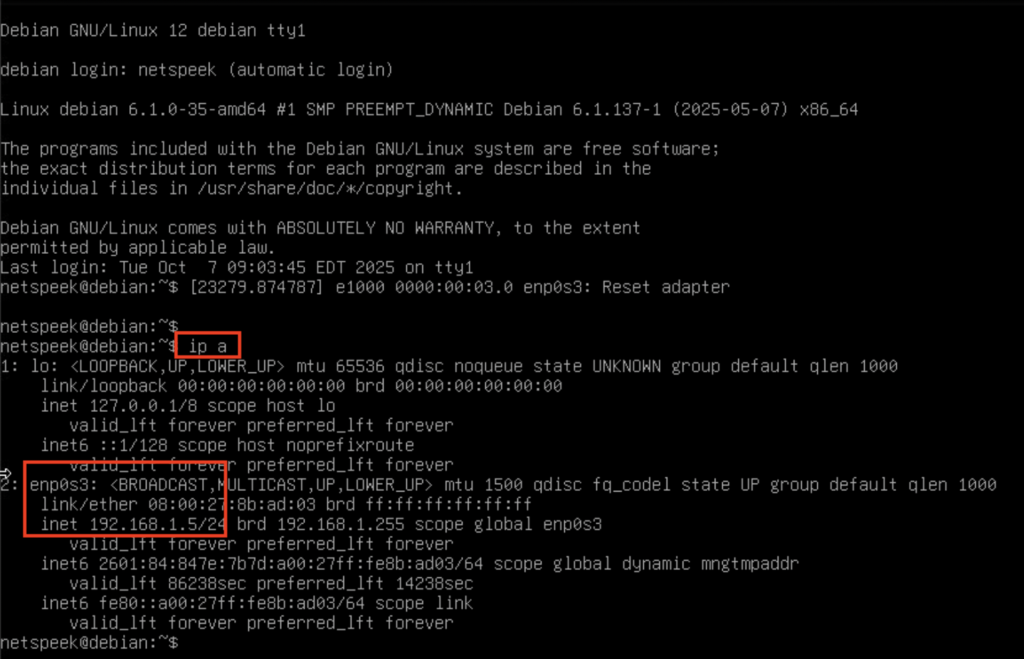
edge-clientVM – VirtualBox will automatically launch the console window.- The console does not require login credentials and will show a command line interface similar to the image below.
- Click inside the console interface to ensure keyboard input is being sent to the Edge Client VM and run the command:
ip a
Look for an IP address assigned to a network adapter, likely labeled enp0s3 (e.g., in the below example image the IP address assigned to that adapter is 192.168.1.5)
8. Confirm the Edge VM is Running
On your host or another device on the same network as the Edge VM, open a browser and navigate to:
http://<vm-ip>:8080
Note
If your browser defaults to HTTPS (which is certificate-secured connections to websites), you will need to manually specify an HTTP URL, including the port 8080, precisely as described in the example above. The NetSpeek Edge does not support HTTPS connections to the web UI in order to avoid browser compatibility problems with self-signed certificates.
Taking the HTTP and port 8080 requirements together to construct an example URL, if your VM has been assigned the address 10.1.2.3 your login URL would be:
http://10.1.2.3:8080
You should see the Edge Client Service Management UI login page, as shown below.
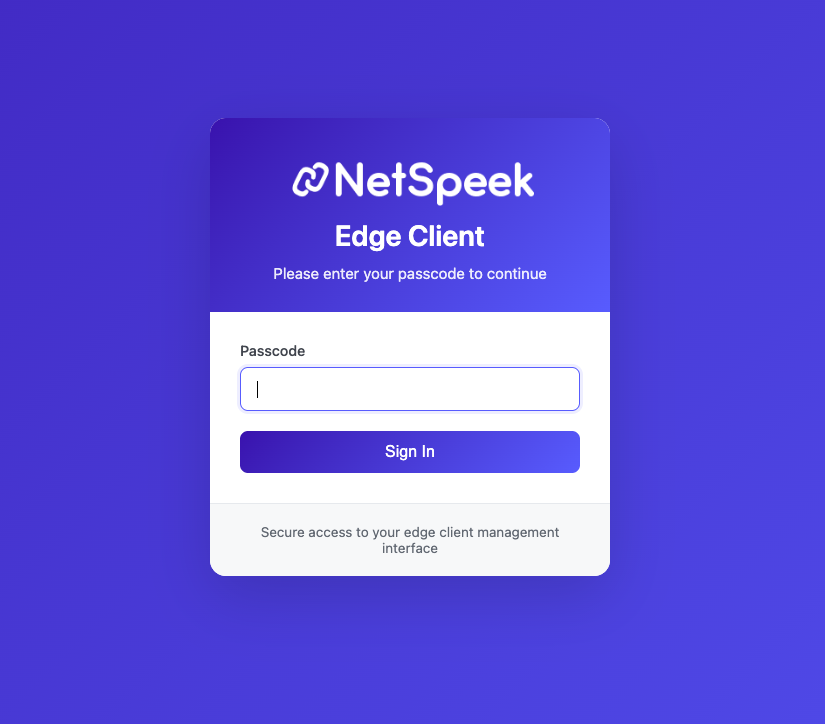
At this stage you have completed VM deployment and are ready for configuration of your Edge, which is addressed starting in step 5 of the main Edge Installation Guide.
9. Addendum: Other considerations / OVF file usage
Some hosting environments, though using the VirtualBox hypervisor, have a different deployment experience than the MacOS scenario described above. Most of the guide applies, for example, to deploying in VirtualBox on an Ubuntu host, but the initial procedure to deploy the VM differs.
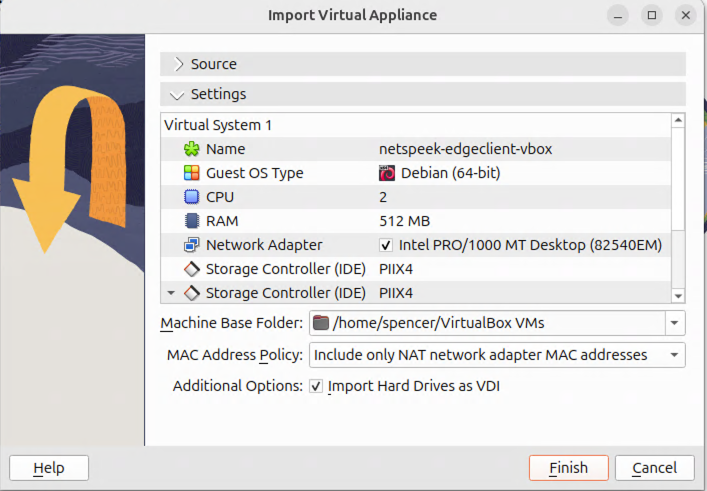
The example imagery below is from VirtualBox 7.2.4 running on Ubuntu 24.04.3 LTS. The primary difference from the MacOS procedure, which uses the “New” workflow, is that this procedure uses the “Import” workflow.
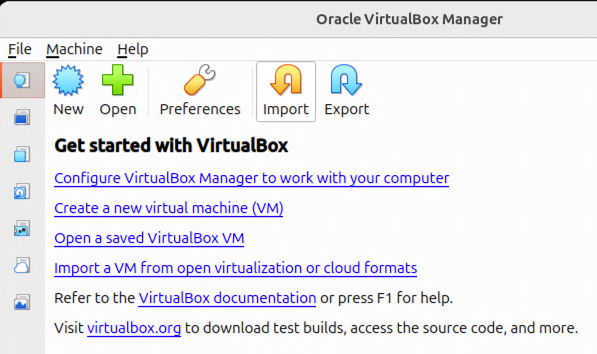
This example for Ubuntu uses the Import workflow shown above.
In the background of this image, the main Import workflow is shown, and the folder icon to find a Source File has been selected. The foreground depicts the file navigation to locate the necessary .ovf file, in the same extracted folder as the .vmdk file.
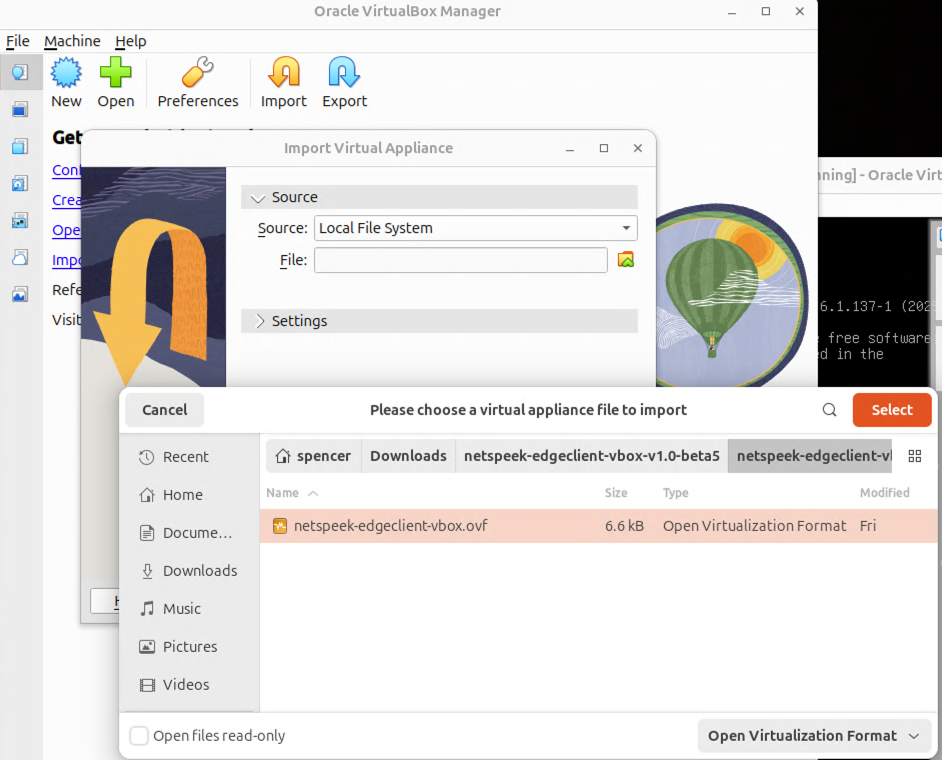
The Settings configuration shown here is dependent on the .ovf file selected, and most settings depicted below (notably the VM’s name, and CPU/RAM assignment) are modifiable by double-clicking on that line.
Click “Finish” complete the workflow, and configure other settings (such as network adapter connectivity) as described in the main guide above.