
Collect NetSpeek Edge Logs
This document serves as a guide that outlines the steps required to download logs from the NetSpeek Edge VM via its onboard web interface.
Log Retrieval via the NetSpeek Edge VM Web UI
Prerequisites
Before beginning the integration, confirm the following:
- You have deployed a NetSpeek Edge VM as described here: https://docs.netspeek.ai/netspeek-edge-installation-guide/
1. Sign In to the Edge Web Interface
- Open a browser and navigate to:
http://<vm-ip>:8080
Note the necessity of using HTTP (not HTTPS) and specifying the custom port of 8080 in the URL.
- Enter your configured passcode to log in.
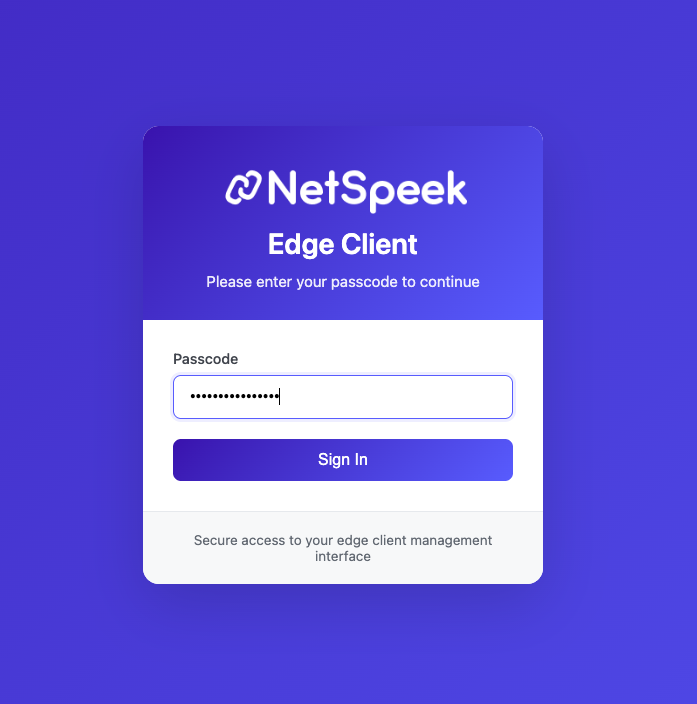
2. Open the Settings Page
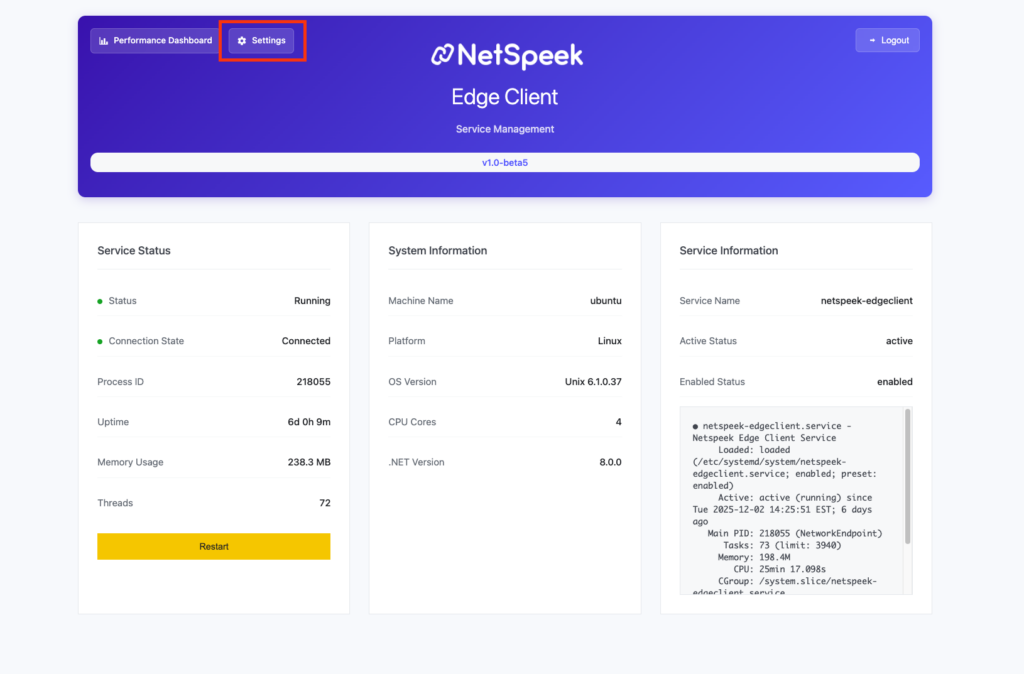
- After logging in, look at the upper left area of the page.
- Click Settings.
3. Download the Logs
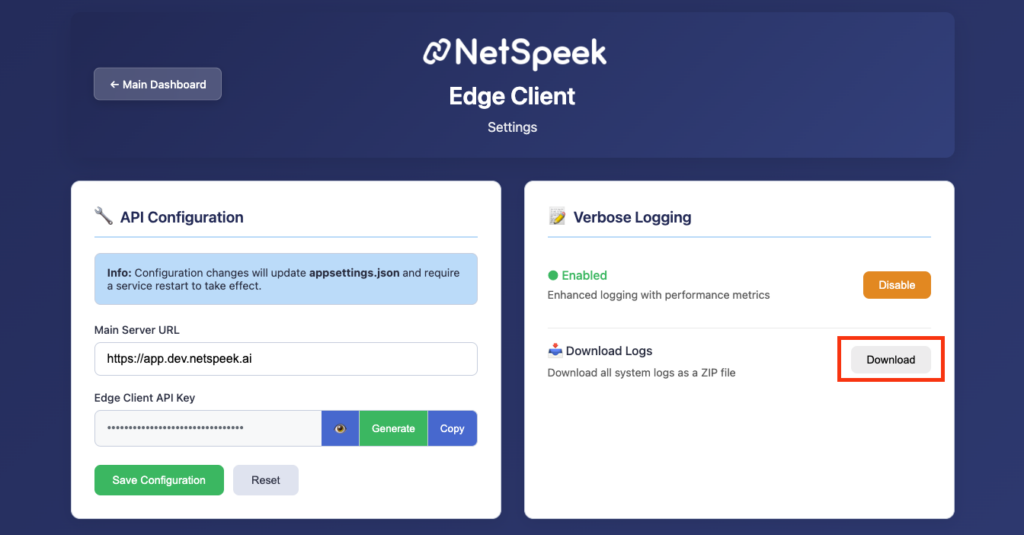
- On the Settings page, locate the Download button next to Download Logs as depicted below.
- Click it to download the log file.
4. Confirm Browser Prompts (If Shown)
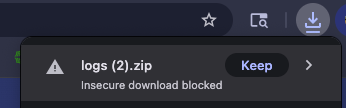
Because the Edge VM web UI transmits information via HTTP (not HTTPS), your browser may display a security prompt such as:
- “This file may be unsafe—Keep anyway?”
- “Are you sure you want to download this file?”
Select Keep, Download, or Confirm, or similar message (exact may vary depending on your browser).
5. Send Logs to NetSpeek Support
After downloading your log file, you can open a support request by emailing support@netspeek.com
In addition to the logs, please include in your email a description of the problem being investigated, the name of the tenant you’re working in, and the timeframe in which the problem occurred. In general, please try to reproduce the problem to be investigated, and retrieve the logs described in this process after the problem has occurred.
Support
If you run into any issues following this procedure or have questions, contact NetSpeek Support at support@netspeek.com.