
Avocor Integration Guide
This document serves as a comprehensive guide that outlines the steps required to integrate Avocor devices with the NetSpeek platform.
Note
Currently, Avocor H-Series interactive displays are supported with this connector. This means specifically the Avocor models AVH-6520, Avocor AVH-7520, and Avocor AVH-8620.
Prerequisites
Before beginning, confirm the following:
- Your Avocor device is powered on and connected to a network that is routable to/from your NetSpeek Edge.
- You have deployed a NetSpeek Edge VM as described here: https://docs.netspeek.ai/netspeek-edge-installation-guide/
- Note: This connector requires an Edge VM running software version
1.4.0or later.
- Note: This connector requires an Edge VM running software version
- TCP port 4664 is accessible on the Avocor display from the NetSpeek Edge VM.
- This is the default control port for H-Series devices; if your display has been configured to listen on a different port, note that value for Step 1 below.
- Wake From Sleep is enabled on the display – remote power-on will not work without it.
- To configure: On the device, open the On-Screen-Display (“Menu” button on the remote or front panel), go to Settings → Power → Wake From Sleep, enable Ethernet (labeled Network Standby on some models), then save and exit.
- If the display is part of a multi-display physical daisy-chain, note its Display ID. Avocor displays use the default value of
1– in most environments this value has not been modified.
Terminology change, October 2026
The device and tenant level “Connector” configurations were previously called “Integration” and have been renamed in both the NetSpeek portal interface, and NetSpeek Docs.
Step 1. Add Device to NetSpeek Room Canvas
Device Provisioning Flow
- From a new WorkSpace, select Locations and search for or navigate to the Room the device will reside in.
- Select the room you wish to add your Avocor device to
- The Room Canvas opens by default.
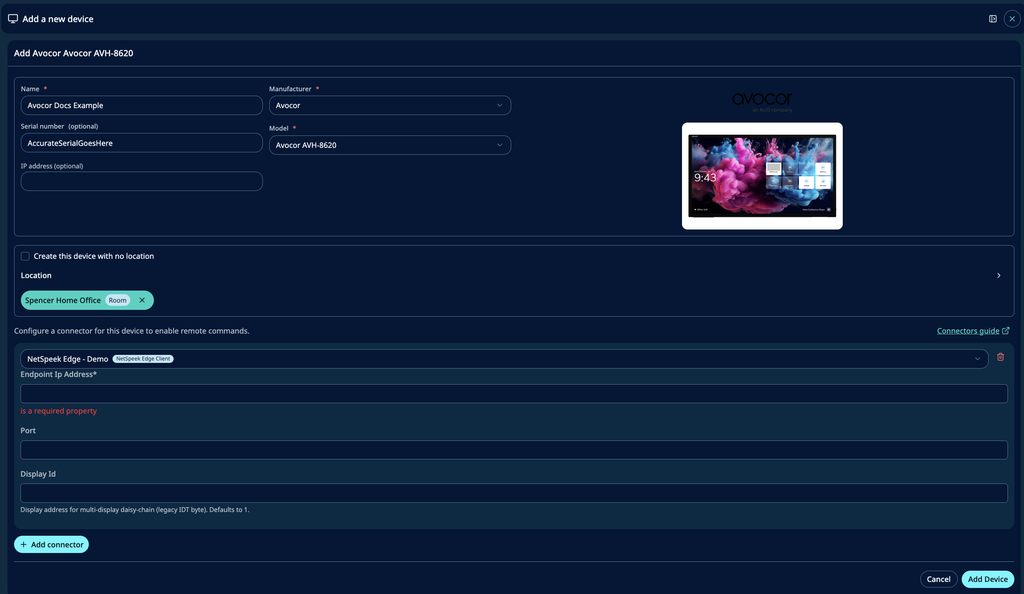
- Click “Add Devices” and then “Create new“
- Choose your desired device from the manufacturer → device model list.
- Configure the appropriate values, and in the “Connectors” section, select a previously created NetSpeek Edge VM Connector. Ensure that the Edge VM is on a network that can reach the device’s configured IP address.
- In the configuration panel, enter the following fields:
- Device IP Address (static/reserved IP, or DHCP)
- Port (optional) Defaults to 4664. Only configure this if the display has been configured to listen on a non-default port.
- Display ID (optional) Defaults to 1. Only configure this if the display is part of a physical daisy-chain.
Note
NetSpeek strongly advises using the default Display Id value of 1 on the Avocor devices and their representative configurations on Canvas, unless specifically instructed by Avocor to use a different value.
Verification
Once the relevant settings described above are configured, to validate the Connector:
- Select an Avocor device in the NetSpeek console, open the Device Actions Tab, and select an available device action. It is generally advisable to test by dispatching a non-intrusive command such as a
Get StatusorGet Power State. - On the device, observe the selected action occurring.
Troubleshooting
Network / Connectivity Issues
- Confirm the IP address is correct and routable from the network segment where the NetSpeek Edge VM is deployed.
- Ensure the port used is not blocked by firewall rules on the machine running your NetSpeek Edge VM.
- If POWER_ON times out / fails while other commands succeed:
- This is the most common issue and almost always means Wake From Sleep is not enabled on the display. Enable Settings → Power → Wake From Sleep → Ethernet and retry.
- If a command is dispatched but the wrong display in a physical daisy-chain responds:
- Set the Display ID field in the device configuration to the target panel’s Display ID from its local settings.
- Firmware version, model name, and serial number are not available. (Known limitation)
- The H-Series’ available command set has no query for this data, so use cases dependent on this information are intentionally not offered on this device. This is expected behavior and not a connectivity fault.
- Mute state and color temperature status cannot be reported. (Known limitation)
- The H-Series accepts these exclusively as write commands; there is no corresponding read or query mechanism.
Support
If you run into any issues during onboarding or have questions, contact NetSpeek Support at support@netspeek.com.