
Jabra Plus Integration Guide
This document serves as a comprehensive guide that outlines the steps required to integrate Jabra devices with the NetSpeek platform.
Prerequisites
Before beginning the integration, confirm the following:
- Jabra devices are already enrolled in Jabra Plus and connected to your organization.
- You have Tenant Administrator access to your Jabra Plus portal (required to create API subscription keys and manage webhooks).
- You have access to your NetSpeek tenant with permission to manage Integrations.
- A Jabra Plus subscription that includes API access.
- The Jabra Plus API/Integrations capability as of this publication is in a Beta stage of release by Jabra. Contact your Jabra representative for access or pricing questions about this functionality if it does not appear in your Jabra Plus tenant.
Step 1. Prepare Jabra Plus and generate an API subscription key
Retrieve a Jabra Plus API Key
Follow Jabra’s official steps in Jabra Plus documentation to create an API key. The typical flow is described in this the following steps.
1. Sign in to your Jabra Plus web portal using an administrator account.
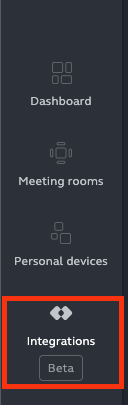
2. Click Integrations
3. Navigate to the API Access tab in the Integrations section of the portal.
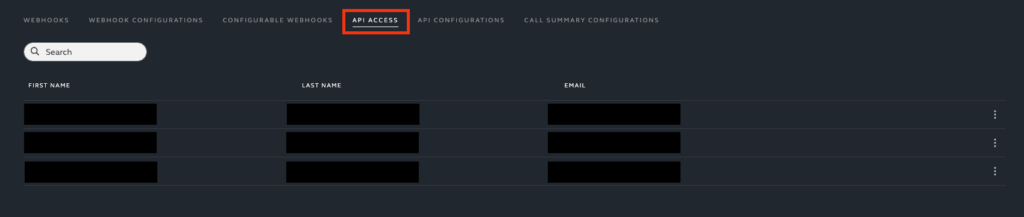
4. Click the Grant API Access in the top right corner to grant an API key to yourself or another user who will be responsible for the integration.

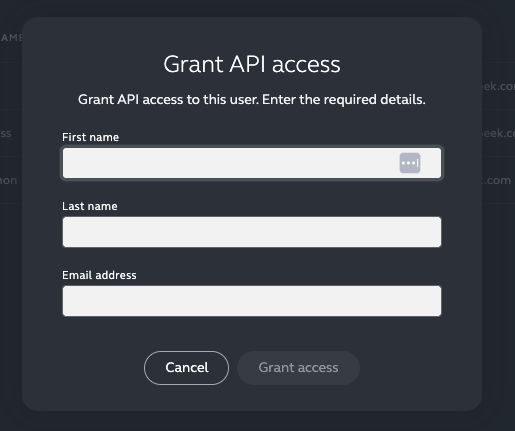
5. Enter the First name, Last name and Email address of the person responsible for the key – click Grant Access
6. You’ll then be met with an interface allowing you to save the Primary and Secondary keys. Copy the keys and store them according to your organization’s policies.
Find Device Serial Numbers in Jabra Plus
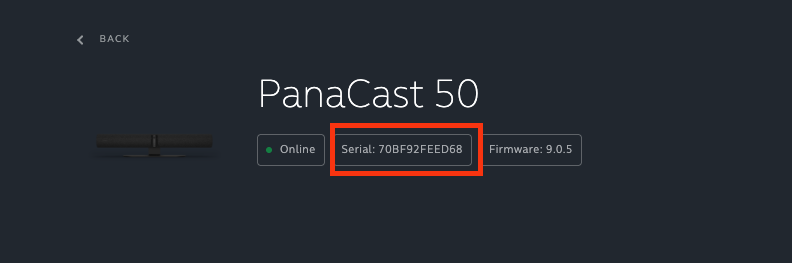
NetSpeek requires each device’s serial number to orchestrate devices in your Jabra Plus tenant.
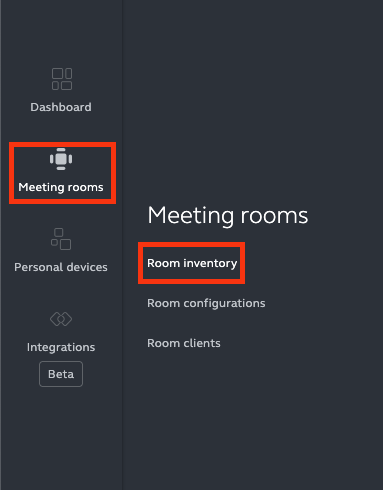
1. In Jabra Plus, click Meeting Rooms then click Room Inventory.
2. Navigate to the room(s) containing the devices you intend to integrate with NetSpeek.
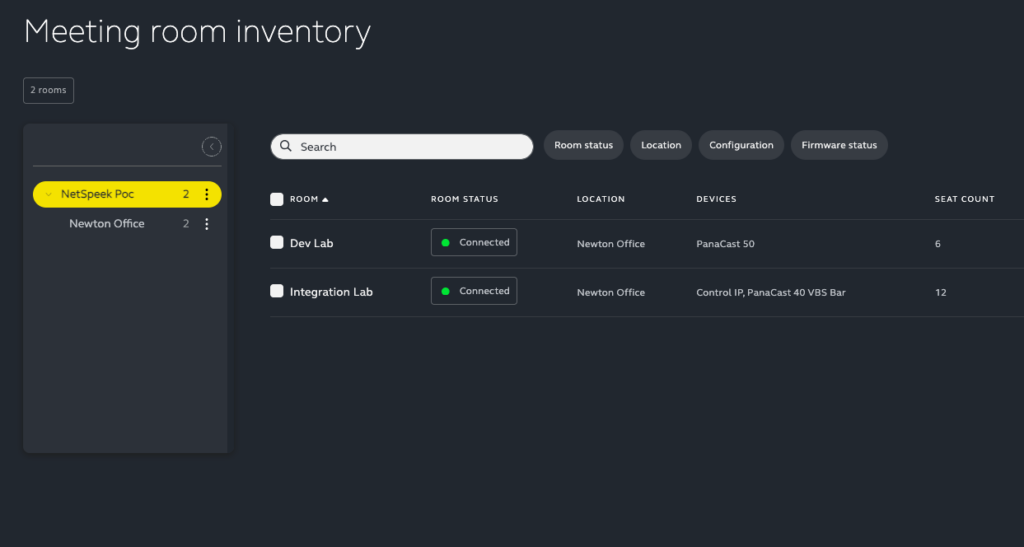
3. Record serial numbers for each device you will onboard to NetSpeek.
Step 2. Configure Jabra Plus in NetSpeek (Tenant Integration)
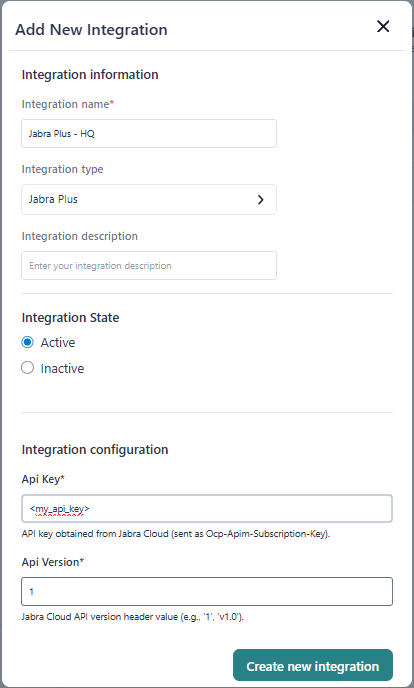
- In the NetSpeek portal, navigate to Tenant Management (settings cog icon)→ Integrations within your desired tenant (you may have access to multiple tenants / sub-tenants – if so, ensure you are configuring the integration in the proper place).
- Click “+ Add Integration”
- Enter an Integration Name (as an example format,
Jabra Plus – YourOrgName). - Set Integration Type = Jabra Plus.
- (Optional) Enter an Integration description, with details other NetSpeek users may need to know.
- Set Integration State = Active.
- Enter the following integration configuration fields:
- API Key – The Jabra Plus API subscription key captured in Step 1
- API Version – The Jabra Plus Cloud API version header value (as of August 2026, enter
1to define the API version)
- Click Create new integration / Update integration.
Step 3. Add Device to NetSpeek Room Canvas
- In the NetSpeek Console, navigate to Room Management
- Select the room you wish to add your Jabra device to
- Click Launch Room Canvas
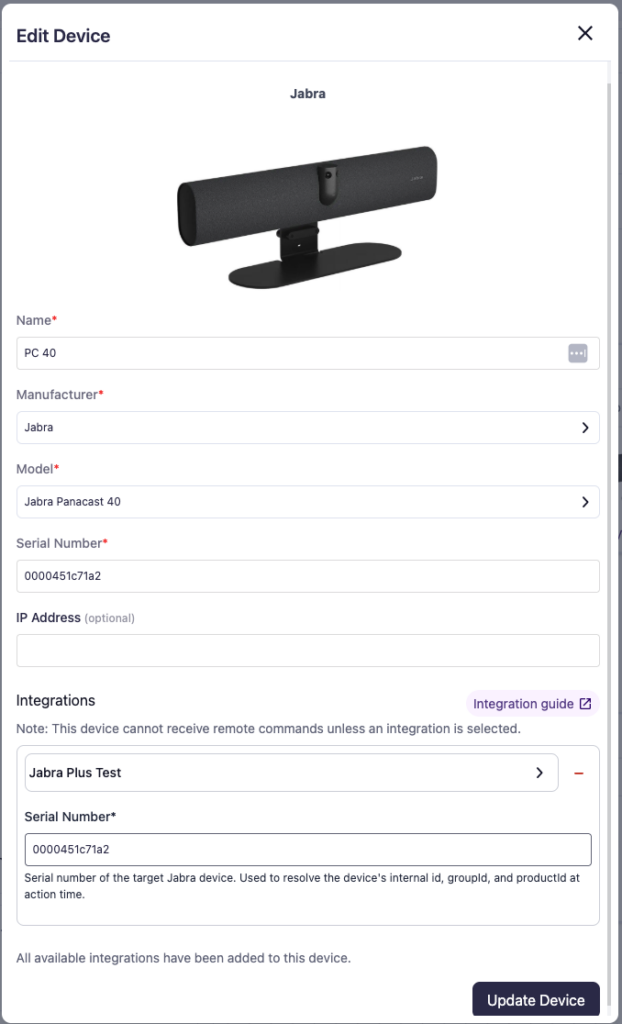
- Click Add device to room
- Choose your desired device from the manufacturer → device model list.
- Configure the appropriate values, and in the “Integrations” section, select the previously created Jabra Plus integration from Step 2.
- Serial Number – The serial number printed on the device label and visible in Jabra Plus. The NetSpeek integration uses the serial number to resolve the Jabra Plus
deviceId,groupId, andproductIdautomatically on each API call.
- Serial Number – The serial number printed on the device label and visible in Jabra Plus. The NetSpeek integration uses the serial number to resolve the Jabra Plus
Verification
Once the relevant settings described above are configured, to validate the integration:
- Select a Jabra device in the NetSpeek console, open the Device Actions Tab, and select an available device action. It is generally advisable to test by dispatching a non-intrusive command such as a
Get Device Info.- A successful response for this example action should return the device’s
serialNumber,productName,firmwareVersion, and currentisConnectedstate from Jabra Plus.
- A successful response for this example action should return the device’s
Support
If you run into any issues during onboarding or have questions, contact NetSpeek Support at support@netspeek.com.