
NetSpeek Windows Runtime Service Integration Guide
This document serves as a comprehensive guide that outlines the steps required to integrate Windows OS devices instrumented with the NetSpeek Windows Runtime Service (NWRS) with the NetSpeek platform.
This device type uses a concept called “sub-integration” which means that the Edge VM uses another component to reach orchestrated devices. In the case of this integration, that component is the NetSpeek Windows Runtime Service being used to orchestrate a Windows OS device.
Prerequisites
Before beginning the integration, confirm the following:
- Your Windows OS device is powered on and connected to a network that is routable to/from your NetSpeek Edge VM.
- You have the NWRS installed on your Windows OS device.
- For large fleet deployments with installation and updates managed by Microsoft Intune, see: NetSpeek Windows Runtime Service Installation Guide for Microsoft Intune.
- For small-scale deployments needing manual installation, see: NetSpeek Windows Runtime Service Installation Guide for Individual Devices.
- Relevant software for your use case is installed on the PC.
- You have deployed a NetSpeek Edge VM as described here: https://docs.netspeek.ai/netspeek-edge-installation-guide/
- Note: This integration requires an Edge VM running software version
1.1.1or later.
- Note: This integration requires an Edge VM running software version
Step 1. Create Sub-Integration (Tenant-Level)
Sub-Integration Configuration
This step assumes an Edge VM is already deployed – the sub-integration is added as a configuration parameter to the Edge at the tenant level.
- Navigate to Settings → Tenant Management → Integrations
- Click Add Integration
- Choose the NetSpeek Windows Runtime Service
integration type. - Note that for integrations where a sub-integration applies (and only those integrations), a “Parent Integration” field is shown.
- Select the appropriate NetSpeek Edge VM to serve as the parent.
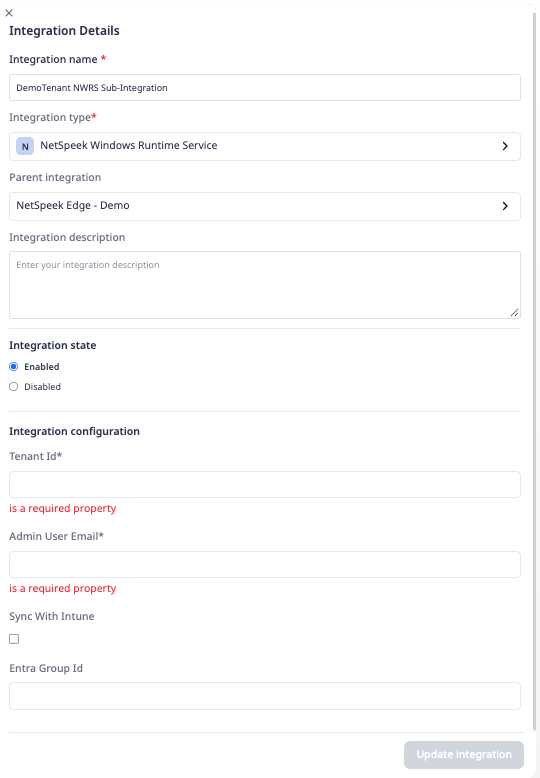
Note that the Tenant Id and Admin User Email parameters are required in all deployment paths.
If using the Sync with Intune deployment path, the Entra Group Id value is also required.
See the individual-PC guide, or the Intune guide, for Windows OS installation details regarding your specific deployment path.
Step 2. Add Device to NetSpeek Room Canvas
Device Provisioning Flow
- In the NetSpeek Console, navigate to Room Management
- Select the room you wish to add your NWRS-orchestrated Windows PC to
- Click Launch Room Canvas
- Click Add device to room
- For most use cases, choose Generic in the Manufacturer list, and Room Compute – Windows from the device model list.
- Note that some devices can be instrumented with both NWRS and another method. For example, Shure Intellimix devices can use the the method described in the device-specific guide as well as this NWRS method.
- Configure the appropriate values, and in the “Integrations” section, select the previously created NetSpeek Edge VM sub-integration from Step 1. Ensure that the Edge VM is on a network that can reach the Windows PC’s configured IP address. Configure the following:
- Device Name
- Serial Number
- IP Address or Hostname of the Windows PC

Verification
Once the relevant settings described above are configured, to validate the integration:
- Select a NWRS-orchestrated Windows OS device in the NetSpeek console, open the Device Actions Tab, and select an available device action. It is generally advisable to test by dispatching a non-intrusive command such as a Get Status.
- On the device, observe the selected action occurring.
Troubleshooting
Connection Issues
- Confirm the IP address on the NWRS-orchestrated device is correct and routable from the network segment where the NetSpeek Edge VM is deployed.
- Ensure port TCP 443 (or your configured listening port) is not blocked by firewall rules on the Windows PC where your NWRS instance is installed.
- NetSpeek Windows Runtime Service Firewall Configuration Guide may also be helpful.
Support
If you run into any issues during onboarding or have questions, contact NetSpeek Support at support@netspeek.com.