
QSC / Q-SYS Integration Guide
This document serves as a comprehensive guide that outlines the steps required to integrate Q-SYS devices (manufactured by QSC) with the NetSpeek platform.
Prerequisites
Before beginning the integration, confirm the following:
- Your Q-SYS device is powered on and connected to a network that is routable to/from your NetSpeek Edge VM.
- You have deployed a NetSpeek Edge VM as described here: https://docs.netspeek.ai/netspeek-edge-installation-guide/
- Note: This integration requires an Edge VM running software version
1.6.0or later.
- Note: This integration requires an Edge VM running software version
- A functioning Q-SYS Designer Design Program must be loaded onto your QSC device
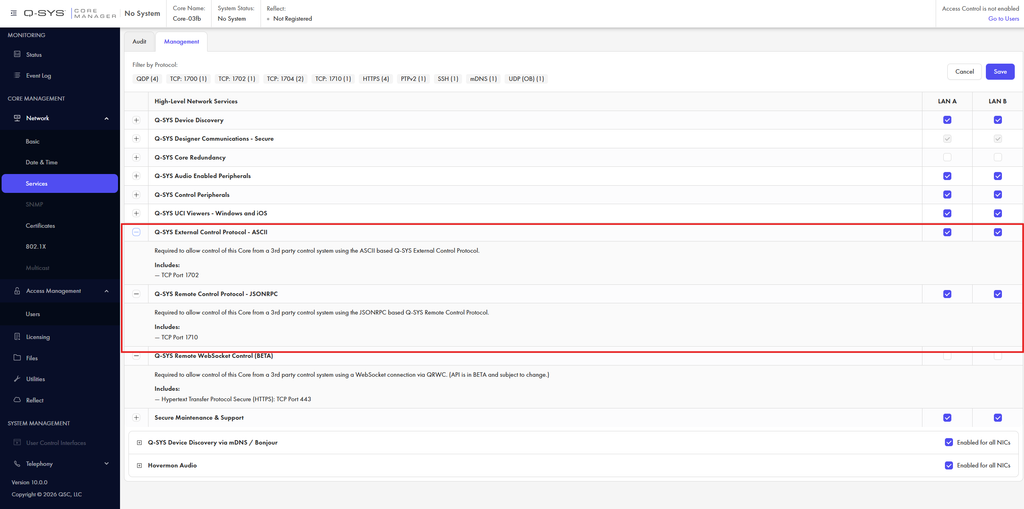
- Make sure both External Control Protocol & Remote Control Protocol are enabled on your Q-SYS Core Processor’s Settings, which can be found in its Web User Interface as shown below.
Step 1. Add Device to NetSpeek Room Canvas
Device Provisioning Flow
- In the NetSpeek Console, navigate to Room Management
- Select the room you wish to add your QSC Device to
- Click Launch Room Canvas
- Click Add device to room
- Choose your desired device from the manufacturer → device model list.
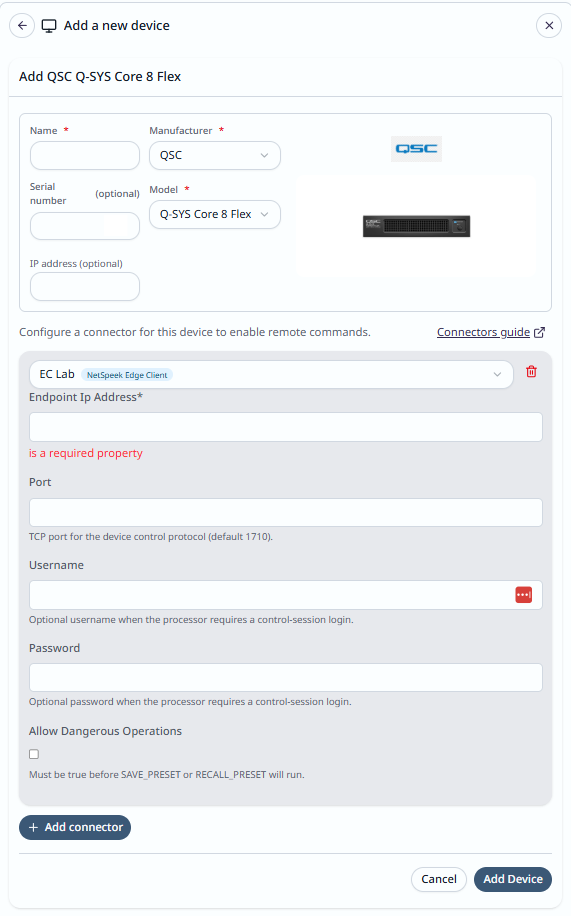
- Configure the appropriate values, and in the “Integrations” section, select a previously created NetSpeek Edge VM integration. Ensure that the Edge VM is on a network that can reach the device’s configured IP address.
- In the configuration panel, enter the following fields:
- Device IP Address (static/reserved IP, or DHCP)
- Port (default is TCP 1710)
- Username / Password — optional; required only when QRC Logon is enforced
- Allow Dangerous Operations — Enable only if operators will use Save Preset / Recall Preset (these change DSP state and carry related risk)
Verification
Once the relevant settings described above are configured, to validate the integration:
- Select a QSC device in the NetSpeek console, open the Device Actions Tab, and select an available device action. It is generally advisable to test by dispatching a non-intrusive command such as a
Get Status. - On the device, observe the selected action occurring.
- Successful
Get Statusshould report processor state such as Active and the running design name.
Troubleshooting
Connection Issues
- Confirm the IP address is correct and routable from the network segment where the NetSpeek Edge VM is deployed.
- Ensure the port used is not blocked by firewall rules on the machine running your NetSpeek Edge VM.
- Confirm that the Q-SYS design is Active (not Idle).
- If actions time out, verify no intermediate equipment is stripping or buffering null-terminated QRC frames, and that optional credentials are correct when Logon is required.
- For Save Preset / Recall Preset failures doublecheck that AllowDangerousOperations is enabled in the device settings.
- Component or snapshot “not found” errors usually mean the commands are not using matching design Code Names; verify names in Q-SYS Designer.
Support
If you run into any issues during onboarding or have questions, contact NetSpeek Support at support@netspeek.com.