
Samsung Multiple Display Control (MDC) Integration Guide
This document serves as a comprehensive guide that outlines the steps required to integrate most Samsung commercial (meaning non-consumer) displays with the NetSpeek platform using Samsung’s MDC (Multiple Display Control) protocol over TCP/IP.
Prerequisites
Before beginning the integration, confirm the following:
- Your Samsung display is powered on and connected to a network that is routable to/from your NetSpeek Edge.
- You have deployed a NetSpeek Edge VM as described here: https://docs.netspeek.ai/netspeek-edge-installation-guide/
- Note: This integration requires an Edge VM running software version
Beta5or later. - The
Advanced power status verificationreleased in platform version 1.12 requires Edge VM software version1.4.0or later.
- Note: This integration requires an Edge VM running software version
- Samsung display(s) that support MDC (“Multiple Display Control”) are deployed in your environment.
- You have administrative access to each display’s settings.
Note
- The MDC protocol works over RS-232 or RJ45 (TCP/IP). This guide covers TCP/IP exclusively.
Extended Prerequisites: Enable remote control on the display
- On each display, enable the requisite Remote Management / MDC features to allow external control (the names of these features may vary somewhat by device type).
- Assign a Device ID. These must be in the numerical range from 0–253; for reasons explained below, NetSpeek suggests configuring all Device ID values to be
0.- Specific onscreen UI navigation may vary by model; look under Advanced Settings → Remote Management or similar. The MDC ID range and configuration requirements come from the protocol specification.
- Assign a Device ID. These must be in the numerical range from 0–253; for reasons explained below, NetSpeek suggests configuring all Device ID values to be
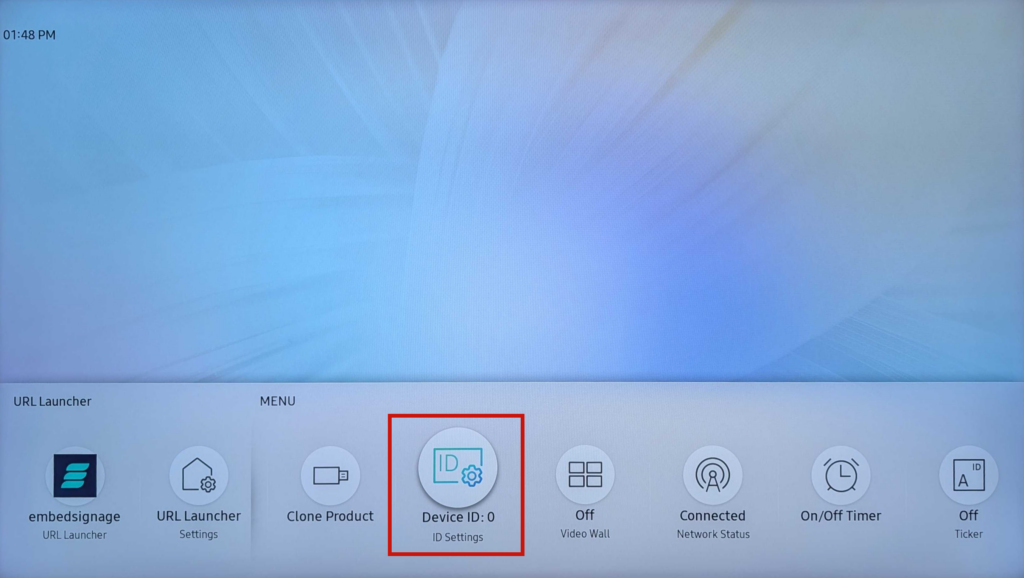
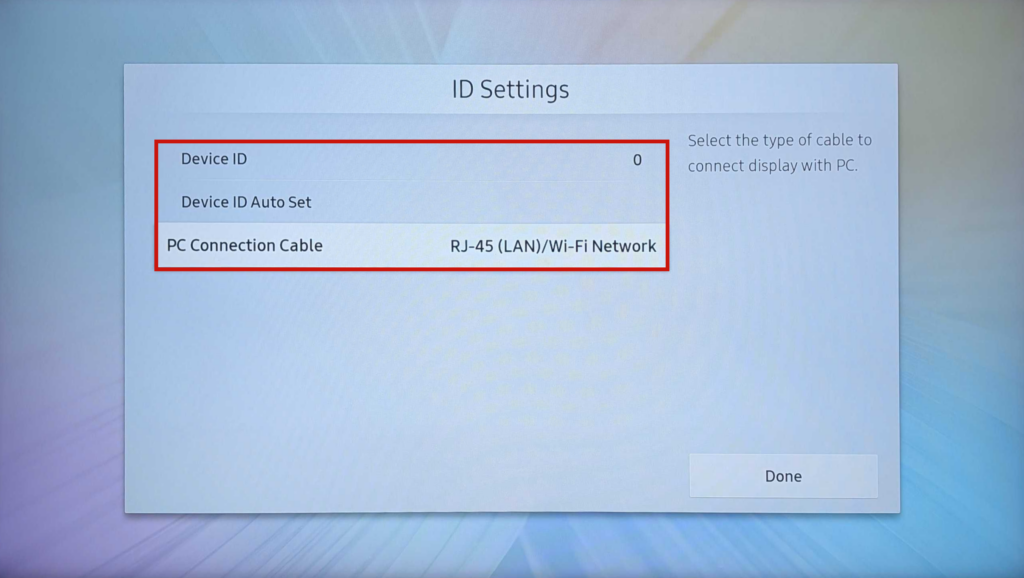
0Note
Where the Device ID comes from, and why it matters
The MDC protocol was designed originally for RS-232 (prior to modern IP networks) and allowed for physically connecting / daisy-chaining a large number of displays together, with no natural differentiator for what display in the chain is being sent any given command. Essentially the protocol was for a “party-line” type system, and the 0-253 ID numbers are for identifying which display in the string-of-devices each command is destined for.
When the protocol was extended from RS-232 to TCP/IP, the Device ID concept remained. While these 0-253 identifiers may not be familiar to some administrators, they are necessary (in addition to the device’s IP address) for control commands because of the development history of the MDC protocol. Since each display will have a unique IP address on a modern network, if not using RS-232 there is no necessity for unique Device ID values and thus NetSpeek recommends for simplicity configuring all Device IDs to 0.
For some additional detail on the MDC protocol if interested, see this explanatory video from Samsung.
Step 1. Add Device to NetSpeek Room Canvas
Device Provisioning Flow
- In the NetSpeek Console, navigate to Room Management
- Select the room you wish to add your Samsung device to
- Click Launch Room Canvas
- Click Add device to room
- Choose your desired device from the manufacturer → device model list.
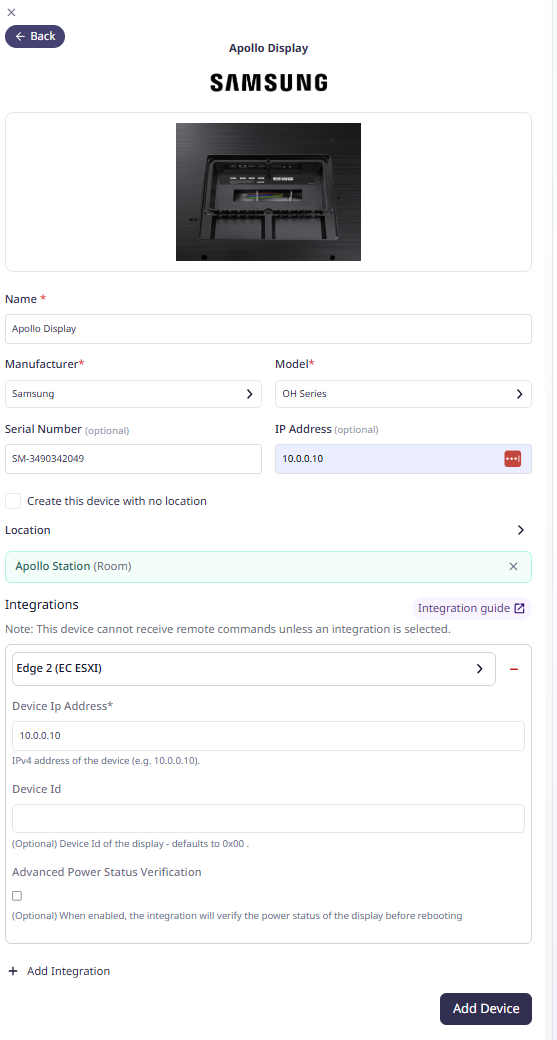
- Configure the appropriate values, and in the “Integrations” section, select a previously created NetSpeek Edge VM integration. Ensure that the Edge VM is on a network that can reach the device’s configured IP address.
- In the configuration panel, enter the following values:
- Device IP Address (static/reserved IP, or DHCP)
- Device ID (optional) – enter a specific MDC Device ID only if your environment has configured a value other than
0in your display’s settings. As described in the screenshot below, NetSpeek will by default send MDC commands to the display’s IP address with Device ID of0x00which corresponds to an on-screen setup configuration of simply the number0. - Advanced power status verification – Enable to avoid room disruptions as described in the addendum at the bottom of this guide.
Verification
Once the relevant settings described above are configured, to validate the integration:
- Select a Samsung device in the NetSpeek console, open the Device Actions Tab, and select an available device action. It is generally advisable to test by dispatching a non-intrusive command such as a
Get Status. - On the device, observe the selected action occurring.
Addendum – Reboots and Advanced power status verification
In platform version 1.12 (and corresponding Edge VM version 1.4.0) NetSpeek added the ability to issue reboot commands, and optionally to make them power-state-aware and withhold reboots in some circumstances.
With the Advanced power status verification feature enabled, Lena will not issue a reboot (power cycle) command in the two situations below (she reports the reason to the user).
| Situation | Why the reboot is withheld |
|---|---|
| The display is asleep | The device is powered on and responding to network traffic, even though the display is asleep/blank.A power cycle of the display will not resolve a separate problem (eg an input source that stopped sending video) and rebooting the display could be disruptive to the room without resolving an underlying problem with a separate device. |
| Network Standby is disabled in the display’s settings | When enabled in Samsung’s settings, the display disconnects from the network the moment it powers down, so the second half (power-on) of Lena’s power-off/power-on cycle would have no path to the display. The display would stay off until a physical dispatch to the room powered it on again. |
- A display that does not report its Network Standby setting is allowed to reboot.
- Samsung
Advanced power status verificationcan prevent a power cycle, and does not add a power command of its own. With the configuration off, a reboot command carries out the power cycle without reading the display’s power state first. - Samsung power state detection enhancements were released in platform version 1.10 and are unchanged here – power status verification builds on top of that foundation. See the platform version 1.12 release notes for further details.
- Issuing the “reboot” command technically turns the display off, waits a few seconds, and turns it back on. A successful reboot of a Samsung display takes about fifteen seconds to register as complete, because the display must reconnect to the network before reporting its status again.
Troubleshooting
Connection Issues
- Confirm the IP address is correct and routable from the network segment where the NetSpeek Edge VM is deployed.
- Ensure the port used is not blocked by firewall rules on the machine running your NetSpeek Edge VM.
- Ensure that the MDC Device ID is set to
0, or if not, that the NetSpeek configuration for the display’s Device ID matches the display’s actual configuration.
Support
If you run into any issues during onboarding or have questions, contact NetSpeek Support at support@netspeek.com.