
Single Sign On (SSO) Implementation Guide
Last updated: October 22, 2026
This guide describes how to connect a NetSpeek tenant to an identity provider so users can sign in with their work email address.
Enabling SSO sends portal sign-in to your company’s identity provider (Microsoft Entra ID, Okta, Google Workspace, or generic SAML). After you authenticate with that service, access to the NetSpeek portal is granted. SSO is per tenant.
Built on a SAML foundation, the feature supports a plethora of SAML-compatible identity provider integrations such as Microsoft Entra ID, Okta, Google Workspace, generic SAML, and many more.
Prerequisites
Before proceeding, note the below and ensure the relevant resources and personnel are available:
- A user with SSO management permission must configure SSO. The Owner role includes this permission. If you do not see SSO in Tenant Management, your role cannot configure it.
- NetSpeek does not permit logins for all users within an SSO-integrated domain. To login to NetSpeek, the user’s email address must already be invited into that tenant, and the email the identity provider sends must match the invited email exactly.
- See Onboarding Guide for details about inviting and managing users.
- Ensure you are signed into the tenant or sub-tenant where SSO is to be configured. An SSO integration is tenant-specific and is not inherited by sub-tenants.
- An administrator responsible for the identity provider (such as Entra, Okta, Google Workspace, or your SAML provider) is available. They must establish the connection in the setup workflow.
- A recovery account is defined, which continues to use a password and not SSO. This account must be an Owner and can still sign in with that password if the identity provider is unavailable.
- In some organizations, it may be desirable to create a new user account (such as
NetSpeekSSORecovery@yourdomain.org) for this purpose, so that all tenant users can login via SSO for daily activities.
- In some organizations, it may be desirable to create a new user account (such as
Invites come from donotreply@netspeek.com as described in the onboarding guide. Ensure your email system allows that address.
Step 1: Designate the recovery account
The recovery account is one user in your tenant who can still sign in with a NetSpeek password after SSO is enabled. Choose them in advance; Enable SSO cannot be configured until that user is defined.
They must:
- Be an active user in this tenant, with a NetSpeek password.
- Not be an SSO-managed user, and not already be linked to an identity-provider sign-in.
- Hold the Owner role directly on this tenant. An inherited Owner via tenant hierarchy does not qualify.
Until a recovery account is designated, password login stays on and the setup interface says: “Designate the recovery principal, with a local password and Sso:Recover, before requiring identity-provider login.”
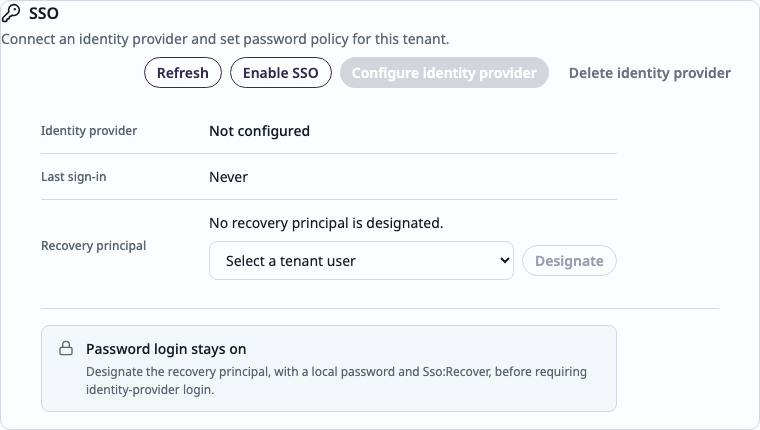
Note
Sso:Recover is the recovery permission that is assigned to the Owner role. See details on https://docs.netspeek.ai/onboarding-and-platform-usage/role-based-access-control-rbac-implementation-guide/
On the SSO page, choose the recovery account user and select Designate. Once submitted, the status reads Recovery principal designated: and their email.
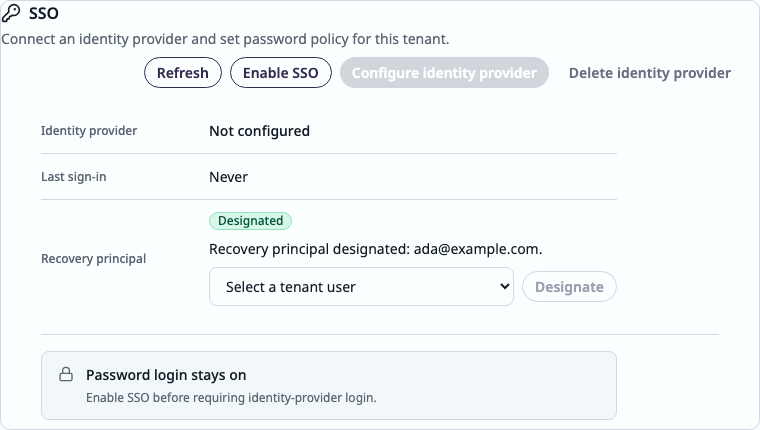
While SSO is enabled, that designation stays in place. You cannot replace the recovery principal, change their email, deactivate them, or delete them until SSO is turned off.
Step 2: Configure SSO
- Navigate to SSO configuration in the tenant
- Sign in to the portal, open Tenant Management, and confirm via the tenant selector you are configuring the desired tenant. Click the SSO tab.
- Enable SSO
- After the recovery principal is designated as described in Step 1 above, select Enable SSO. When completed, the Configure identity provider tab becomes available. Password login to the tenant remains functional until the identity provider is active and the first user has signed in through it.
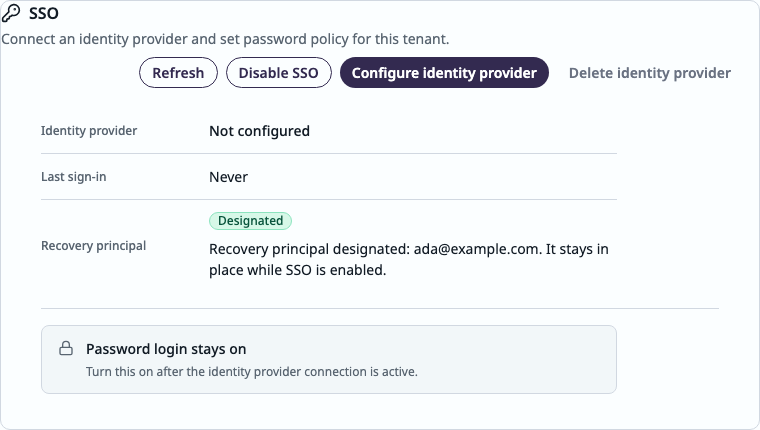
- Configure the identity provider
- Select Configure identity provider. A one-time setup portal opens in a new tab.
- Choose your provider and follow the relevant guide presented via the on-screen guidance.
- Copy the ACS URL, Entity ID, and attribute mapping from the setup portal into Entra, Okta, Google, or your SAML app.
- The identity provider must send the user’s email.
- Ensure you are using the correct provider – for example, do not use a test or sandbox identity provider in production.
- Close the setup tab, return to Tenant Management, and Refresh the browser tab.
- Identity provider shows your connection name and Active. Last sign-in displays Never until the first user signs in through SSO.
Each click of Configure identity provider issues a new one-time link. Do not forward it. If the connection stays Not configured, finish the identity provider setup steps and Refresh the NetSpeek Tenant Management page again.
To remove a connection, select Delete identity provider and type I understand to confirm the deletion.
4. Verify SSO Connectivity
- Sign out of NetSpeek.
- On the login page, enter the email address of a tenant User (not the recovery account). Select Continue.
- NetSpeek sends you to your identity provider. The login page shows Redirecting to your identity provider…
- Sign in at the identity provider. Afterward, the browser will return to the NetSpeek portal.
- On the SSO tab, Last sign-in shows that time, and Disable password login configuration become available.
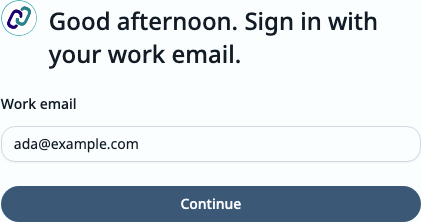

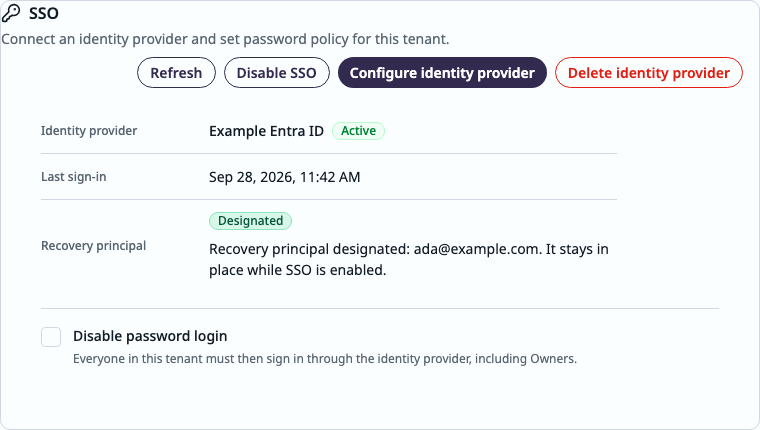
Note
Enabling SSO will immediately send every user except the recovery account to the identity provider. The portal does not offer those users a password step while SSO remains enabled, even when the password-login setting remains on. Finish the identity-provider connection promptly. Until it works, only the recovery account can sign in through the portal.
Step 3: Turn off password login
Note
After completing the configurations described above, the portal already sends every non-recovery user to the identity provider after SSO is enabled. Disable password login additionally rejects local-password authentication for existing unlinked password users. The recovery account remains the exception and can still use its NetSpeek password.
Leave the box unchecked until all of these are true:
- The recovery principal is designated.
- SSO is enabled.
- The identity provider is Active.
- Last sign-in is not Never.
Until then the configuration parameter is displayed as Password login stays on, is not configurable, and describes the reason it is locked. Typical reasons:
- “Enable SSO before requiring identity-provider login.”
- “Turn this on after the identity provider connection is active.”
- “Turn this on after someone has signed in once.”
When the checkbox is available:
- Check Disable password login. The helper text says that everyone in this tenant must then sign in through the identity provider, including Owners.
- Signing out of Entra, Okta, or Google does not sign you out of NetSpeek. Use Log out in the portal.
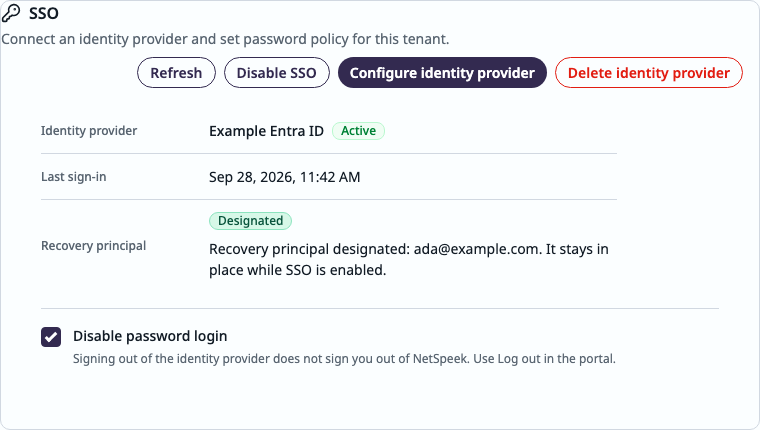
Unchecking Disable password login changes the tenant’s password policy, but the portal still sends every non-recovery user to the identity provider while SSO remains enabled. Selecting Disable SSO returns the portal to the password step. Only users who still have a local password and have not become SSO-managed can sign in there.
Addendum: Sign in flow with SSO
- Open the NetSpeek login page.
- Enter your work email and select Continue.
- Complete sign-in at your identity provider.
- After identity provider authentication, your browser is redirected to the NetSpeek portal with your usual permissions.
Note
Start from the NetSpeek login page. Signing in from an identity-provider app tile is not supported.
While SSO is enabled, the portal sends every non-recovery user in the tenant to the identity provider. When SSO is disabled, the portal displays the password entry step after an email address is entered. An SSO-managed user remains ineligible for a NetSpeek password or password reset, so that user cannot sign in while SSO is disabled.
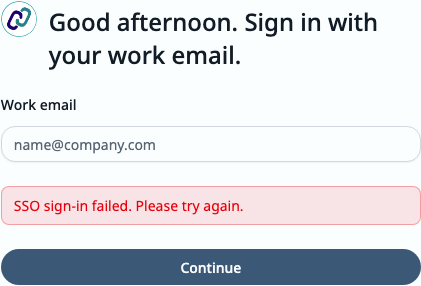
A failed return from the identity provider shows SSO sign-in failed. Please try again. Check that the email matches an invited, active user, then start again from the NetSpeek login page.
Addendum: Invitations and user changes
Invite people as described in Onboarding Guide, then assign a role as described in RBAC. A user who exists only in the identity provider but has not been invited to NetSpeek cannot sign in.
When the invitation uses SSO:
- The email sent to the invited user includes a is Sign in to NetSpeek button and says “Sign in with your company identity provider. You will not set a NetSpeek password.”
- The link does not expire.
When the invitation is a local (non-SSO) account, the invitee gets a one-time link to set a NetSpeek password. That link expires as described in the Onboarding Guide. An SSO-managed user cannot be sent a local activation link.
On Tenant Users:
- An inactive SSO-managed user has Resend SSO Invitation, not a one-time password link.
- An active user who has no NetSpeek password does not have Reset Password. You can deactivate them.
- Deactivate a user before you delete them. Deleting destroys the record of that user account. Inviting the same email later creates a new user.
- While SSO is enabled, the recovery account user cannot be deactivated, deleted, or given a different email.
Turning SSO off does not make an SSO-managed user eligible for a local password or a password reset. If SSO is disabled, that user cannot sign in until SSO is enabled again. NetSpeek does not currently convert an SSO-managed user back to local-password authentication.
Addendum: Using SSO with multi-tenant hierarchy
Sign in with SSO to your home tenant, then use the tenant selector to switch into a child tenant. A child tenant that requires SSO for its own users does not block a parent-tenant user who already signed in via their home tenant.
Configure SSO for a child tenant only after you have navigated into that child tenant with the tenant selector.
Addendum: What SSO does not do
| Topic | Behavior |
|---|---|
| Creating new accounts | No NetSpeek accounts are created when connecting to the identity provider. Invite the user in NetSpeek to provide access to the NetSpeek portal. |
| Directory sync | Users and groups in the identity provider are not synced. Deactivate and delete users in NetSpeek. |
| Import roles from the identity provider | Identity-provider groups do not map to NetSpeek roles. Assign roles in Tenant Users direct within NetSpeek. |
| Email domain routing | The email domain does not affect which tenant the user logs into. Login looks up the invited user, then that user’s home tenant. |
| Sign-in from the identity provider’s portal | Start from the NetSpeek login page. |
| NetSpeek-provided MFA | Use the MFA features of your identity provider. |
| Sign-out from the identity provider | The identity provider cannot end the NetSpeek session. Use Log out in the portal. |
| Edge VM local web UI login | Not connected to SSO – see Edge Installation Guide for details. |
| API keys | Unchanged. SSO is for interactive portal login. |
Addendum: Limitations
- One identity-provider connection is permitted per tenant. A parent and a child each opt in and are configured separately.
- The Identity Provider adminstrator configures a connection to the tenant you are signed into. The setup link is single-use.
- Disable password login stays locked until the recovery principal is designated, SSO is enabled, the connection is Active, and someone has signed in once.
- SSO-managed users do not have a NetSpeek password when you turn SSO off. They must use the password reset workflow to establish a NetSpeek password.
- NetSpeek does not currently convert an SSO-managed user back to local-password authentication.
- The recovery account user cannot be replaced while SSO is enabled.
Addendum: Troubleshooting
| What you see | What to check |
|---|---|
| No SSO configuration in Tenant Management | Your role cannot configure SSO, or you are not in Tenant Management for this tenant. |
| Asked to switch into the tenant | You are browsing a tenant you are not signed into. Switch, then configure. |
| Enable SSO reports that a recovery principal is required | Designate an active Owner of this tenant who has a NetSpeek password and has not signed in with SSO. |
| Configure identity provider does nothing | SSO is not enabled yet. |
| Identity provider: Not configured | Finish the setup portal, then Refresh. |
| Password login stays on | Read the notice. SSO, an active connection, a successful sign-in, or the recovery principal is still missing. This setting does not add a password option to the portal while SSO remains enabled. |
| Continue opens a password field | SSO is off, or the email belongs to the designated recovery account. |
| “Use your company identity provider to sign in.” | Password login is disabled for your home tenant. |
| “SSO sign-in failed. Please try again.” | The connection may be incomplete or unavailable, the attempt may have expired, the email may not match an invited active user, or the identity provider may not have returned that email. Start again from the NetSpeek login page. |
| Invitee is told not to set a password | That home tenant invites people through SSO. They use Sign in to NetSpeek. |
| Cannot reset a password | The user is SSO-managed, or they have no NetSpeek password. Deactivate them, or use Resend SSO Invitation if they are inactive. |
| SSO is disabled and an SSO-managed user cannot sign in | Enable SSO again. NetSpeek does not currently convert that user to local-password authentication. |
| Cannot manage the recovery account/user | SSO is still enabled. Turn SSO off before you replace, deactivate, or delete that user. |
| Identity provider is down and passwords are off | The recovery principal can sign in with a password. Other users continue to be sent to the identity provider while SSO remains enabled. Selecting Disable SSO returns eligible password users to the password step. |
Support
If you run into any issues during setup or have questions, contact NetSpeek Support at support@netspeek.com.