
Poly VideoOS Integration Guide
This document serves as a comprehensive guide that outlines the steps required to integrate HP | Poly VideoOS devices with the NetSpeek platform.
Note
There are two paths for integrating HP | Poly devices with NetSpeek – the Poly Lens integration, and the VideoOS integration at a device’s local IP address described in this guide. Some organizations may want to use one method or the other, while some may want to orchestrate HP | Poly devices in their environment with both methods in parallel. Contact your NetSpeek representative to discuss this decision in more detail.
Prerequisites
Before beginning the integration, confirm the following:
- Your HP | Poly devices are powered on and connected to a network that is routable to/from your NetSpeek Edge.
- You have deployed a NetSpeek Edge VM as described here: https://docs.netspeek.ai/netspeek-edge-installation-guide/
- Note: This integration requires an Edge running software version
1.1.1or later.
- Note: This integration requires an Edge running software version
Supported device families (VideoOS)
- Poly Studio X30, X50, X70
- Poly Studio X32, X52, X72
- Poly G7500 and Studio G62
Step 1. Ensure Poly VideoOS Device Configuration Readiness
The NetSpeek Edge VM will use the Poly REST API to communicate over HTTP/HTTPS.
Follow standard installation procedures for Poly VideoOS endpoints including OOB (Out of Box) setup, provisioning, and configuration according to your organization’s preferences. It is generally considered a best practice to to change the device’s admin password from Poly’s documented default.
Step 2. Add Device to NetSpeek Room Canvas
Device Provisioning Flow
- In the NetSpeek Console, navigate to Room Management
- Select the room you wish to add your HP | Poly Device to
- Click Launch Room Canvas
- Click Add device to room
- Choose your desired device from the manufacturer → device model list.
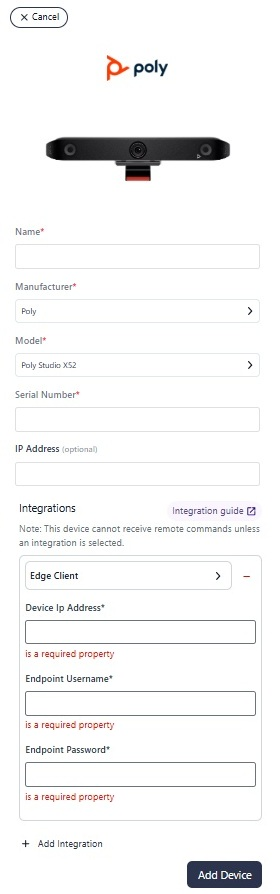
- Configure the appropriate values, and in the “Integrations” section, select a previously created NetSpeek Edge VM integration. Ensure that the Edge VM is on a network that can reach the device’s configured IP address.
- In the configuration panel, enter the following fields:
- Device IP Address (static/reserved IP, or DHCP)
- Serial Number
- Endpoint Username – Device admin username (e.g. “admin”)
- Endpoint Password – Password for the username above
Verification
Once the relevant settings described above are configured, to validate the integration:
- Select a Poly device in the NetSpeek console, open the Device Actions Tab, and select an available device action. It is generally advisable to test by dispatching a non-intrusive command such as a
Get Status. - On the device, observe the selected action occurring.
Troubleshooting
Connection Issues
- Confirm the IP address is correct and routable from the network segment where the NetSpeek Edge VM is deployed.
- Ensure the port used is not blocked by firewall rules on the machine running your NetSpeek Edge.
Support
If you run into any issues during onboarding or have questions, contact NetSpeek Support at support@netspeek.com.