
Biamp Tesira Integration Guide
This document serves as a comprehensive guide that outlines the steps required to integrate Biamp Tesira DSP audio systems with the NetSpeek platform.
Prerequisites
Before beginning the integration, confirm the following:
- Your Biamp Tesira DSP (SERVER, SERVER-IO, or Forte series) is powered on and connected to a network that is routable to/from your NetSpeek Edge.
- You have deployed a NetSpeek Edge VM as described here: https://docs.netspeek.ai/netspeek-edge-installation-guide/
- Note: This integration requires an Edge running software version
1.3.2or later.
- Note: This integration requires an Edge running software version
- Tesira Text Protocol (TTP) v4.2 control is enabled on the device. Supported transport protocols are SSH (recommended for production) and Telnet. Default TCP ports: 22 (SSH), 23 (Telnet).
- For SSH, you have a valid username and password for the Tesira device. For Telnet connections, set
AllowInsecureTransporttotruein the device configuration (SSH is recommended for production).
Step 1. Add Device to NetSpeek Room Canvas
Device Provisioning Flow
- In the NetSpeek Console, navigate to Room Management
- Select the room you wish to add your Biamp device to
- Click Launch Room Canvas
- Click Add device to room
- Choose your desired device from the manufacturer → device model list.
- See supported models of Biamp devices from the relevant section of NetSpeek Supported Devices and Controls.
- Configure the appropriate values, and in the “Integrations” section, select a previously created NetSpeek Edge VM integration. Ensure that the Edge VM is on a network that can reach the device’s configured IP address on the relevant control port (22 for SSH, 23 for Telnet).
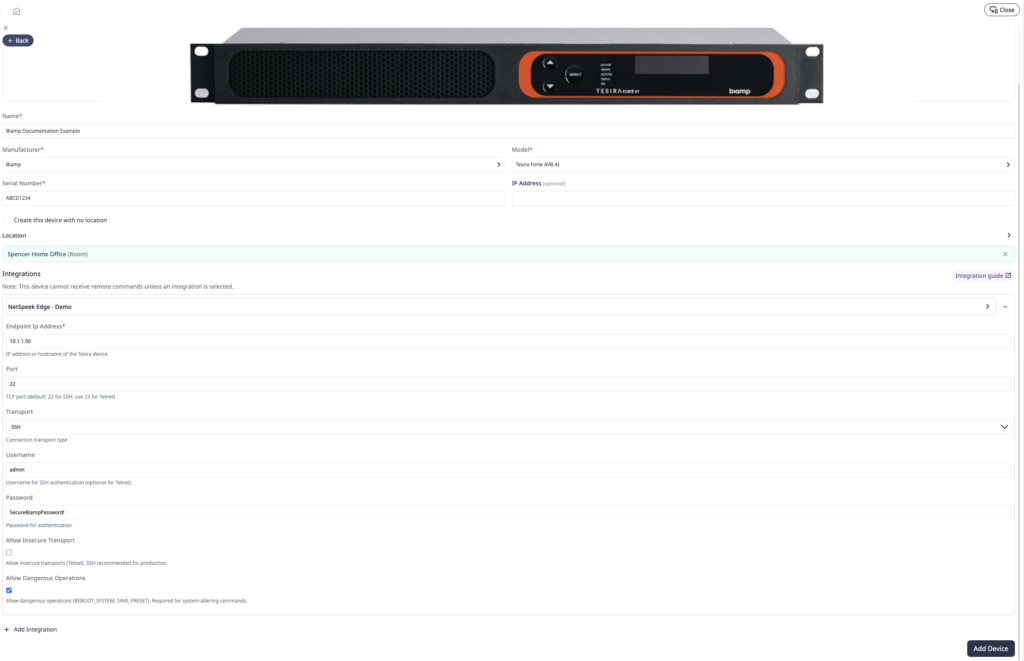
- In the configuration panel, enter the following fields:
- Endpoint IP Address (required) — IP address or hostname of the Tesira device
- Transport (optional) —
SSH(recommended) orTelnet(default isTelnet; SSH is advised in production) - Port (optional) — TCP port; default 22 for SSH, use 23 for Telnet
- Username / Password — required for SSH; Password may also apply for Telnet authentication
- AllowInsecureTransport — set
trueonly when using Telnet - AllowDangerousOperations — set
trueonly when you need Reboot System or Save Preset
Verification
Once the relevant settings described above are configured, to validate the integration:
- Select a Biamp Tesira device in the NetSpeek console, open the Device Actions Tab, and select an available device action. It is generally advisable to test by dispatching a non-intrusive command such as a
Get StatusorSystem Ping. - On the device, observe the selected action occurring.
Troubleshooting
Connection Issues
- Confirm the IP address is correct and routable from the network segment where the NetSpeek Edge VM is deployed.
- Ensure the port used is not blocked by firewall rules on the machine running your NetSpeek Edge VM.
Destructive Actions Rejected
- Reboot System and Save Preset require
AllowDangerousOperations: truein the device target configuration. Leave this setting configured tofalseunless those actions are intentionally enabled.
Block/Attribute Actions Rejected
- Many control actions require valid Tesira instance tags (aliases) from the loaded DSP configuration. Use Get Block List / Get Aliases to discover tags before issuing Get Block Value, Set Level, Mute, routing, or mixer actions.
Support
If you run into any issues during onboarding or have questions, contact NetSpeek Support at support@netspeek.com.