
LG webOS Integration Guide
This document serves as a comprehensive guide that outlines the steps required to integrate LG webOS displays with the NetSpeek platform.
Note
In NetSpeek platform version 1.9, the integration method for LG WebOS devices was changed due to modifications of connectivity to these devices made by LG. There is no change to supported devices or commands, and in most environments there should be no changes needed to continue using the integration. In some environments, network ports permitted for traffic between the Edge VM and LG displays may need to be modified to meet the current requirements described here.
Prerequisites
- Your LG webOS display is powered on and connected to a network that is routable to/from your NetSpeek Edge.
- You have deployed a NetSpeek Edge VM as described here: https://docs.netspeek.ai/netspeek-edge-installation-guide/
- Note: This integration requires an Edge running software version
1.3.2or later.
- Note: This integration requires an Edge running software version
- Your LG Display is running webOS 3.5 or later (prior versions do not support Wake-on-LAN). This generally describes 2017 LG device models and newer.
- To verify your display software is up to date, while the display is internet-connected: Go to Settings > All Settings > Support > Software Update → check for updates.
- On enterprise / VLAN networks, Wake-on-LAN often requires the receiving device to be on the same subnet as the system sending the Wake-on-LAN packet. In this case the NetSpeek Edge VM is sending the packet, and the receiving device (being woken up) is the LG display.
- If crossing Layer 3 boundaries, ensure your IT team configures directed broadcasts for Wake-on-LAN.
Note
LG displays running Android do not include WebOS and are not compatible with WebOS features or this integration guide.
Extended Prerequisites: Enabling webOS Power Management Features
To confirm that webOS power management orchestration by NetSpeek is permitted:
- If necessary (such as during initial installation of the display) complete the display’s out-of-box Setup Wizard (language, location, time zone, network connection, and agreements).
- On your LG remote, press Settings.
- Navigate to Settings > General > Power.
- Enable Network Ready or Screen Off (configuration parameter’s name may vary by model)
Extended Prerequisites: Enabling Wake-on-LAN (WoL)
Wake-on-LAN allows the display to be powered on remotely over the network.
- On your LG remote, press Settings.
- Go to Settings > Network.
- Enable Wake-on-LAN.
- Confirm the TV is connected via Ethernet or Wi-Fi.
- (Optional) If you encounter delays when waking the device, try disabling Quick Start+ in Settings > General.
Step 1. Add Device to NetSpeek Room Canvas
Device Provisioning Flow
- In the NetSpeek Console, navigate to Room Management
- Select the room you wish to add your LG webOS device to
- Click Launch Room Canvas
- Click Add device to room
- Choose your desired device from the manufacturer → device model list.
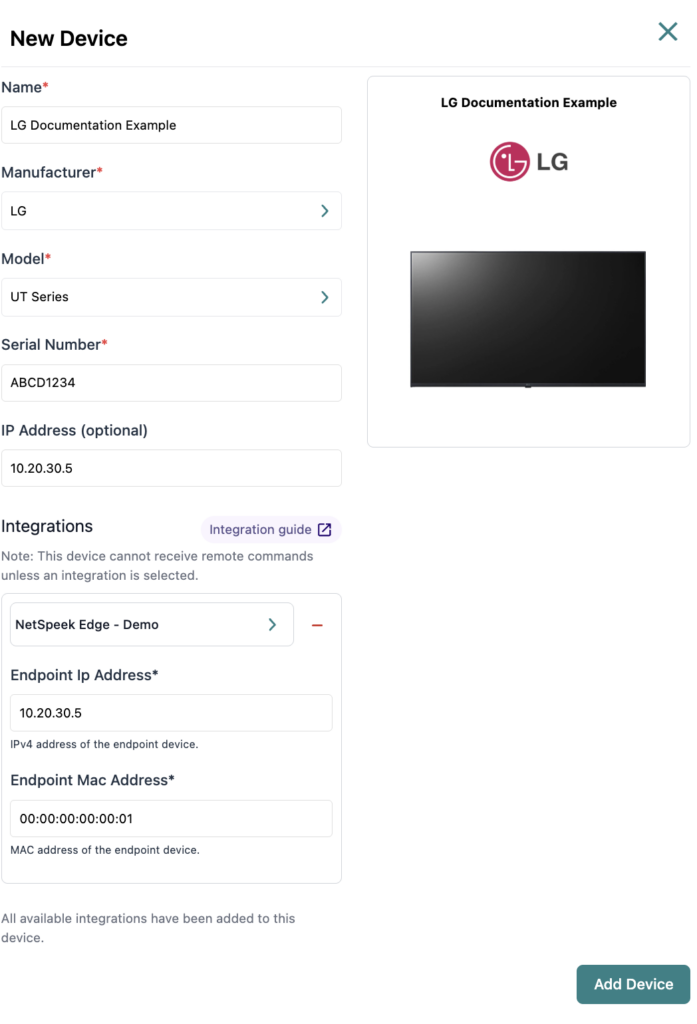
- Configure the appropriate values, and in the “Integrations” section, select a previously created NetSpeek Edge VM integration. Ensure that the Edge VM is on a network that can reach the device’s configured IP address.
- In the configuration panel, enter the following fields:
- Device IP Address (static/reserved IP, or DHCP)
- Device MAC Address (Media Access Control address – the physical identifier of the device on the network)
Note
Configuring the correct MAC address is required to ensure your LG device will accept and respond to commands from NetSpeek. For example, if your device is connected to an Ethernet network, and NetSpeek is configured to use the display’s WiFi MAC address, orchestration will not function.
Note
To locate the MAC address for your LG display, you can check one of the following locations:
- Display Network Menu:
On the LG display, navigate to Settings → Network → Network Configuration. The MAC address will be listed in the network details section. - Network Equipment:
Often network equipment such as switches, routers, or WiFi Access Points will have a method of reporting MAC addresses for devices connected to them. This may be part of a local web portal provided by the network device, a cloud management portal, command line tools, or other methods. Consult your network device’s documentation to determine if MAC addresses can be discovered.
Common Issues with Wake-On-LAN in WebOS
- Wake-on-LAN Issues
- If the display won’t wake:
- Verify Quick Start+ is disabled in Settings > General.
- Confirm you are using the correct MAC address
- Use the WiFI MAC is the TV is connected to the Wi-Fi network
- Use the Ethernet MAC if the TV is connected to the wired network
- Verify all network settings.
- Perform a hard reset: unplug the TV, hold the power button on the TV for 20 seconds, then plug it back in.
- If the display won’t wake:
Verification
Once the relevant settings described above are configured, to validate the integration:
- Select an LG webOS device in the NetSpeek console, open the Device Actions Tab, and select an available device action. It is generally advisable to test by dispatching a non-intrusive command such as a
Get Status. - On the device, observe the selected action occurring.
Troubleshooting
Connection Issues
- Confirm the IP address is correct and routable from the network segment where the NetSpeek Edge VM is deployed.
- Ensure the port used is not blocked by firewall rules on the machine running your NetSpeek Edge VM.
Addendum
Removed step – first-command approval on-screen with LG remote
- A prior version of the LG integration required the first command sent by the NetSpeek Edge VM to be approved in the display’s on-screen UI with the LG remote. As of NetSpeek platform version 1.9, this step is no longer required.
Support
If you run into any issues during onboarding or have questions, contact NetSpeek Support at support@netspeek.com.