
Sennheiser Integration Guide – Sound Control Protocol v1 (SSCv1)
This document serves as a comprehensive guide that outlines the steps required to integrate Sennheiser devices compatible with SSCv1 (Sennheiser Sound Control Protocol version 1) with the NetSpeek platform.
Prerequisites
Before beginning the integration, confirm the following:
- Your Sennheiser device is powered on and connected to the same network as your NetSpeek Edge VM.
- You have deployed a NetSpeek Edge VM as described here: https://docs.netspeek.ai/netspeek-edge-installation-guide/
- Note: This integration requires an Edge running software version
1.1or later.
- Note: This integration requires an Edge running software version
- Note that this integration guide is intended for Sennheiser devices compatible with the SSCv1 protocol, such as the network-enabled chargers and rack receivers described in Sennheiser’s documentation here: https://docs.cloud.sennheiser.com/en-us/api-docs/api-docs/sound-control-protocol-sscv1.html
- Some devices can use either the SSCv1 or SSCv2 protocol depending on their firmware version, whereas others use only v1 or v2 regardless of firmware. See the extended prerequisites below for details about supported devices and determining which integration method to use.
- This is the v1 page – for v2, see: https://docs.netspeek.ai/device-platform-integration-guides/sennheiser-integration-guide-sound-control-protocol-v2-sscv2/
- This guide assumes the Sennheiser equipment is deployed and operational, and ready for third-party control. Steps to achieve this, such as initial configuration via Sennheiser Control Cockpit, are addressed by Sennheiser and are outside the scope of this guide.
Note
Enabling 3rd Party / Secure API in Control Cockpit is not required for SSCv1. That step applies only to SSCv2. For OpenAPI/SSCv2 devices, see the SSCv2 integration guide.
Extended Prerequisites – Sennheiser Device Models Supported (SSCv1)
Wireless Receivers:
- EW-DX EM line (firmware versions prior to 4.0, or legacy API support)
Microphones:
- TeamConnect Ceiling 2
SL Receivers:
- SL Multi-Channel Receiver DW (SLDW4CH, SLDW, SL MCR 2 DW, SL MCR 4 DW)
- SL Rack Receiver DW
Chargers:
- CHG 70N-C
- CHG 2N
- CHG 4N
Extended Prerequisites – Choosing between SSCv1 and SSCv2
Use this SSCv1 guide when the device uses Sennheiser Sound Control Protocol v1, and connectivity is on UDP port 45. Some EW-DX models support either v1 or v2 integrations depending on installed firmware; attempting to configure a v1-based integration for a v2-compatible device, or vice versa, is a common setup problem. See the table and note below for further detail.
| Devices | Supports SSCv1 | Supports SSCv2 |
|---|---|---|
| TeamConnect Ceiling 2, SL DW receivers, CHG 2N / 4N / 70N | Yes (Network port UDP 45) | No |
| EW-DX EM line with firmware < 4.0 | Yes (Network port UDP 45) | No |
| EW-DX EM line with firmware > 4.0 | Yes (If legacy API is enabled) (Network port UDP 45) | Yes (If Secure API is enabled in Cockpit) (Network port TCP 443) |
| TCC M, TC Bar S, TC Bar M | No | Yes (If Secure API is enabled in Cockpit) (Network port TCP 443) |
Note
Only the EW-DX EM line introduces a firmware version dependency for which SSC version is used – all other products use either v1 or v2, regardless of installed firmware.
When adding an EW-DX EM line product to NetSpeek:
- Configure the use of port 45 and select the generic
EW-DX EMdevice type to use SSCv1 and that protocol’s APIs. - A device configured with a defined “third party access” username and password will use the SSCv2 protocol and API’s. Select the specific
EW-DX EM <xxx>device type (for example,EW-DX EM 2orEW-DX EM 4 Dante) and apply the configuration as guided by the NetSpeek interface.
Step 1. Add Device to NetSpeek Room Canvas
Device Provisioning Flow
- In the NetSpeek Console, navigate to Room Management
- Select the room you wish to add your Sennheiser device to
- Click Launch Room Canvas
- Click Add device to room
- Choose your desired Sennheiser SSCv1-compatible device from the manufacturer → device model list.
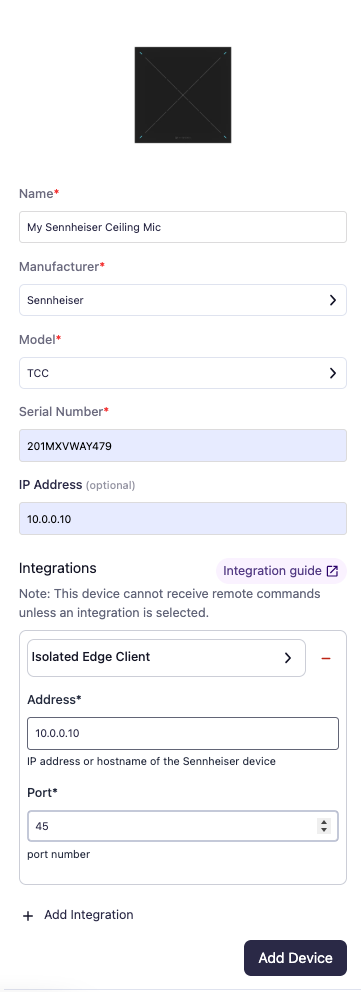
- Configure the appropriate values, and in the “Integrations” section, select a previously created NetSpeek Edge VM integration. Ensure that the Edge VM is on a network that can reach the device’s configured IP address.
- In the configuration panel, enter the following fields:
- Device IP Address (static/reserved IP, or DHCP)
- Device Port: 45
Verification
Once the relevant settings described above are configured, to validate the integration:
- Select a Sennheiser device in the NetSpeek console, open the Device Actions Tab, and select an available device action. It is generally advisable to test by dispatching a non-intrusive command such as a
Get Status. - On the device, observe the selected action occurring.
Troubleshooting
Connection Issues
- Confirm the IP address is correct and routable from the network segment where the NetSpeek Edge VM is deployed.
- Ensure the port used is not blocked by firewall rules on the machine running your NetSpeek Edge VM.
- If configuring an EW-DX EM 2 / 2 Dante / 4 Dante device, confirm the device is actually using SSCv1 (either legacy API enabled, or firmware 4.0 or earlier). SSCv2 devices use TCP 443 and the SSCv2 integration instead.
- Follow the model-specific setup documentation from Sennheiser for guidance when configuring the device’s connection and network settings.
Support
If you run into any issues during onboarding or have questions, contact NetSpeek Support at support@netspeek.com.