
Sennheiser Integration Guide – Sound Control Protocol v2 (SSCv2)
This document serves as a comprehensive guide that outlines the steps required to integrate Sennheiser devices compatible with SSCv2 (Sennheiser Sound Control Protocol version 2) with the NetSpeek platform.
Prerequisites
Before beginning the integration, confirm the following:
- Your Sennheiser device is powered on and connected to the same network as your NetSpeek Edge VM.
- You have deployed a NetSpeek Edge client as described here: https://docs.netspeek.ai/netspeek-edge-installation-guide/
- Note: This integration requires an Edge running software version
1.1or later.
- Note: This integration requires an Edge running software version
- Note that this integration guide is intended for Sennheiser devices compatible with the SSCv2 protocol, such as the Spectera, TeamConnect, and Evolution Wireless systems described in Sennheiser’s documentation here: https://docs.cloud.sennheiser.com/en-us/api-docs/api-docs/sound-control-protocol.html
- Some devices can use either the SSCv1 or SSCv2 protocol depending on their firmware version, whereas others use only v1 or v2 regardless of firmware. Consult Sennheiser documentation (such as the page linked above) for details.
- This is the v2 page – for v1, see: https://docs.netspeek.ai/device-platform-integration-guides/sennheiser-integration-guide-sound-control-protocol-v1-sscv1/
- This guide assumes the Sennheiser equipment is deployed and operational, and ready for third-party control. Steps to achieve this, such as initial configuration via Sennheiser Control Cockpit, are addressed by Sennheiser and are outside the scope of this guide.
Sennheiser Device Models Supported (SSCv2)
Wireless Receivers:
- EW-DX EM 2
- EW-DX EM 2 Dante
- EW-DX EM 4 Dante
Microphones:
- TCC M
UC Room Video Bars:
- TC Bar S
- TC Bar M
Step 1. Enable V2 API: 3rd Party API Access in Control Cockpit
- Navigate to the Cockpit’s ‘Devices’ Tab. Select the ‘Access’ tab in the ‘Properties’ panel.
- Locate the ‘3rd Party Access’ panel:
- To enable V2 API controls:
- CLICK – ‘Edit’ Button
- SET – Secure API : Enabled
- Username: api (cannot change)
- ENTER – Password: <your-strong-password>
- CLICK – ‘OK’ button to complete the configuration.
- To enable V2 API controls:
Step 2. Add Device to NetSpeek Room Canvas
Device Provisioning Flow
- In the NetSpeek Console, navigate to Room Management
- Select the room you wish to add your Sennheiser Device to
- Click Launch Room Canvas
- Click Add device to room
- Choose your Sennheiser SSCv2-compatible device from the device model list.
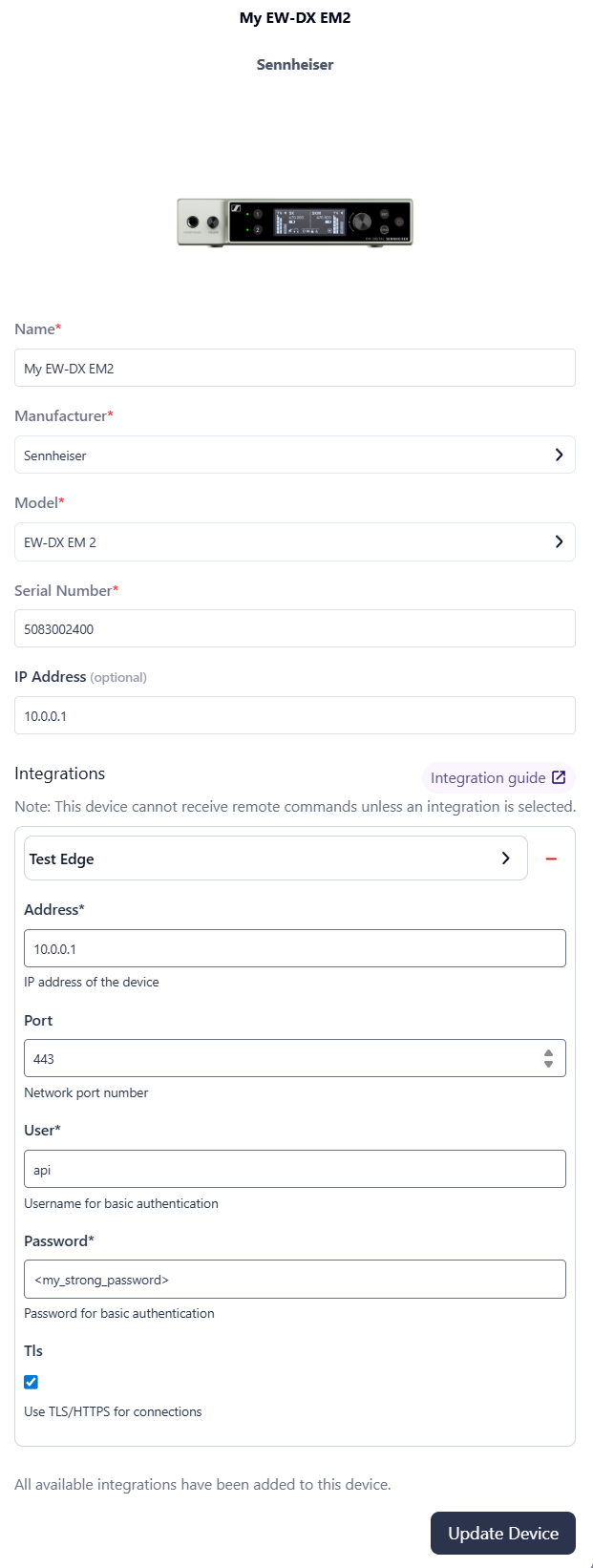
- Configure the appropriate values, and in the “Integrations” section, select a previously created NetSpeek Edge VM integration. Ensure that the Edge VM is on a network that can reach the device’s configured IP address.
- In the configuration panel, enter the following fields:
- Device IP Address (static/reserved IP, or DHCP)
- Device Port: 443
- Device Username
- Device Password
- TLS/HTTPS Enabled (Optional)
Verification
Once the relevant settings described above are configured, to validate the integration:
- Select a Sennheiser device in the NetSpeek console, open the Device Actions Tab, and select an available device action. It is generally advisable to test by dispatching a non-intrusive command such as a
Get Status. - On the device, observe the selected action occurring.
Troubleshooting
Connection Issues
- Confirm the IP address is correct and reachable from the NetSpeek network.
- Ensure the port used is not blocked by firewall rules on the machine running your NetSpeek Edge VM.
- Follow the model-specific setup documentation from Sennheiser for guidance when configuring the device’s connection and network settings.
Support
If you run into any issues during onboarding or have questions, contact NetSpeek Support at support@netspeek.com.