
Configure NetSpeek Edge with multiple physical networks
This guide provides step-by-step instructions on how to configure multiple network connections for the NetSpeek Edge VM, using DHCP and/or static IP address assignment. This procedure is commonly used when devices to be orchestrated are in isolated network – for example, when the Edge VM needs to be deployed such that it can use two physical network connections to “straddle” an enterprise network, and a room-control network with access to the orchestrated devices.
The room-control network typically does not permit internet access or connectivity to resources outside the room. This is supported as long as the NetSpeek Edge VM also has a connection to an enterprise network that provides the required internet access to communicate with the NetSpeek platform backend. For details on the required connectivity, see Network and Firewall Requirements.
Prerequisites
To complete this procedure, ensure you have:
- A deployed Edge VM as described in NetSpeek Edge Installation Guide
- The Edge VM must be deployed on compute hardware with at least two (2) physical network ports available
- Two physical network cables, providing access to 1) the enterprise network, and 2) the room-control network
DHCP Example
When both networks offer DHCP services, the relevant configuration is primarily physical (ensuring network cabling connecting the Edge VM’s host to both networks is in place) and on the hypervisor (ensuring physical connections are mapped to logical connections).
This guide’s example shows the relevant environmental configurations using the VirtualBox hypervisor on a dual-NIC Ubuntu host, with each cable going to a different network environment.
Compute / Host / Physical Environment
The host has two network cards, shown below with the labels assigned by the Ubuntu operating system – enp0s25 and enp2s0.
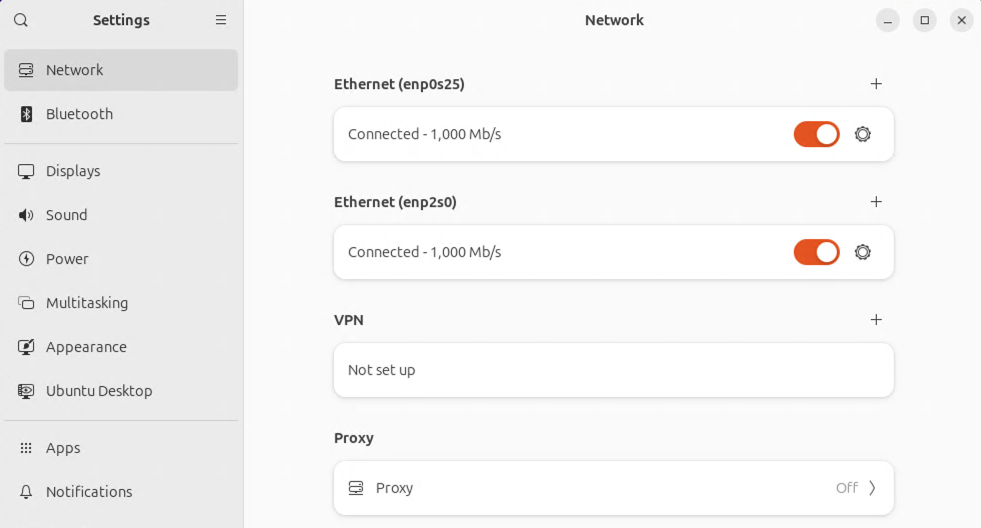
Looking into the details of each Ethernet connection, we can see that each network card goes to a different network segment, each with a DHCP server available (“Connect automatically” is selected).
enp0s25 is connected to the “1.x” network with address 192.168.1.11 held by the Ubuntu host’s primary connection
enp2s0 is connected to the “10.x” network with address 192.168.10.13 held by the Ubuntu host’s secondary connection
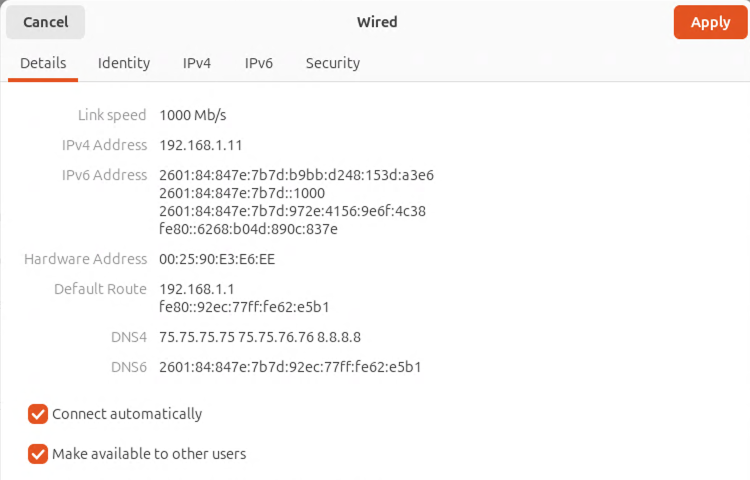
enp0s25 interface details as shown in Ubuntu network settings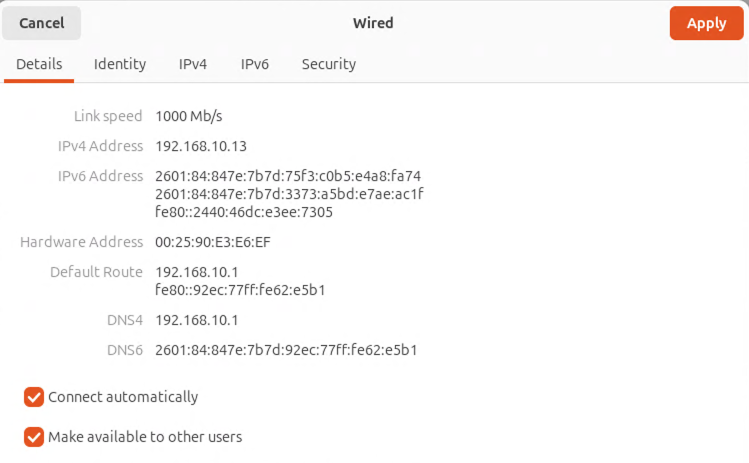
enp2s0Hypervisor / Virtualization Environment
The VirtualBox hypervisor has two network adapters enabled, each mapped/bridged to one of the Ubuntu host’s network interfaces.
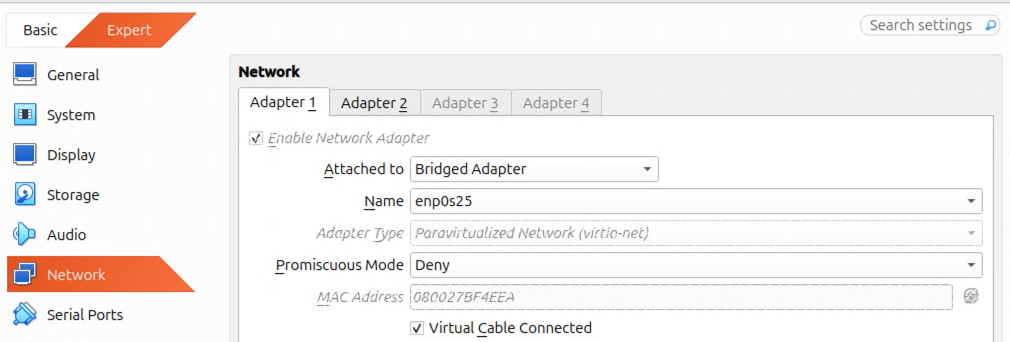
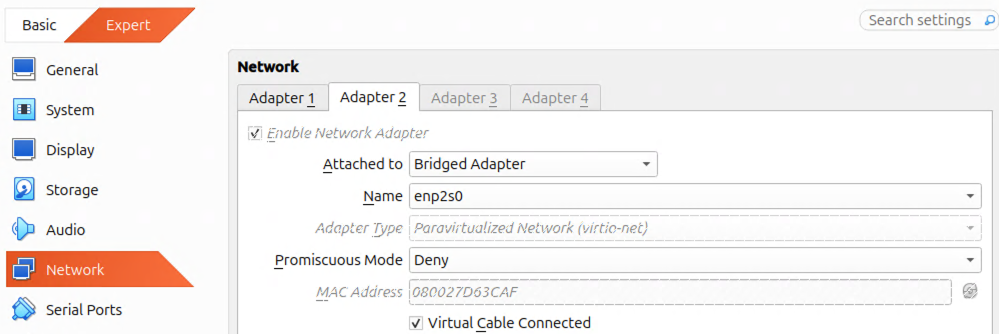
Edge VM Environment
The command line of the Edge VM terminal shows via an ip a command that the Edge VM has the two IP addresses highlighted below.
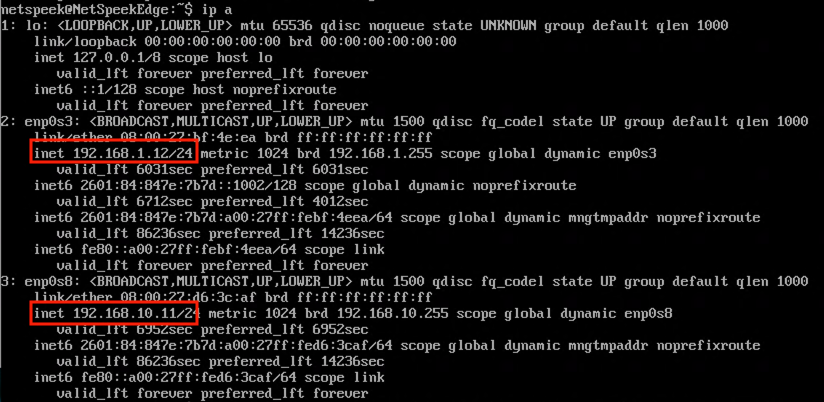
Note
Note for the avoidance of confusion that the network adapter names shown above (enp0s3 and enp0s8) are generated by the Edge VM’s operating system. These are entirely separate from adapter names generated by the hardware host’s operating system (Ubuntu in this guide) and any similarity or duplication between the host and the Edge VM is coincidental.
From the network infrastructure perspective
The image below shows all four resulting IP addresses assigned to the Edge VM, from the perspective of the DHCP server. Two addresses are assigned to the Ubuntu host/hardware, and two are assigned to the Edge VM.
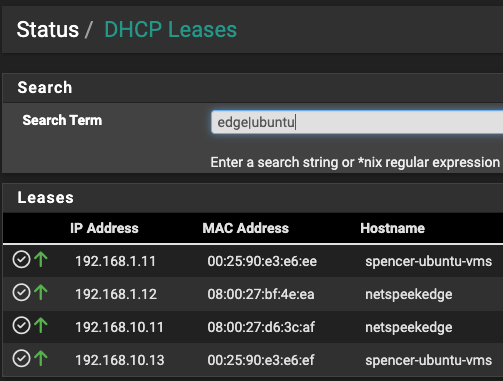
Static Addressing Example
A more detailed description is planned, but it is fundamentally following the Configure NetSpeek Edge with Static IP Address multiple times, and giving each interface a descriptive name, so that a file in a single-static IP configuration such as:
nano /etc/systemd/network/10-static.network
in a multiple-network configuration becomes multiple files, in the conceptual format:
nano /etc/systemd/network/10-eth0.networknano /etc/systemd/network/20-eth1.network
Other Notes
Ensure, when one network has access to the internet but others do not, that a gateway address is only present in the Edge VM’s configuration for the network which has internet access. This will ensure that the Edge VM’s network routing does not try to resolve traffic destined for the internet to an interface providing only access to a room control network.