
NetSpeek 1.15 October 2026 Release Notes
NetSpeek Platform 1.15 Update – October 21, 2026
NetSpeek platform version 1.15 introduces initial support for Q-SYS (also referred to as QSC) devices, starting with 6 popular Core models today and expanding to a broader array of models in the 1.16 release.
A new single sign-on (SSO) feature for portal authentication is included. Built on a SAML foundation, the feature supports a plethora of SAML-compatible identity provider integrations such as Microsoft Entra ID, Okta, Google Workspace, generic SAML, and many more.
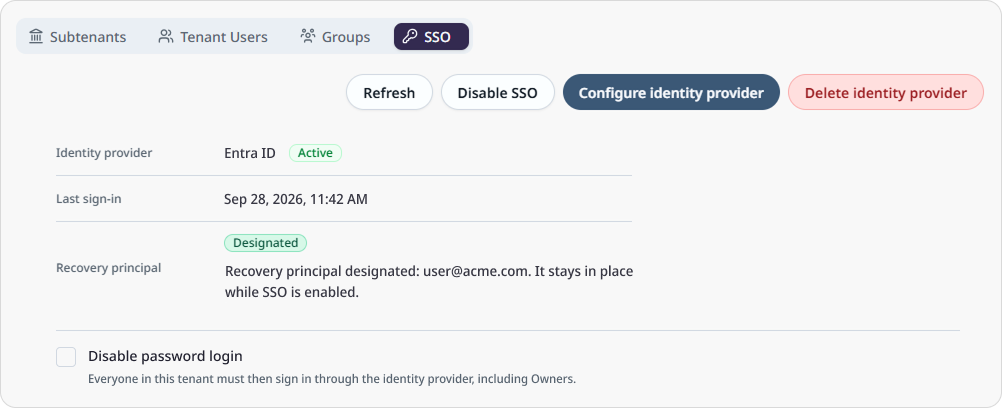
After an Owner enables SSO, invited users sign in through their organization’s identity provider. A designated recovery account is kept as an exception to use a password if the SSO provider is unavailable.
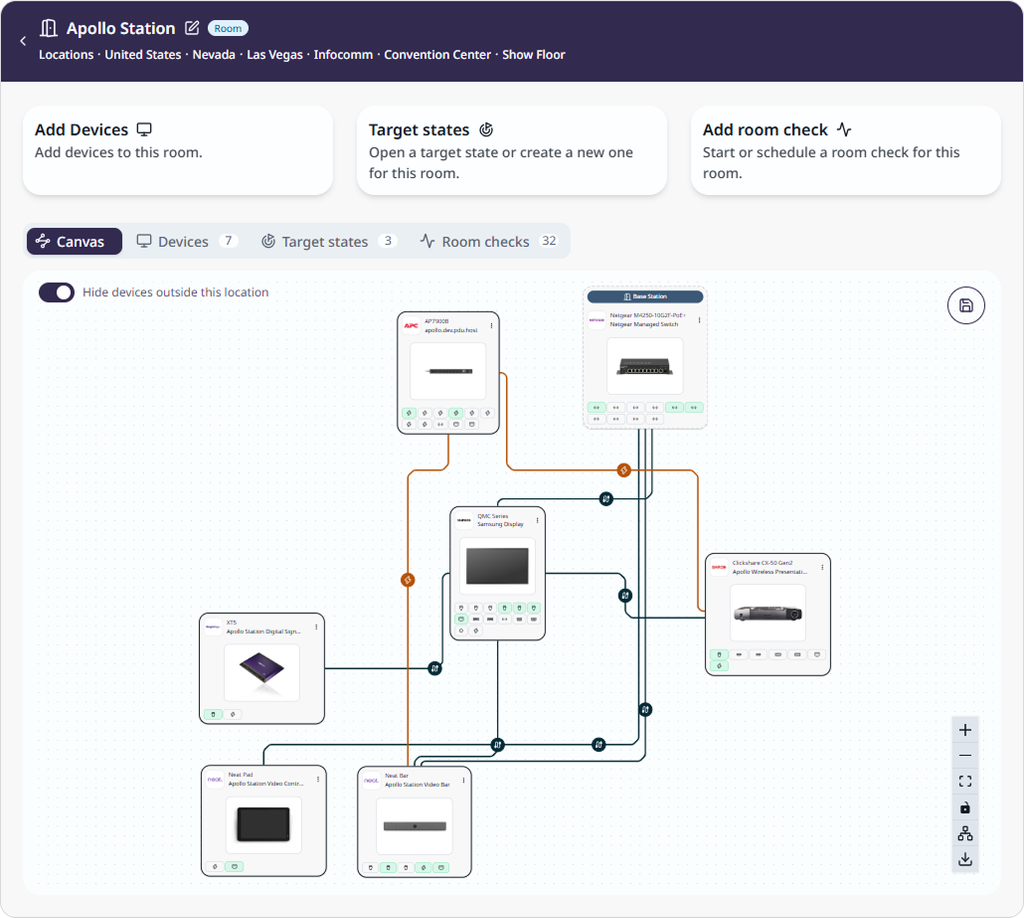
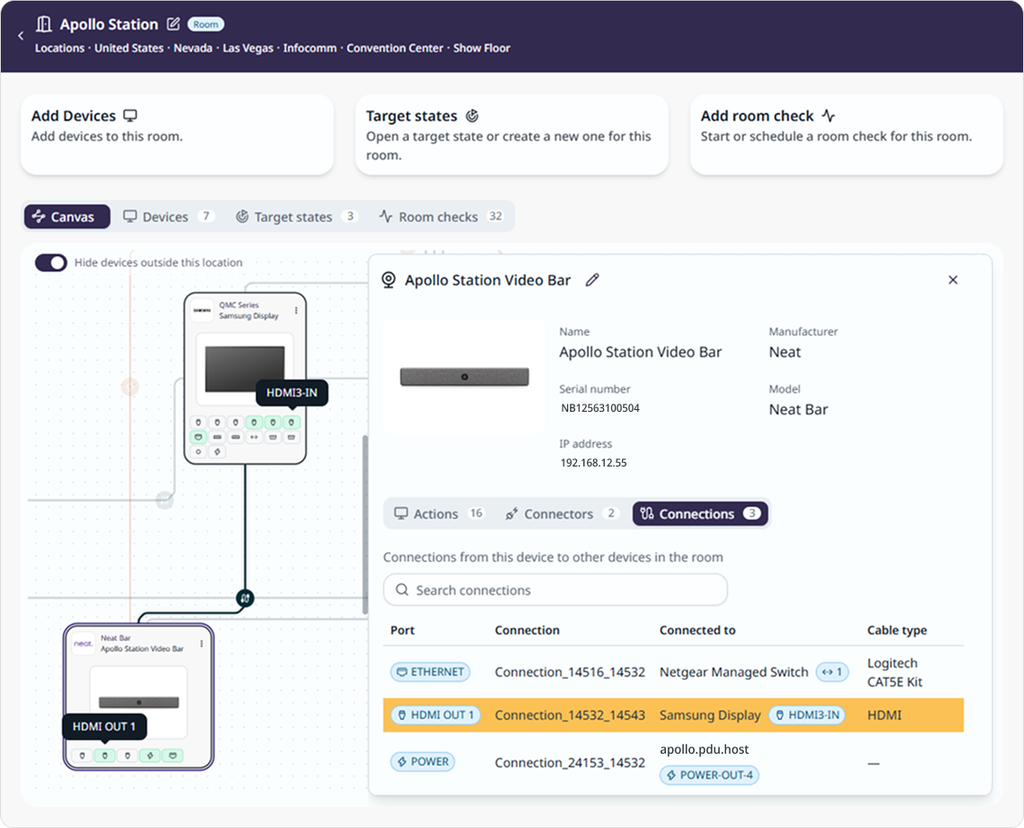
Room Canvas now opens on the room page. The Canvas is the first tab, available alongside Devices, Target States, and Room Checks. The Canvas functions as it traditionally has – you can add and connect devices, review a device’s cabling, and schedule a Room Check without leaving the room.
Lena also takes situational context from the view you have open. When you give a command or ask a question without naming a location, she works from the room or location open in your current workspace.
Please read first: changes which may affect existing deployments
Security: Sign-in starts with your work email
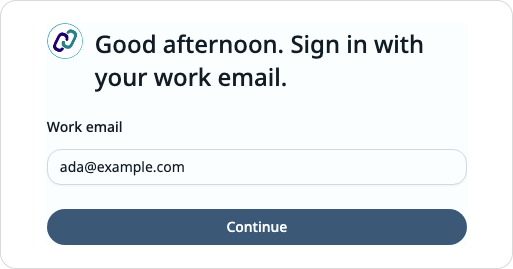
The sign-in page asks for your work email. If your tenant uses single sign-on, NetSpeek sends you to your organization’s identity provider. If single sign-on is not enabled, you will be prompted to enter your password as before.
Security: Single sign-on applies to invited users
Single sign-on authenticates users who already have a NetSpeek user account in your tenant. Add each person in Tenant Users with the email address your identity provider uses.
Note
Enabling single sign-on does not mean all accounts in your Identity Provider can access NetSpeek.
Security: Single sign-on vs NetSpeek password
After an Owner enables single sign-on, all users in the email domain except the designated recovery account are sent to the identity provider for authentication. See the SSO Implementation Guide for details.
User Interface: Room Canvas opens as a tab on the Room page
Room Canvas no longer opens as a separate view. Open a room and select Canvas, and use the other tabs as desired: Devices, Target States, and Room Checks. Selecting Open Canvas in a Room card menu opens the room on its Canvas tab.
User Interface: Integrations renamed to Connectors on Device configuration
On a device page, the configuration section formerly known as Integrations tab is now Connectors, and its controls read Add connector and Select a connector. Device pages now show Actions first, followed by Connectors and the new Connections tab. In a device context, Connectors refers to methods of orchestrating and sending commands to devices, while Connections refers to the physical cabling between the device and other components.
New features
Introducing QSC (Q-SYS) Device Connector Support
Starting with 6 models of Core devices (Core Nano, Core 8 Flex, Core 110f v2, Core 510i, Core 5200, Core 610), NetSpeek platform version 1.15 adds the ability to orchestrate QSC / Q-SYS devices. The models identified on Supported Devices represent the initial set of systems which can be orchestrated by Lena, with over a dozen more more planned for the upcoming 1.16 release.
Introducing single sign-on – Sign in with your organization’s identity provider
Users can now sign in to the NetSpeek portal with the work account they use for other company applications. Single sign-on connects your NetSpeek tenant to your organization’s identity provider, so access to NetSpeek works the same way as your other SSO-integrated tools.
A brief description is below – for more detail see Single Sign On (SSO) Implementation Guide.
Set it up in Tenant Management. Open Tenant Management, select the SSO tab, and follow these steps:
- Designate a recovery account. Choose an active Owner who will continue to sign in with a password. The recovery account maintains password-based login, while the rest of the tenant moves to single sign-on.
- In some organizations, it may be desirable to create a new user account (such as
NetSpeekSSORecovery@yourdomain.org) for this purpose, so that all tenant users can login via SSO for daily activities.
- In some organizations, it may be desirable to create a new user account (such as
- Select Enable SSO. Then select Configure identity provider and connect your identity provider. NetSpeek uses the recovery account’s email domain as the one where SSO authentication will be established.
- Sign in through the identity provider to verify connectivity. An SSO user authenticates with the identity provider to confirm that the configuration works.
The settings apply to the tenant you are signed in to. To set up single sign-on for a subtenant, switch to that tenant.
Emergency Access Procedure: If the identity provider is unavailable, the recovery account can still sign in with a password to conduct recovery operations. In some cases these may include disabling SSO, deleting users, and re-inviting them, depending on the nature of the problem and how long the identity provider is unavailable.
Access management changes are logged. Turning SSO off, or turning password login back on, is recorded and will be visible in the audit log (part of the upcoming Compliance Center feature).
See the SSO Implementation Guide for supported identity providers and setup details.
Improvements
Room Canvas and User Interface
- Work on a room from its Canvas. Select a device on the Canvas to open its details in a side panel. From the same panel you can add a device, connect devices, edit a connection, add a Target State, or schedule a Room Check.
- See a device’s cabling. The new Connections tab on a device lists each connection, the device at the other end, and the cable type. You can search the list, and edit or remove a connection if you have edit permission.
- Manage groups in place. Creating a group opens its details page, where you set the name and description before you save it. Search for users when you add members to a group.
- Reopen the guided tour. Select Guided Tour in the sidebar to replay the introduction to the NetSpeek portal.
Troubleshooting with Lena
- Lena starts from the view you have open. When you ask about “this room” or do not name a location, Lena uses the room or location open in your current workspace as the scope of the question. This expands on prior functionality related to chat contexts.
- Pick up an answer that is still in progress. If Lena is still answering an earlier message, for example after you reload the page, the portal shows that answer as it continues and returns your new message to the message box. Send your follow up message once Lena has finished responding to your prior one.
Fixes
- Users assigned the Operator role could view a room but not open Room Canvas. They can now open the Canvas to view it, and dispatch actions to devices on the Canvas.
- Changing the Canvas layout, devices or settings, or cabling connections still requires edit permission not available to the Operator role. The Operator can view the Canvas and dispatch actions, but the Canvas is read-only to that role.
- Lena could incorrectly identify the causes of issues during a troubleshooting session, for example by treating the inability to contact a device as conclusive proof that the device had failed – the cause could have been something else, like a network connectivity problem. The description of what Lena could and could not do is more precise.
- When assigning a device to a location, or scheduling a Room Check, the location picker interface could display a different location from the one you clicked. It now correctly displays the selected location.
Security
- Permissions documentation by role has been updated on Role-Based Access Control (RBAC) Implementation Guide
- Single sign-on settings and password login recovery are available only to Owners. A recovery account must be an active Owner who signs in with a password.
- Deleting a user or a tenant requires its own permission. Roles that can edit users or tenants can delete them.
- Latest cybersecurity updates are applied.
Versions list
The table below identifies the versions included in this release for the NetSpeek platform and related components – note that in some cases a component may not have a new release corresponding to a platform update.
| Component | Version |
|---|---|
| NetSpeek Platform | 1.15 |
| Edge VM | 1.6.0 |
| NetSpeek Windows Runtime Service | 1.3.0.7 (no change from prior platform release) |
© NetSpeek Inc. 2026