
NetSpeek Lena Onboarding Guide
Who is Lena?
NetSpeek’s Lena is the world’s first Language Enabled Network Administrator designed specifically for managing complex, multi‑vendor Pro AV (professional audio/video), UC (unified communications) and digital signage systems. She can also manage enabling or foundational systems, including PDUs (power distribution units) and network switches.
Key Features
- Device Onboarding, Installation & Organization
Simplify deployment, configuration, and organization of your devices for scalable, efficient management. - Intelligent Remote Monitoring & Control
Solve problems, execute commands, and administer your devices from anywhere. - Enterprise-Grade Security & Compliance
Role-based access, secure protocols, and compliance with security standards.
Getting Started with NetSpeek
This guide walks you through a step-by-step setup of the NetSpeek platform, from account activation to setup and initial use.
Note
This guide describes an entirely-manual setup process for a tenant. Many of the activities described here (location hierarchy and room definition, device and cabling configuration, and more) can be accomplished in bulk via Onboarding Center – Data Management and Room/Device Import Processes. Even if you plan to use bulk actions, it is still advisable to review this guide in full before using Onboarding Center to understand the tenant onboarding workflow from end to end, and to familiarize yourself with the functionality of the platform.
1. Account Activation (Required)
- You will receive an email invitation from NetSpeek.
- This invite will come from
donotreply@netspeek.com– please ensure that delivery from that address is permitted to users being invited. - The invite is valid for 48 hours. If the invitee does not claim their account within this timeframe, another user with relevant permissions can press the button next to the invitee’s name to re-send an invite.
- This invite will come from
- Click the invitation link in your email to begin setup.
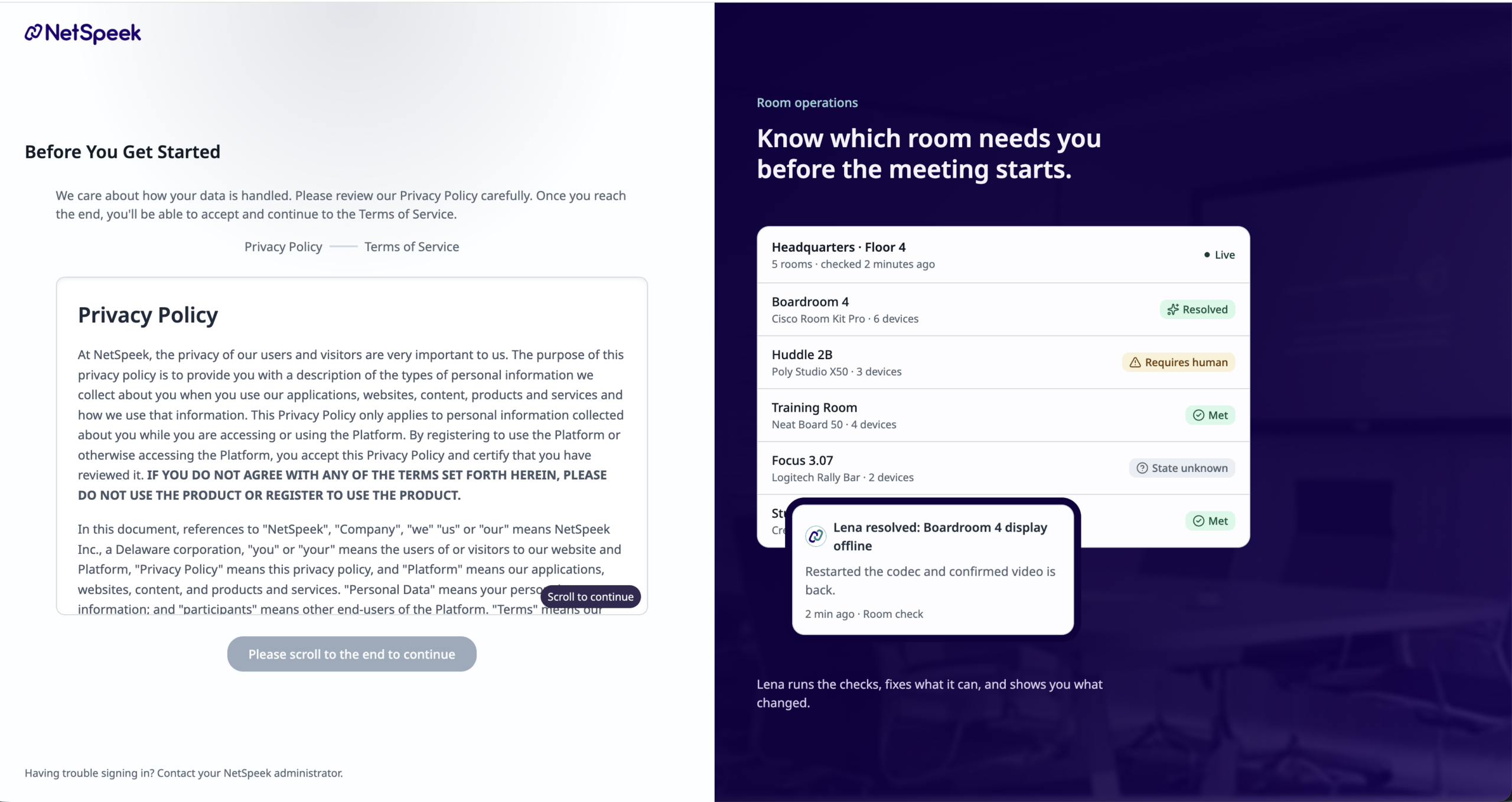
- You’ll be redirected to the NetSpeek login portal, initially to accept the privacy policy and terms of service.
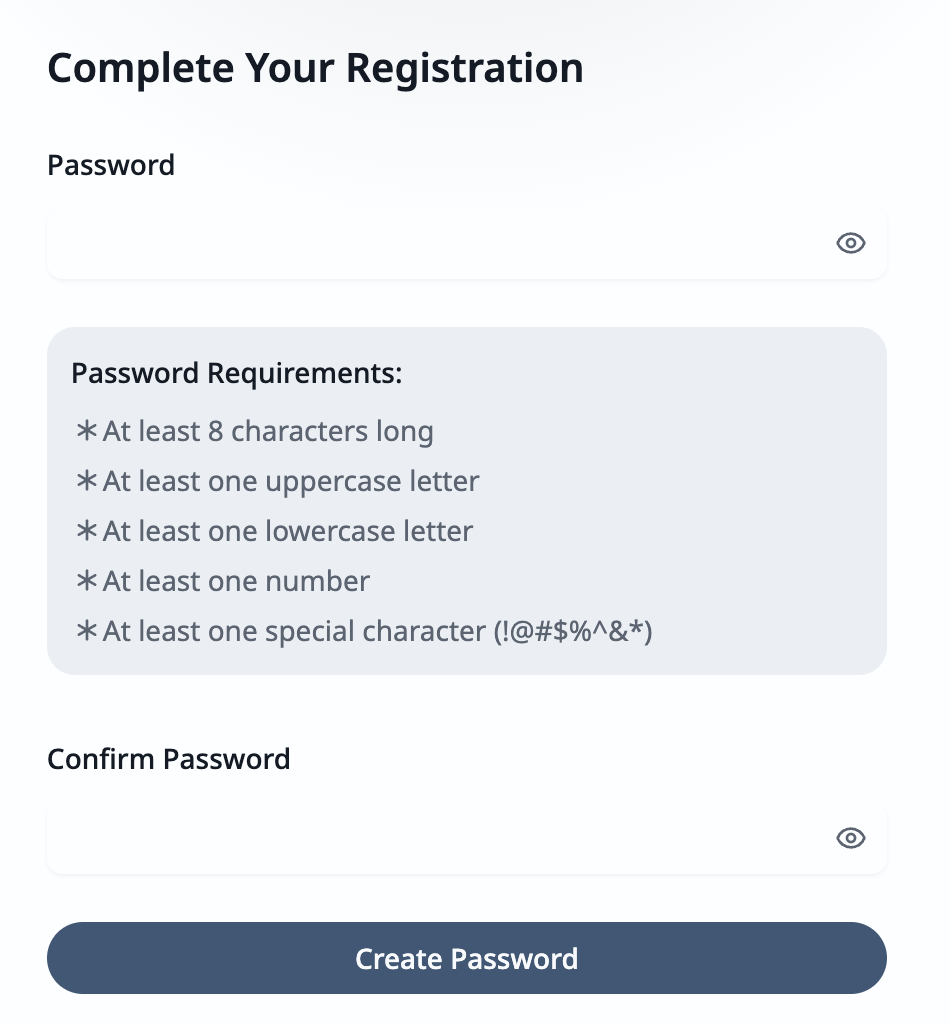
- Create a password for your account, adhering to the requirements presented.
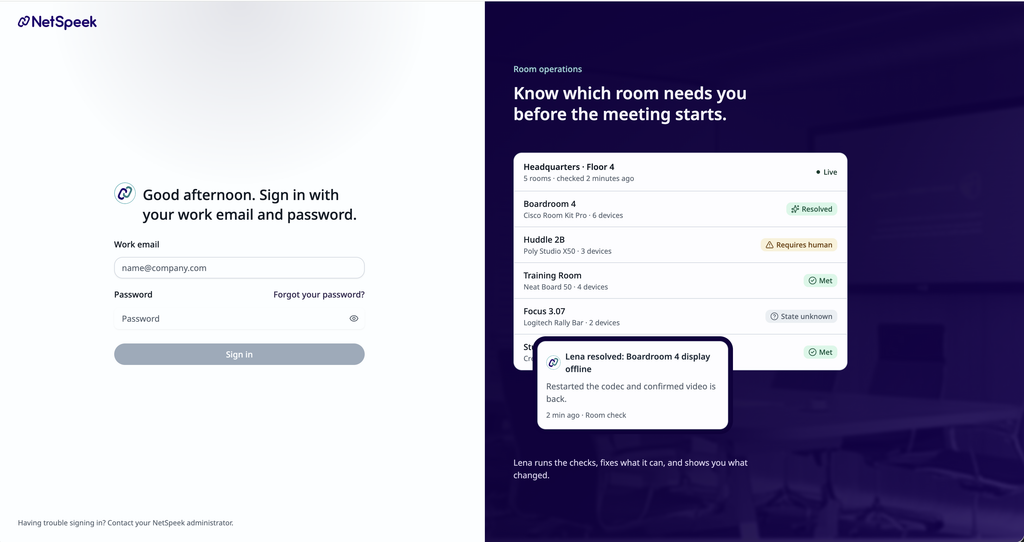
- Sign in with your new credentials (email + password).
- You’ll be logged into the portal, viewing the tenant you’ve been invited to, and with the permissions configured for your user account.
Note
Some aspects of section 1 and 2 of this guide refer to functions specific to Users who login with NetSpeek passwords. If your tenant’s configuration of the Single Sign On (SSO) Implementation Guide is complete, some functions may vary – most notably, users will not create a NetSpeek password but will authenticate through your organization’s defined SSO identity provider.
2. Invite / Manage Users
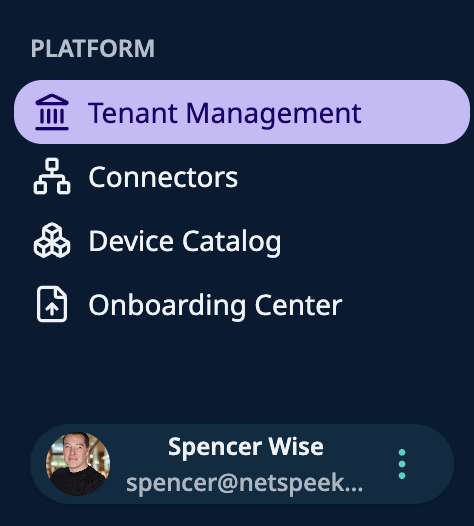
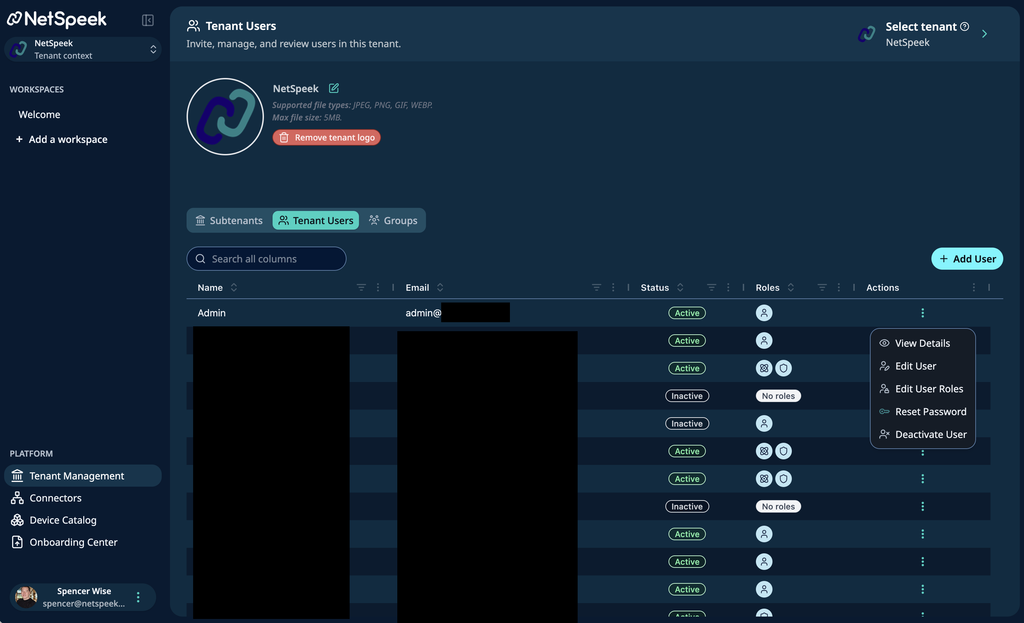
- Navigate to Tenant Management – this is found in the lower left of the portal interface, above your user avatar.
- Select Tenant Users – in this interface, with relevant permissions, you can create/invite new users to the tenant (via the “Add User” button), or administer existing user accounts with functions like editing the user, the user’s role, resetting the password, deactivating the user, or for inactive/unclaimed accounts, resending the activation email (most typically, when the account is not claimed within 48 hours of the initial invitation).
Note
Role Based Access Control enables assigning users functionally-specific roles – read more about these roles, their permissions, and managing role assignment in bulk via Groups, at: Role-Based Access Control (RBAC) Implementation Guide.
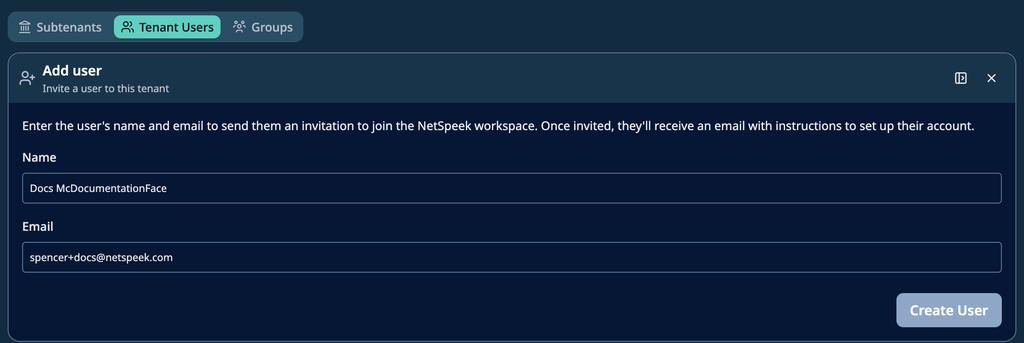
The Add User workflow includes the steps depicted in the following images. First, define the identity of the user to be invited.
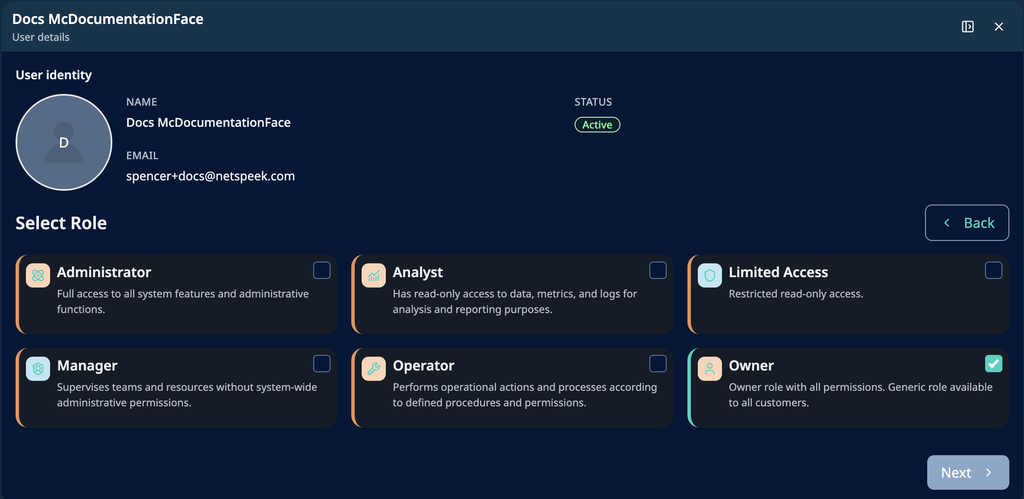
After creation of the User’s account, click the three-dots icon and select Edit User Roles. On the resulting screen, click “+ Add role” to define the permissions this user should have to the tenant. Select the role, and click Next.
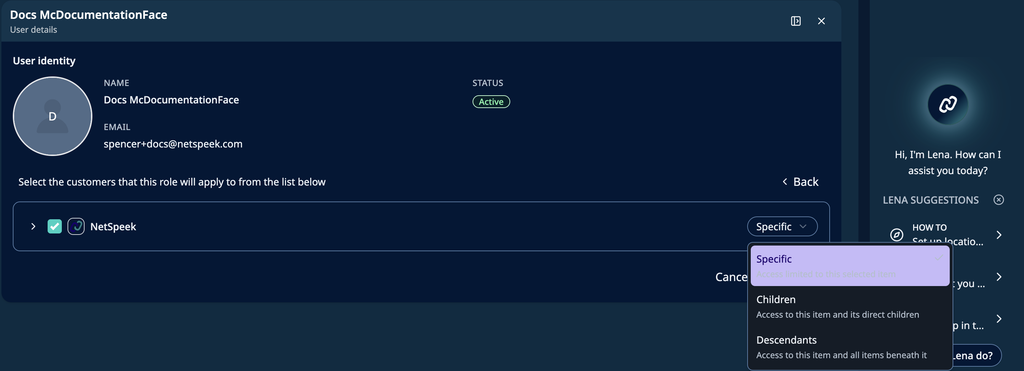
The tenant-assignment defines how the selected role is inherited when sub-tenant hierarchy is configured. The role can be applied exclusively to the tenant where the user was created (no inheritance), to direct children of the tenant, or to all descendants of the tenant to any hierarchy depth. To define inheritance for specific subtenants, click the > to expand the subtenants list and make the desired selections.
Repeat the role assignment process described above to assign multiple roles to a User.
3. Sub-Tenant Management (Conditional)
Create or Edit a Sub-Tenant
The intention of sub-tenants is to provide a method of logical separation between organizational units within a NetSpeek subscriber account. For example, a company with separate brands operating independently, or a company merging with another, may wish to have brand-based groupings of rooms/devices within a subtenant. Contact your NetSpeek representative to discuss this tenant design consideration if of interest.
- Navigate to Tenant Management > Subtenants.
- Click “Add subtenant” to create a new one, or select an existing subtenant to edit its name or profile image.
4. Create / Manage Connectors (formerly Integrations)
Connectors / integrations are the basis for Lena’s orchestration of devices added to your NetSpeek tenant via the Room Canvas. There are three methods of connection devices – all of these are created and managed via the Connectors tab of Platform management shown below.
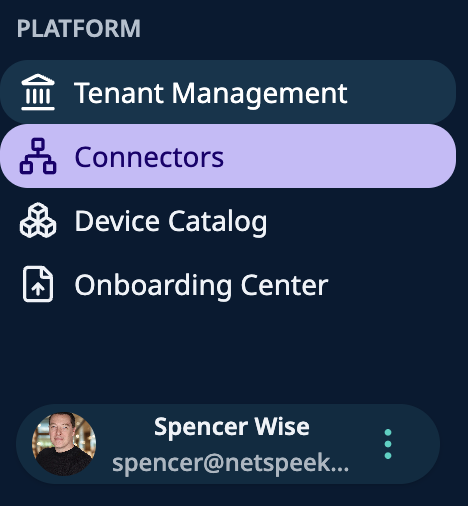
The three Connector types are:
- Cloud-to-Cloud
- The subscriber’s tenant in NetSpeek cloud connects to another vendor’s cloud. The only on-premise component is the orchestrated equipment itself.
- Edge Direct
- An on-premise NetSpeek Edge VM connects directly to an orchestrated device – for example, the Edge VM sends API commands directly to a display at the display’s LAN-local IP address.
- Edge Sub-Integration
- The NetSpeek Edge VM relays commands through an intermediate system to reach an orchestrated device. For example, the NetSpeek Windows Runtime Service (NWRS) communication path is: Edge VM → NWRS installed on PC → Orchestrated Windows OS. The intermediate system in this example is the NWRS developed by NetSpeek, though there are sub-integrations where a third-party vendor provides an infrastructure component comparable to how the NetSpeek Edge VM functions.
To see the full list of currently-available NetSpeek connectors and supported devices, visit:
Note
Configuring Connectors is mandatory to enable device orchestration and control.
5. Set Up Locations
Define your organization’s real-world structure, from global offices to individual rooms, to reflect where devices are physically located.
- Open a new workspace, and click Locations
- Click Add Location and define the hierarchy of the location to be added to your tenant.
- The full location hierarchy of a NetSpeek tenant is:
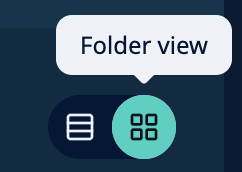
Country → State → City → Campus → Building → Floor → Room - When navigating location hierarchy in your tenant, use the toggle to move between Folder View and Table View.
- In Table view, any part of the hierarchy (such as the campus highlighted in the image below) is a clickable link to that section.
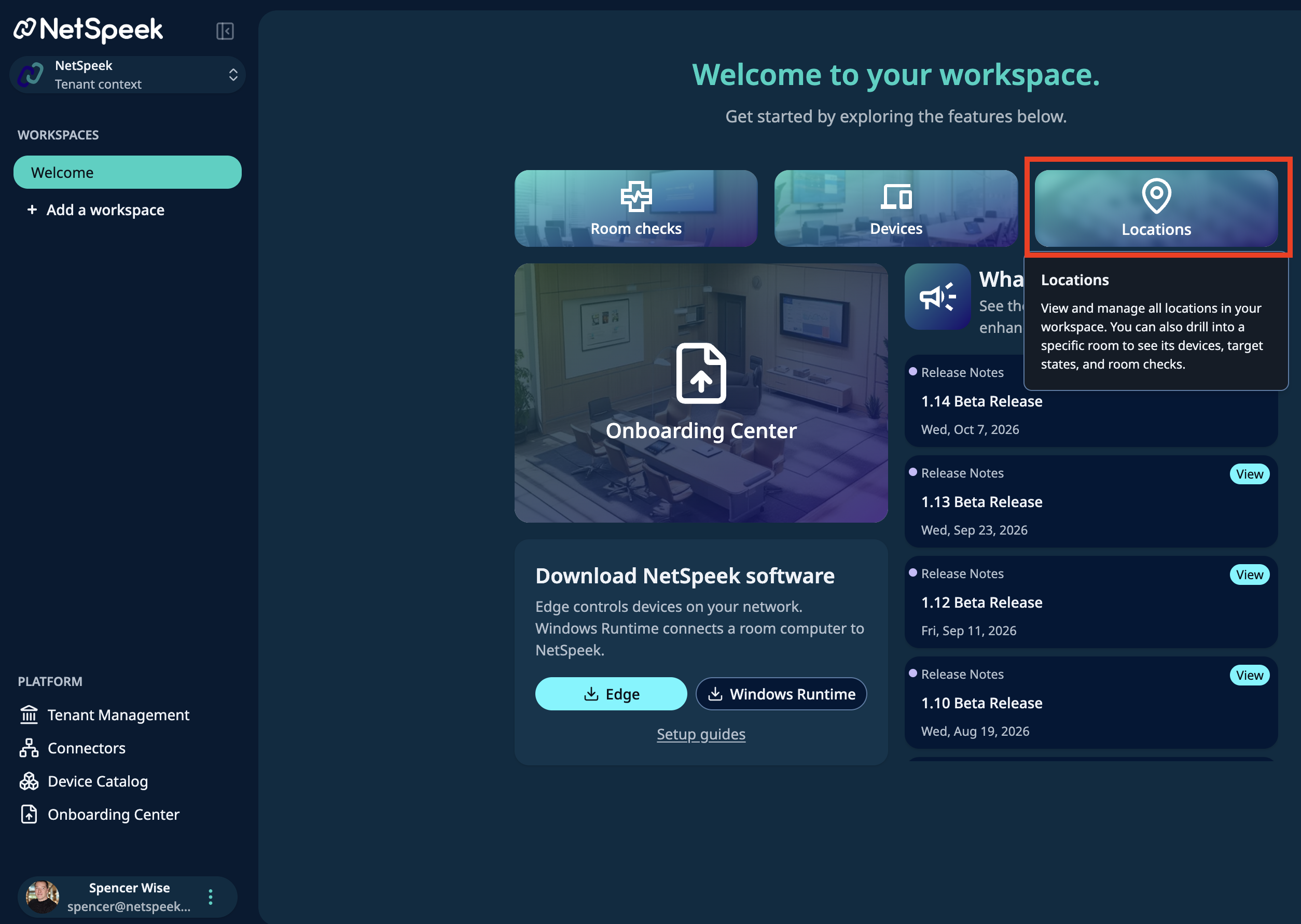
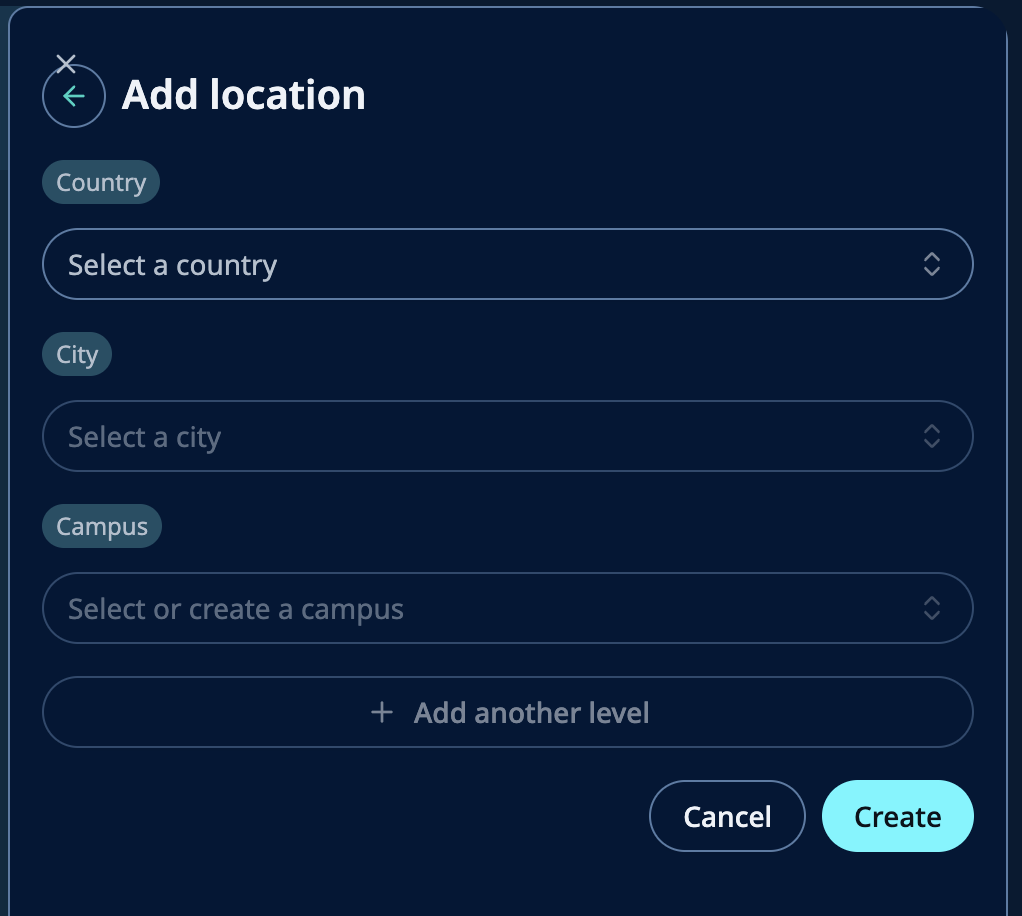
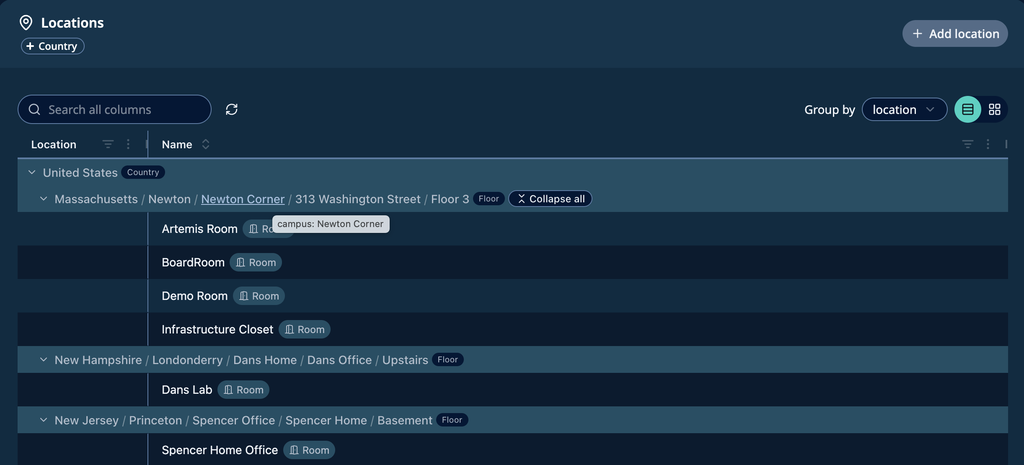
Adding new hierarchy levels during initial setup may be more efficient in Table view. The Add workflow allows for configuring new hierarchy components, while leveraging existing components where helpful.
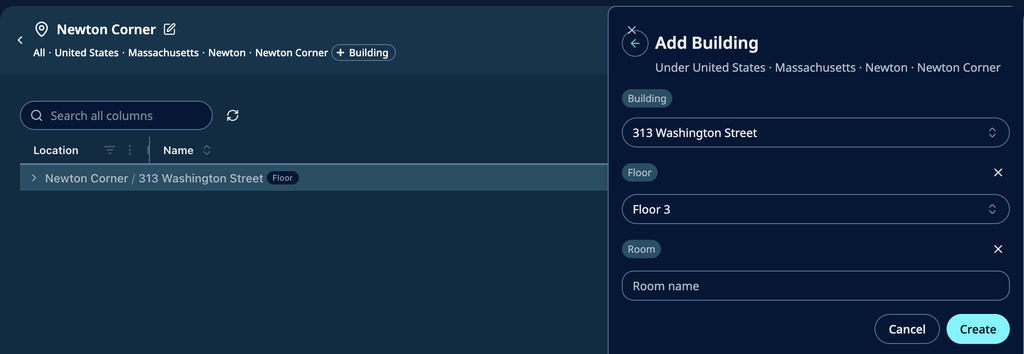
Note
Maintaining an accurate location hierarchy is essential for diagnostics, automation, device control, and other platform functions.
Note that Campus, Building, and Floor information is user-editable, but Country, State, and City information is managed by NetSpeek. If you believe you have found an error in the geography database, contact NetSpeek Support to report it. If the City you wish to use is not present, choose the nearest City present in the database in order to create your hierarchy, and report the issue to NetSpeek Support.
6. Add Devices & Configure Connections
Add your devices to the platform and map their physical and logical connections to accurately represent your real-world setup.
Find the Room
- Navigate via Locations to the room to configure.
- By default, the devices currently in the Room are shown in Canvas view – many views and workflows are available from this interface.
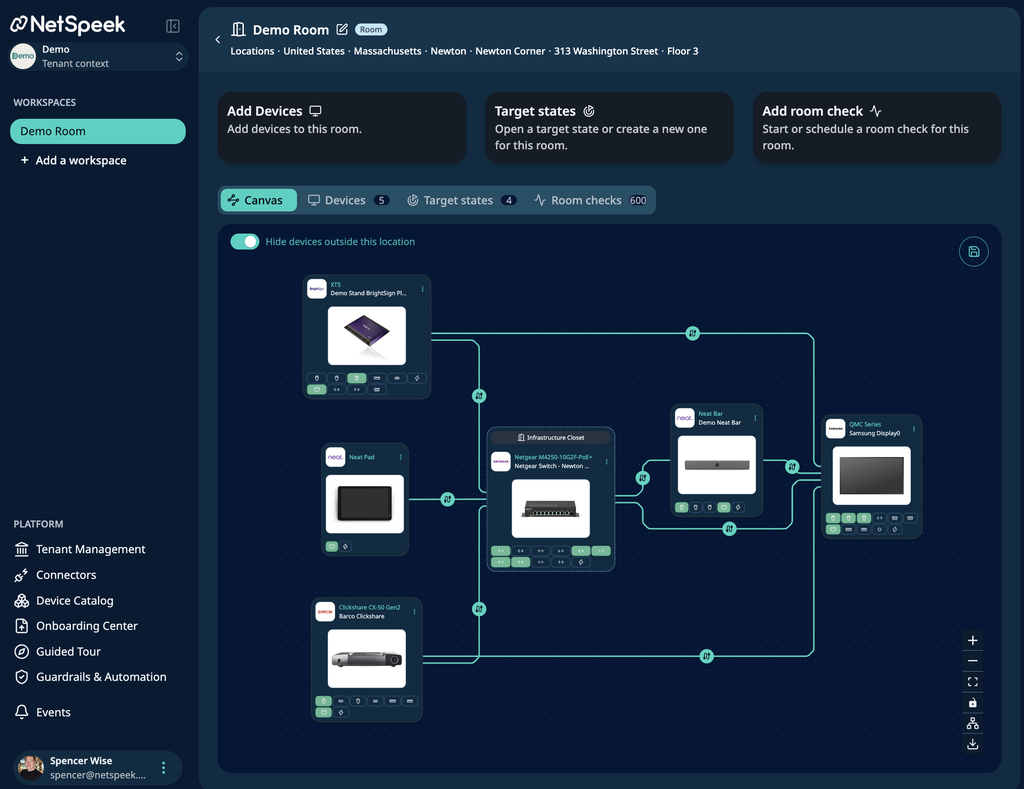
Add Devices
Devices can be added via the “Add Devices” button shown above.
Configure device information according to the model-specific prompts, generally values such as:
- Model
- Manufacturer
- Serial Number
- Integration Type
- Username/Password/IP address/MAC address or other vendor specific information
- Note that the data required will vary based on the device/integration type – see details about your specific device type in its integration guide from the list here.
Once saved, devices appear on the Room interfaces, device list, and elsewhere in the platform.
Connect Devices (A/V, power, network)
- Once a device has been added to a room, the Canvas can be used to depict the physical connections to its input/output (I/O) ports, like HDMI, USB, power, networking, and other cabling.
- Use drag-and-drop to map physical connections (e.g., Device A’s HDMI1 output to Device B’s HDMI 2 input). Each connection made will provide the opportunity to confirm the ports being connected, a name for the connection, and notes about it.
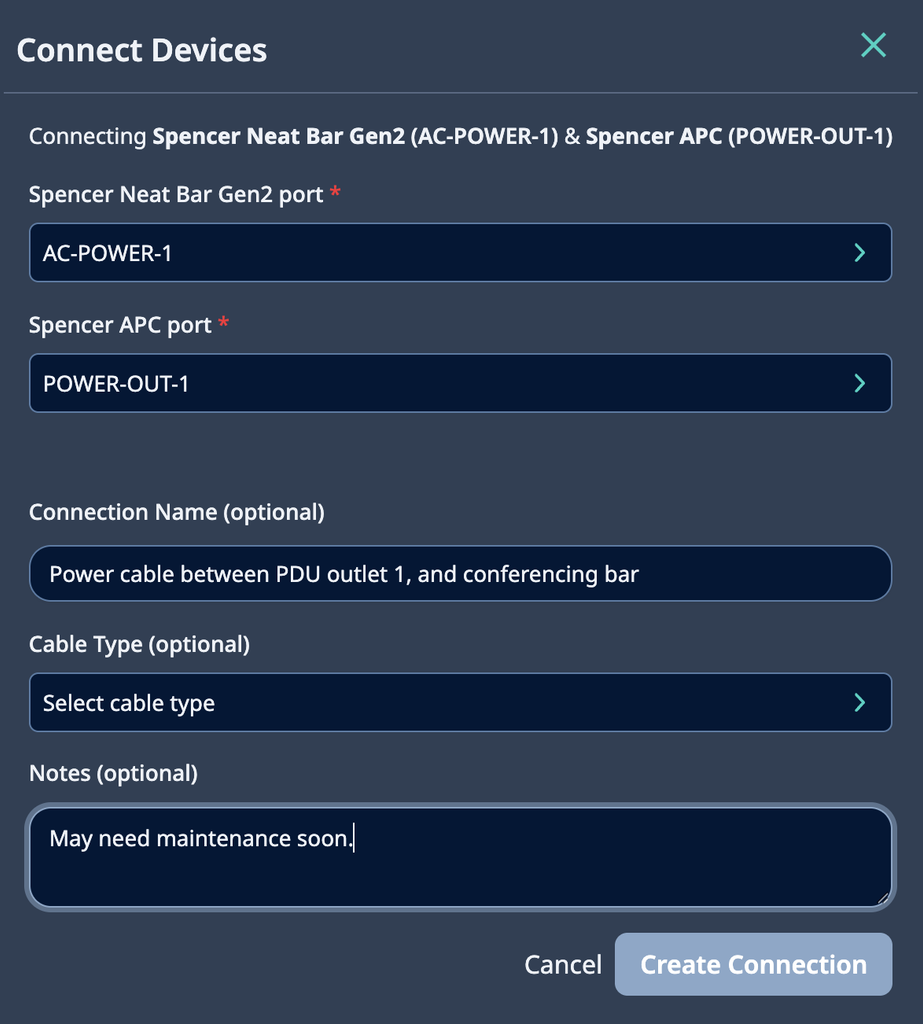
Click the Save icon in the upper right of the Canvas (a disk) when all devices are added and connections are complete.
Note
It is mandatory to define how each device’s sources are connected so Lena can orchestrate them correctly. Without this, the room/devices cannot be properly controlled.
You can edit, move, configure connections, or delete devices at any time (as long as the Role assigned to your User permits these actions).
7. Define Target States / Room Checks (Optional but Strongly Recommended)
Define each room’s intended usage persona (e.g., meetings, presentations, digital signage, power-save, etc) by selecting the appropriate device actions required to support that scenario. Lena uses these room configuration settings as the baseline of the room’s readiness for its defined purpose.
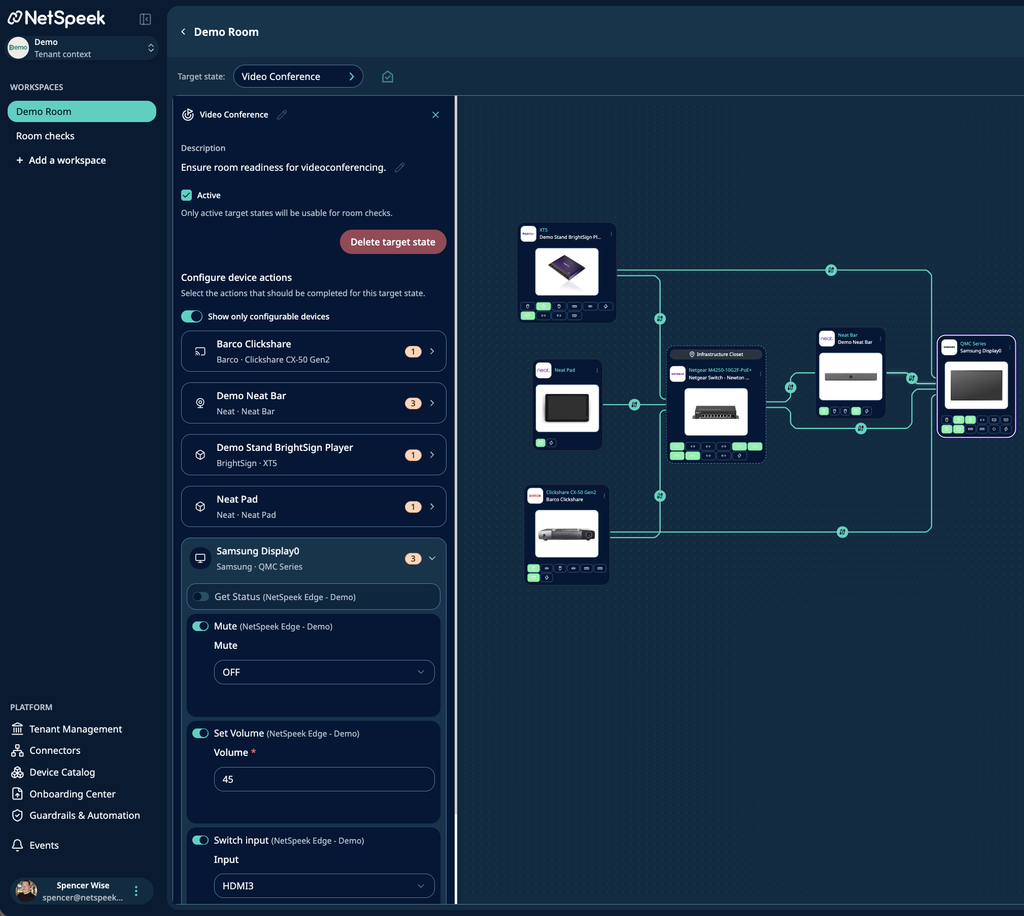
- Use the Target state dropdown in Canvas, or the Add target state + button in the listed-cards interface, to create a room persona (e.g., Presentation, Signage, Meeting, Weekend Power-Save, etc).
- Select devices, and configure desired device settings for the persona such as:
- Power actions (e.g., on/off)
- Audio levels (e.g., mute, unmute, set volume to 50)
- Input sources (e.g., HDMI 1)
- Connect / disconnect test call to UC platform
- Other device-specific configuration parameters or commands
- Name the target state (e.g., Video Conference) and add an optional description.
- The Target State interface shows all the devices in the room and how many actions are configured. Click any device to see its configured actions and make change as necessary.
Note
With a Target State defined, Lena can verify room readiness with a Room Check to ensure the room is correctly configured for its intended use. Room Checks can be initiated manually from the Room Canvas, or scheduled to occur automatically within the Room Checks interface.
If Target States are not defined and created, Lena will be unable to conduct Room Checks.
8. Schedule Room Checks (Optional but Strongly Recommended)
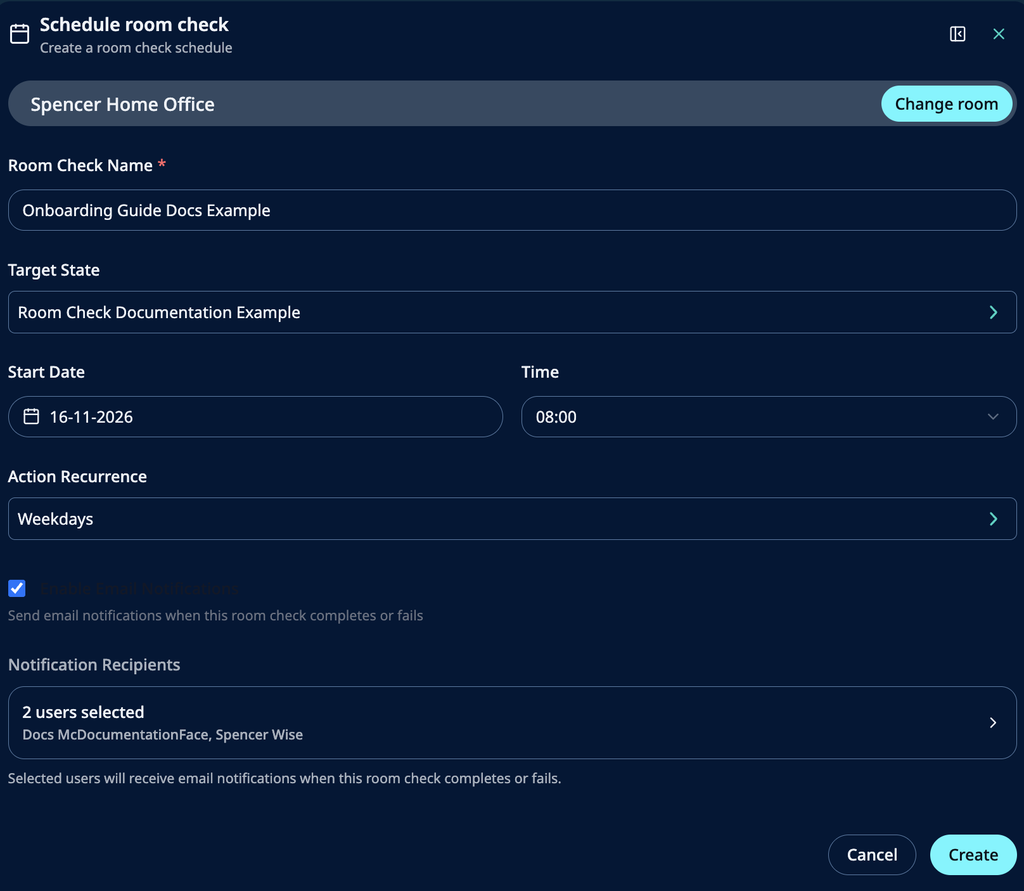
After defining Target States, you can schedule Room Checks to re-occur on a schedule you set. Commonly, for example, a Room Check will occur prior to the start of the workday day to ensure equipment is functioning as expected. Note that different Room Checks can occur at different times – for example, the same room might be used for videoconferencing on Monday, presentations on Tuesday, digital signage on Wednesday, powered off over the weekend, etc.
From a new workspace, select Room Checks – in this interface you can view the details of completed room checks, the timing of upcoming room checks, or create a new schedule via the button in the upper right.

The configuration workflow for Room Check scheduling allows specifying the relevant parameters – choose a Room, give the Room Check a descriptive name, select from the configured Target States for that room, choose a date and time (and a recurrence schedule if desired), and optionally define tenant users to receive email notifications each time the Room Check runs.
Navigating the Platform
Tenant Selector
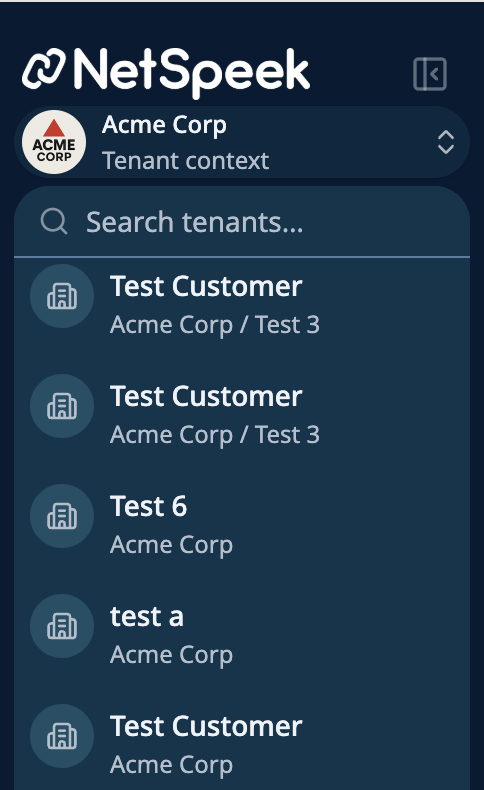
Located in the top-left of the portal, the tenant selector dropdown allows switching between tenants/subtenants.
Note
All information displayed in the console area is scoped to the currently selected tenant.
Lower-Left Navigation
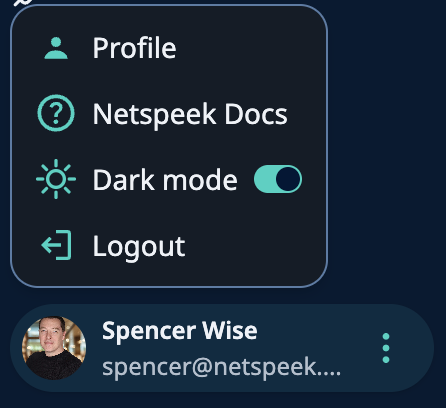
In the lower-left corner, click your profile picture or first initial to view your profile (to upload a photo, change your password, or see your assigned Role), visit NetSpeek Docs (this site), configure Dark mode, or logout.
Workspaces and Chats
The Lena Workspace is a dynamic, flexible set of work containers in the central portion of the web portal interface, with the list of workspaces listed vertically in the left column under the tenant selector. The information contained in these workspaces is persistent, so you can be working on several Canvases, lists, documents, or other assets simultaneously. The contents of your currently-selected Workspace are shown in the center section of the interface.
The Lena Chat is a powerful mechanism to ask Lena questions, have her issue commands on your behalf, retrieve documents, and more. Located on the right side of the portal interface, multiple chats can be active simultaneously and are listed horizontally at the top of the active chat tab. Click the History icon to view previous chat.
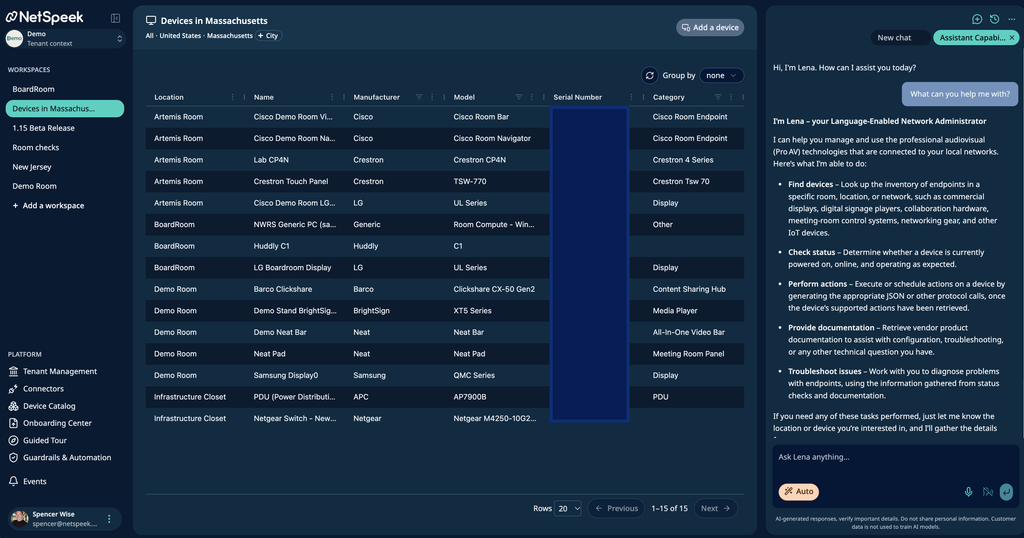
Lena Chat
You can use Chat to do various activities, including but not limited to:
- Ask environment-specific questions about your devices
- Troubleshoot devices
- Access manuals and other vendor documentation
- Run commands (e.g., restart device, get status)
- If you ask Lena to do something she can’t do, she’ll tell you – so feel free to experiment.
Ask Mode
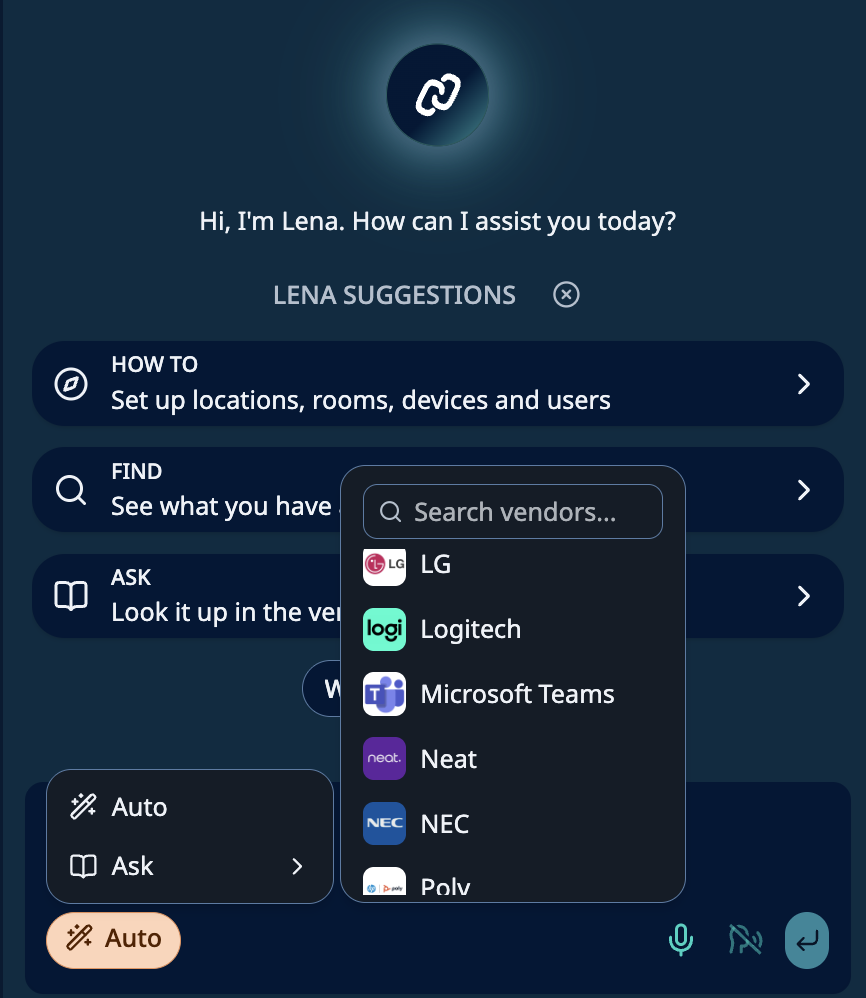
Activate Ask Mode (below the message bar) to specify that questions are about a vendor or solution generally, not the specific devices in your environment made by that vendor. Additionally, by selecting the right agent before sending your message, you give Lena the context needed to streamline the conversation – for example, if a model name or other information is used by multiple vendors, Lena does not have to clarify which vendor you’re inquiring about.
Support
If you run into any issues during tenant setup or have questions, contact NetSpeek Support at support@netspeek.com.