
NetSpeek 1.14 October 2026 Release Notes
NetSpeek Platform 1.14 Update – October 7, 2026
NetSpeek platform version 1.14 introduces a redesigned NetSpeek portal, and support for Logitech and Huddly USB devices connected to a Windows PC.
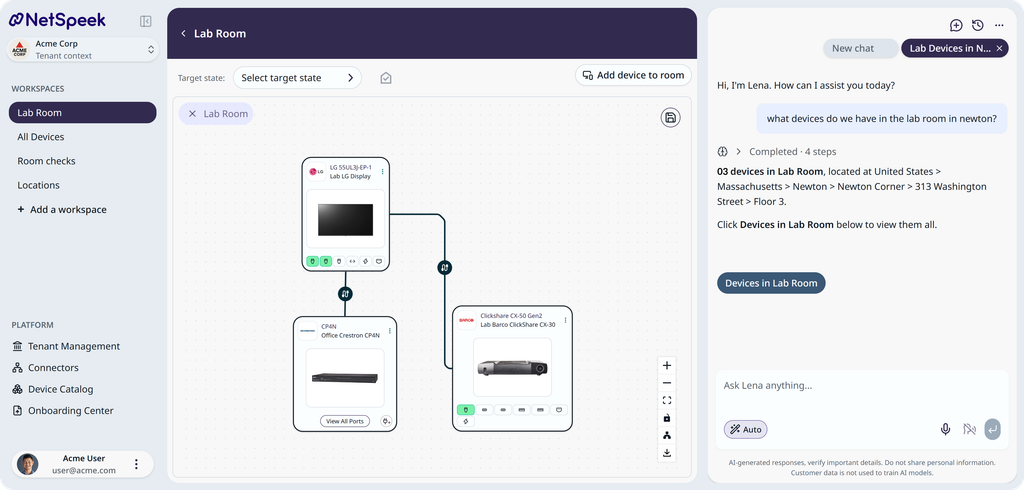
Part of the completely reimagined user interface is the new workspace layout, which lets you keep multiple Canvas instances open simultaneously, browse your locations as folders, and continue working with Lena as you move between different tabs and workspaces.
Support for Windows-connected USB peripherals, starting with Logitech and Huddly devices, extends the NetSpeek Windows Runtime Service from orchestrating the Windows OS to external components dependent on the PC for connectivity.
Lena’s troubleshooting is also improved: revised diagnosis and planning logic checks relevant devices before asking you to narrow a search, follows corrections or mid-stream changes you add to a troubleshooting conversation, and explains more clearly what she could and could not verify.
Please read first: changes which may affect existing deployments
Security: Re-authentication required after the update
You will need to sign in again the first time you open the NetSpeek portal after this update.
User Interface: Folder view is now the default
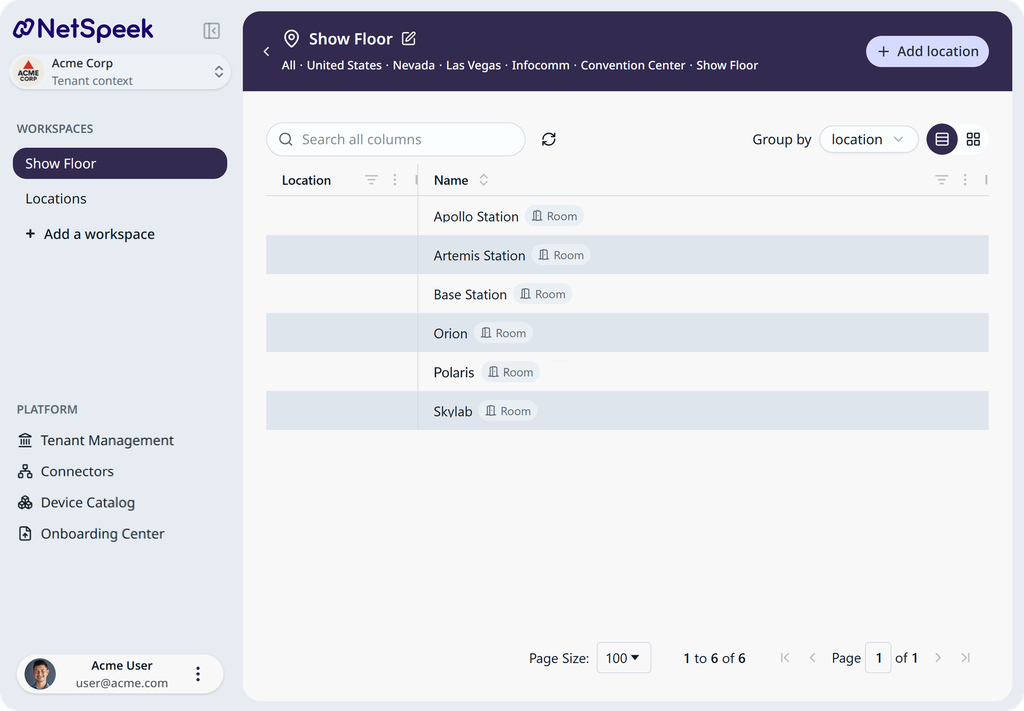
Locations and rooms now open in Folder view. Table view remains available, with rooms grouped by location and those groups expanded by default.
Selecting a location, room, or device opens it in your current workspace. To keep your current view open, right-click an item and choose Open in new workspace.
Device Integration: Requirements for USB device management
Managing Logitech and Huddly USB devices requires the NetSpeek Windows Runtime Service on the Windows PC the devices are connected to. The details of how this functionality works are found at https://docs.netspeek.ai/device-platform-integration-guides/netspeek-windows-runtime-service-documents/netspeek-windows-runtime-service-integration-guide/netspeek-windows-runtime-service-integration-guide-usb-devices/
Logitech devices also require the Logitech Sync App for Windows to be installed and running on that PC (NetSpeek does not install it). Note that the Logitech Sync cloud service, which has its own integration with NetSpeek, is not the same as the Sync App for Windows used to connect to USB devices.
Huddly devices do not require any installed application on Windows.
USB device management of Logitech and Huddly peripherals requires Edge VM version 1.5.0 and NWRS version 1.3.0.7.
New features
Introducing the redesigned NetSpeek portal – Keep your rooms and conversations in view
The redesigned NetSpeek portal brings location browsing, room management, and Lena conversations into a new workspace layout. You can move between rooms while keeping the views and conversations you need open.
Keep several workspaces open. Create a workspace from the sidebar, switch between the rooms you are working on, and drag workspaces into the order you prefer. Each workspace retains its current location, room, or device. Lena has separate conversation tabs, so you can move between workspaces without closing your conversation.
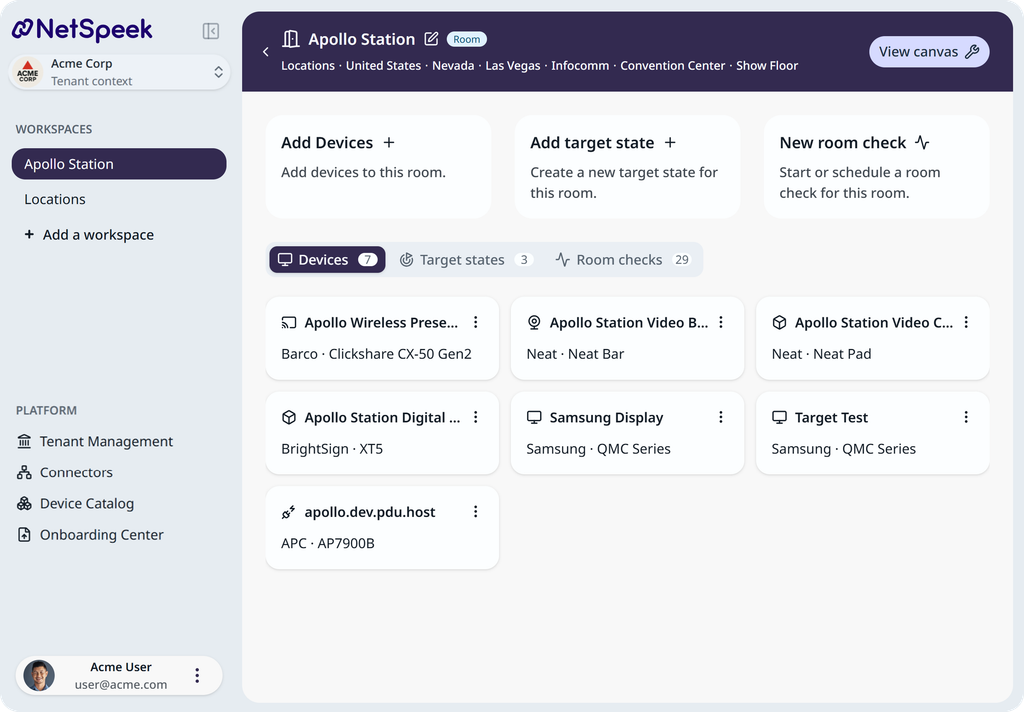
Browse your estate as folders. Navigate through buildings, floors, and rooms using location cards. Each card shows its location type and the number of locations and rooms it contains. Search results include the location path, making it easier to distinguish similarly named rooms. Switch to Table view when you prefer a grouped list (the toggle is in the upper right of the interface).
Folder (tile) view:
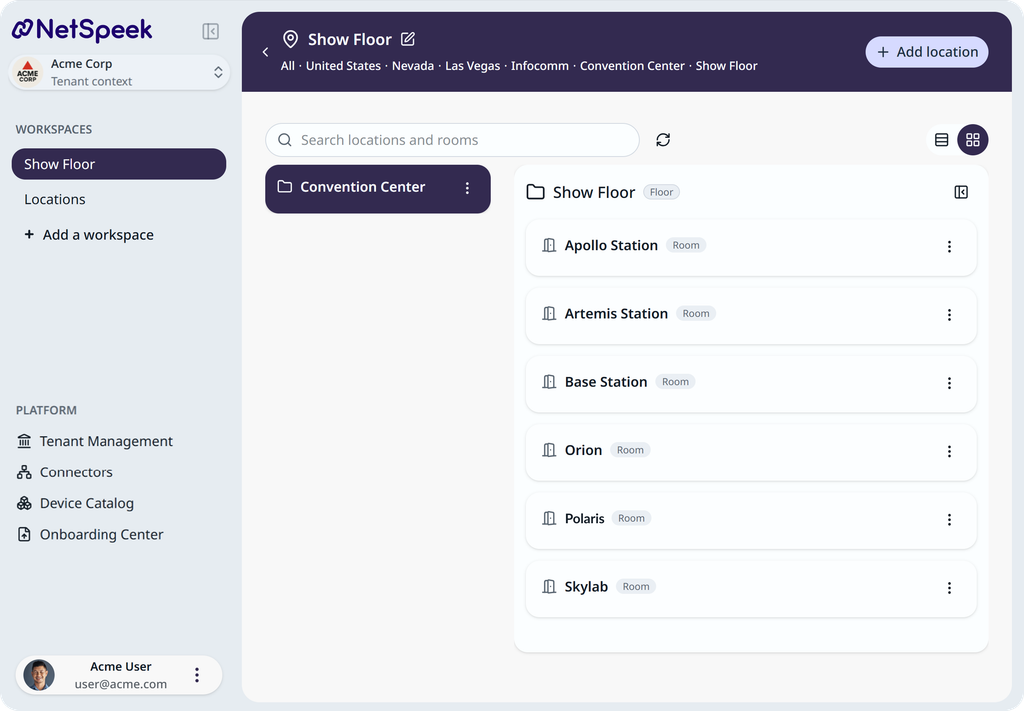
Table (list) view:
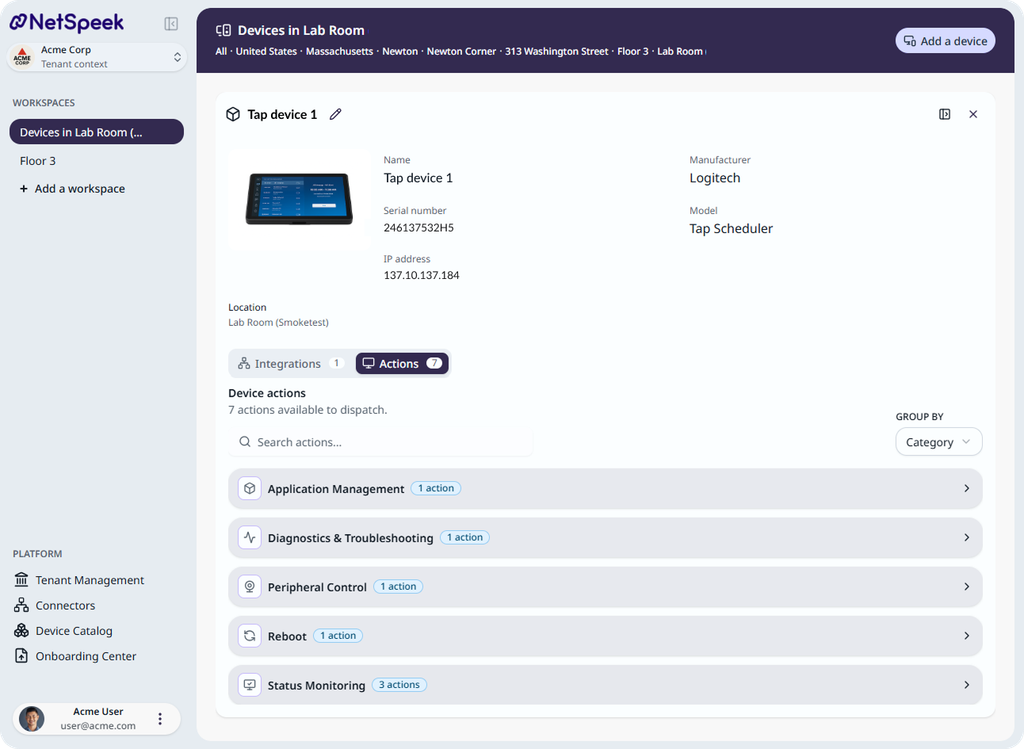
Find room and device information in one place. Location pages group their contents under Locations and Devices. Room pages bring together Devices, Target states, and Room checks. Device pages show the manufacturer, model, and health status, with Integrations and Actions in dedicated tabs. Room card menus provide shortcuts to Room Canvas and Room Checks, with actions shown according to your permissions.
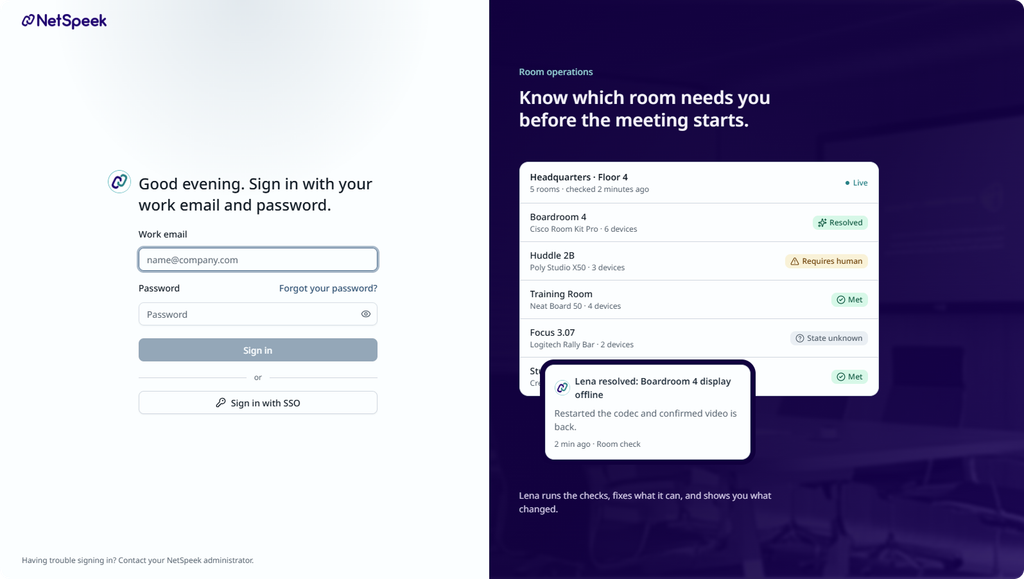
A new sign-in page. Lena welcomes you with a new login screen, making functions like password reset more accessible.
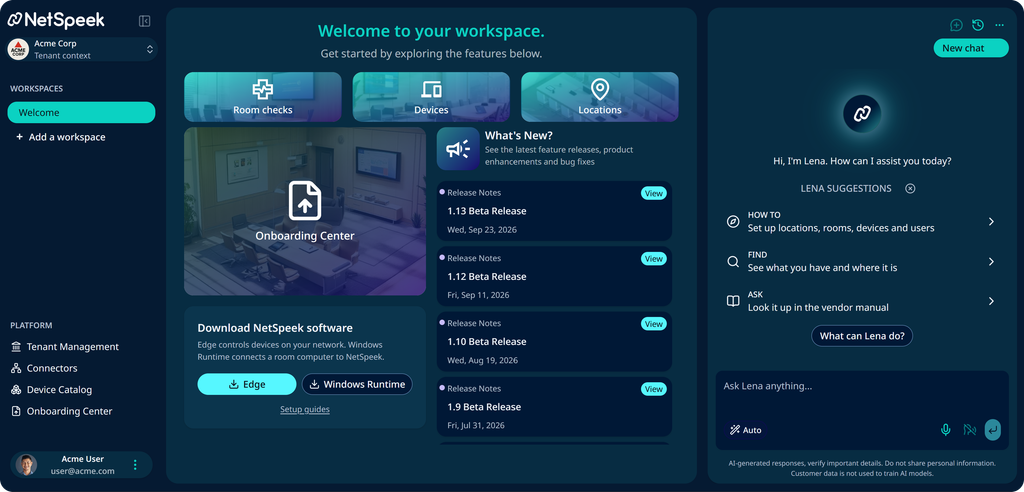
Dark mode. A dark appearance is available for the sidebar, cards, tables, and sign-in page.
You can enable Dark Mode from the user menu by selecting your avatar.
Introducing USB device management – Orchestrate room peripherals through a Windows PC
You can now manage supported Logitech and Huddly USB devices through the NetSpeek Windows Runtime Service on a PC. A peripheral restart applies specifically to the selected device without affecting the Windows OS.
Huddly cameras. New device support in this release covers IQ, Canvas, Crew, ONE, and GO. Available actions include reading device status information, restarting the camera, and collecting logs. Stream status is available on models that report it.
Logitech devices. New device support in the release covers MeetUp, Rally Bar, Rally Bar Mini, Tap, and RoomMate through the Logitech Sync App for Windows. Devices are identified by serial number, and available controls vary by model. These can include camera, display, and audio settings, firmware operations, and device restart. Existing Logitech Sync cloud and CollabOS integrations continue to operate as before based on network connectivity – they are distinct and separate from the USB-connectivity integration available through NWRS.
See Supported Devices and Controls for model-specific capabilities.
Improvements
Troubleshooting with Lena
- Greater independence in identifying devices. When several devices could match your request, Lena checks their status before asking you to choose. If you redirect Lena to a different room or device name, she updates the investigation to follow your correction.
- More context when a device does not respond. Lena can check upstream equipment serving a device, such as its power distribution system or network switch, to investigate a fault. This makes Lena better able to differentiate between infrastructure issues and device-specific issues.
- Better use of parallel integrations. For devices with multiple integrations, she checks all the available paths to the devices and identifies integrations that are not responding.
- Clearer explanations of incomplete checks. Lena distinguishes between a device she could not check effectively (for example a device that did not respond because it has no network connection), one she checked without receiving enough information to assess its health, and one with no integration configured. For a missing integration, she directs you to Edit Device > Integrations to configure an integration and enable orchestration.
- Follow-up instructions in your own words. When Lena offers next steps, you can type an answer to choose an option, cancel, request a fresh reading, or continue the investigation. A recheck compares the new reading with the previous one. Power-off actions are not offered as the default fix.
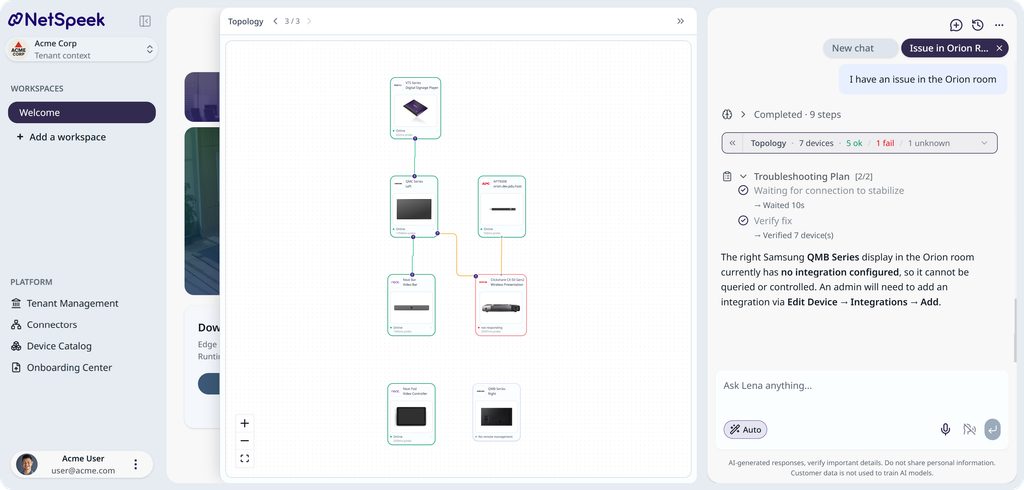
Room Canvas and User Interface
- Inspect a device while keeping Room Canvas open. Device details open in a side panel. The Canvas fits the room when opened, and Lena’s troubleshooting diagram uses a signal-flow layout with active connections highlighted.
Fixes
- Sending a follow-up message while Lena was still responding could interrupt her response. A secondary message is now blocked while a response is in progress – send the follow-up once Lena has address the prior message, or open a new chat to send a new message immediately.
Security
- Deactivating a user account revokes all of that user’s active browser sessions.
- Latest cybersecurity updates are applied.
Versions list
The table below identifies the versions included in this release for the NetSpeek platform and related components – note that in some cases a component may not have a new release corresponding to a platform update.
| Component | Version |
|---|---|
| NetSpeek Platform | 1.14 |
| Edge VM | 1.5.0 |
| NetSpeek Windows Runtime Service | 1.3.0.7 |
© NetSpeek Inc. 2026