
NetSpeek Windows Runtime Service Integration Guide – USB Devices
This document serves as a comprehensive guide that outlines the steps required to integrate USB peripherals connected to Windows OS devices instrumented with the NetSpeek Windows Runtime Service (NWRS) with the NetSpeek platform. This guide specifically focuses on orchestration of USB peripherals connected to Windows OS devices and presumes the steps described in the primary NWRS integration guide have been completed.
This device type uses a concept called “sub-integration” which means that the Edge VM uses another component to reach orchestrated devices. In the case of this integration, that component is the NetSpeek Windows Runtime Service being used to orchestrate USB peripherals connected to a Windows OS device.
Prerequisites
Before beginning the integration, confirm the following:
- Your Windows device is powered on and connected to a network that is routable to/from your NetSpeek Edge.
- Your USB peripheral device is connected via USB cable to the Windows OS device.
- You have the NWRS installed on your Windows OS device.
- For large fleet deployments with installation and updates managed by Microsoft Intune, see: NetSpeek Windows Runtime Service Installation Guide for Microsoft Intune.
- For small-scale deployments needing manual installation, see: NetSpeek Windows Runtime Service Installation Guide for Individual Devices.
- Note: This integration requires NWRS version
1.3.0.7or later.
- You have completed the integration described at https://docs.netspeek.ai/device-platform-integration-guides/netspeek-windows-runtime-service-documents/netspeek-windows-runtime-service-integration-guide/
- Orchestration of the Windows OS itself must be operational prior to extending orchestration to USB-connected peripherals.
- Relevant software for your use case is installed on the PC (NetSpeek does not install any of these).
- Logitech: The Logitech Sync App for Windows must be installed on the PC.
- Huddly: No app is necessary.
- You have deployed a NetSpeek Edge VM as described here: https://docs.netspeek.ai/netspeek-edge-installation-guide/
- Note: This integration requires an Edge VM running version
1.5.0or later.
- Note: This integration requires an Edge VM running version
Note
Traffic is relayed from Edge VM → Windows OS device → NWRS software → manufacturer’s Windows app, if present → USB device (and the reverse path for responses). The final Windows-NWRS-app-USB steps take place within Windows and over a USB cable, not over an IP network connection.
Step 1. Add Device to NetSpeek Room Canvas
Note
Orchestration of USB-connected peripherals is best approached as a secondary phase after orchestration of the Windows OS itself is operational.
Because USB-connected peripherals do not (usually) have an independent network connection, it is expected that the IP address of the Windows OS device will be used for multiple devices on the Room Canvas, such as for the Windows OS device (with the PC’s serial number, if applicable), and again for a USB-connected camera (with the camera’s serial number, which is mandatory).
All traffic is sent to the IP address of the Windows PC, and received by the NWRS on that PC. The NWRS routes commands to the Windows OS itself, or to a USB-connected peripheral, based on the configured device type and serial number.
Device Provisioning Flow
- In the NetSpeek Console, navigate to Room Management
- Select the room you wish to add your NWRS-orchestrated USB device to
- Click Launch Room Canvas
- Click Add device to room
- Choose from the Manufacturer list, and select a compatible USB-connected device from the device model list. The NetSpeek Supported Devices and Controls page lists supported USB peripheral devices, and the manufacturer-specific appendices below in the guide show examples.
- Configure the appropriate values, and in the “Integrations” section, select a previously created NetSpeek Edge VM sub-integration. Ensure that the Edge VM is on a network that can reach the Windows PC’s configured IP address. Configure the following:
- Device Name
- Serial Number (this is the serial number of the USB device, not the Windows OS)
- IP Address or Hostname (this is the network address of the Windows PC that the USB device is connected to)
- Port (that the NWRS instance running on the Windows PC is configured to listen on, 443 by default)
Manufacturer Appendix – Logitech
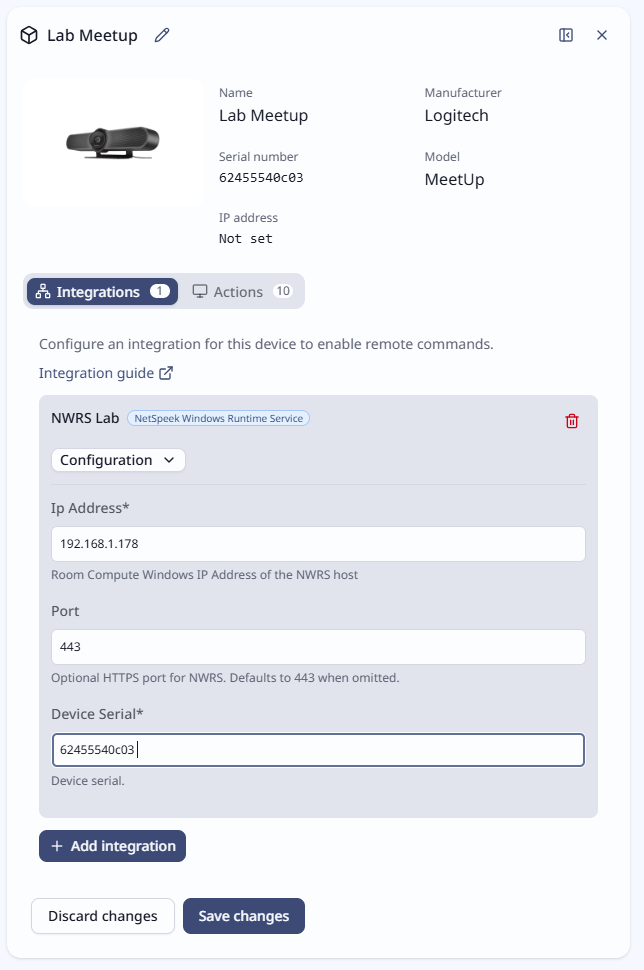
Below is an example of a Logitech device, with its relevant integration parameters. The IP address and port refer to the PC running NWRS, and the serial number defines how NWRS will route commands to reach the device over a USB connection.
Orchestration of Logitech devices requires the presence of the Logitech Sync App for Windows on the PC, in addition to NWRS.
Manufacturer Appendix – Huddly
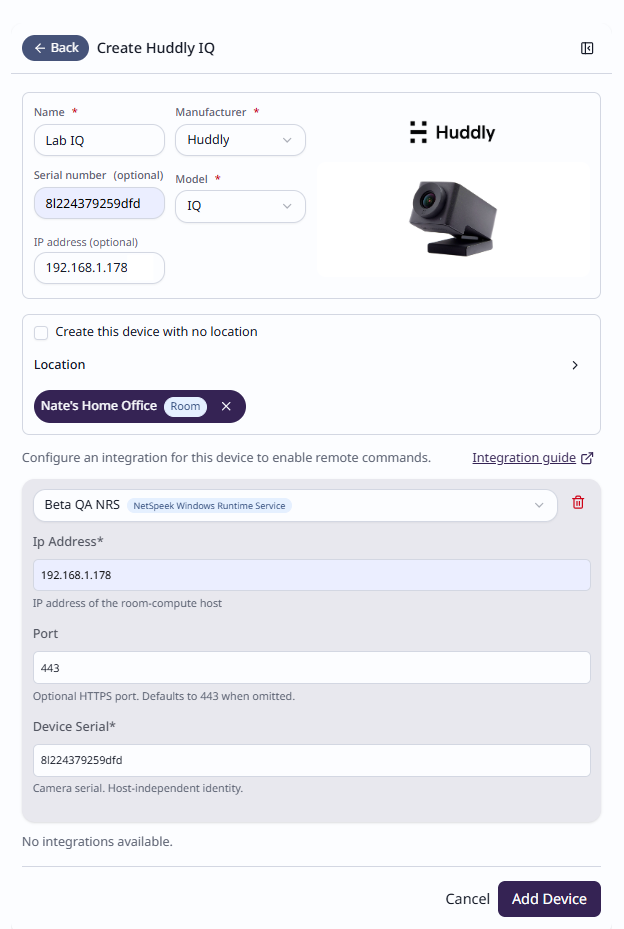
Below is an example of a Huddly device, with its relevant integration parameters. The IP address and port refer to the PC running NWRS, and the serial number defines how NWRS will route commands to reach the device over a USB connection.
Orchestration of Huddly devices requires only that the device is detected as a USB-connected device by the Windows OS – no app or software from Huddly is required to be installed.
Verification
Once the relevant settings described above are configured, to validate the integration:
- Select a NWRS-orchestrated Windows OS device in the NetSpeek console, open the Device Actions Tab, and select an available device action. It is generally advisable to test by dispatching a non-intrusive command such as a
Get Status. - On the device, observe the selected action occurring.
Troubleshooting
Connection Issues
- Confirm the IP address on the NWRS-orchestrated device is correct and routable from the network segment where the NetSpeek Edge VM is deployed.
- Ensure port TCP 443 (or your configured listening port) is not blocked by firewall rules on the Windows PC where your NWRS instance is installed.
- NetSpeek Windows Runtime Service Firewall Configuration Guide may also be helpful.
Support
If you run into any issues during onboarding or have questions, contact NetSpeek Support at support@netspeek.com.