
NetSpeek Windows Runtime Service Firewall Configuration Guide
This document is a step-by-step guide for configuring a Windows Firewall inbound rule to allow communication between the NetSpeek Edge VM and the NetSpeek Windows Runtime Service (NWRS) on an orchesrated Windows OS device. This procedure creates a firewall rule for the listening port configured during NWRS installation, ensuring the relevant NetSpeek solution components can connect. This guide is a companion document primarily to NetSpeek Windows Runtime Service Installation Guide for Individual Devices, and in some cases to NetSpeek Windows Runtime Service Installation Guide for Microsoft Intune.
Important Change Notification
As of NWRS version 1.3.0 the install wizard used for manual installation will configure the necessary inbound rule in Windows Firewall automatically. If that process has completed successfully, the steps in this guide are unnecessary, except perhaps as a verification procedure to confirm the relevant rule is correctly in place.
Note also that prior to version 1.3.0 the NWRS listened exclusively on port TCP 443 – the install wizard now includes the ability to specify an admin-defined listening port, intended for use when the default TCP 443 port is used by another service or application in the Windows OS. For details, see NetSpeek Windows Runtime Service Installation Guide for Individual Devices.
Note
This document should not be be confused with https://docs.netspeek.ai/onboarding-and-platform-usage/network-and-firewall-requirements/ which describes network connectivity requirements at a holistic NetSpeek-platform level.
This guide is specifically about firewall configurations within the Windows OS of a NWRS-orchestrated device, to permit communication between NWRS and Edge VM.
Verification of automatic configuration (NWRS version 1.3.0 or later)
As of the release of NWRS version 1.3.0 in September 2026, both the manual installation wizard and Intune deployment methods automatically configure the necessary firewall rule in Windows to permit connectivity. In standard operation, it is not necessary to configure Windows Firewall rules at all, and this procedure is only a verification step.
Note
At present, the Intune deployment method for the NWRS will result in the service listening on port TCP 443, and does not provide a mechanism to define an alternate listening port. A feature to define a custom listening port via Intune is in development but not yet available.
If an alternate listening port is required, this can can currently be specified exclusively via the manual installation process as described at NetSpeek Windows Runtime Service Installation Guide for Individual Devices.
- Click Start
- Search for Windows Defender Firewall with Advanced Security and right-click “Run as administrator”
- In the program that opens, select Inbound Rules to display the below window:
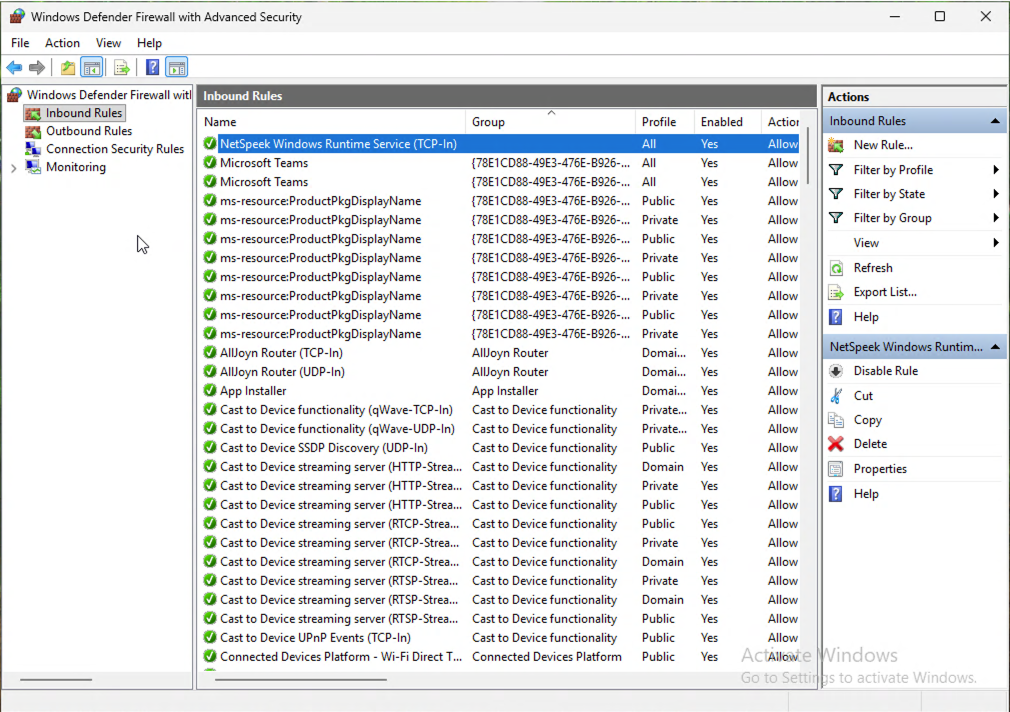
Note that “Inbound Rules” are selected in the list on the left, and the rule name generated by the installer is “NetSpeek Windows Runtime Service (TCP-In)” as highlighted in the central part of the interface. The rule must be enabled. Scroll to the right to see additional configuration columns such as protocols, ports, and more. Right-click on the rule and select Properties to see more details about the rule if of interest.
The functionality of the rule is to permit inbound traffic (from the Windows OS’ perspective) on the port defined during NWRS installation. This port is TCP 443 by default, or could be an alternate TCP port defined in the listening port configuration screen of the installation wizard.
Unless there is something unexpected or undesired observed in the rule, there is no need to proceed further in this guide. You may wish to return to Step 2 of the NetSpeek Windows Runtime Service Integration Guide to add a Windows OS device to a Room Canvas and verify connectivity.
Manual configuration of firewall rule
The remainder of the guide should only be necessary in the below or similar circumstances:
- NWRS Installation completed successfully, but privileges to configure firewall rules were not available and the rule was not created
- The firewall rule has been removed after its original creation by the installation procedure
- Rule parameters, such as limiting to specific networks or limiting rule availability to the NWRS program, need to be modified
Step 1. Open Windows Firewall
- Click Start
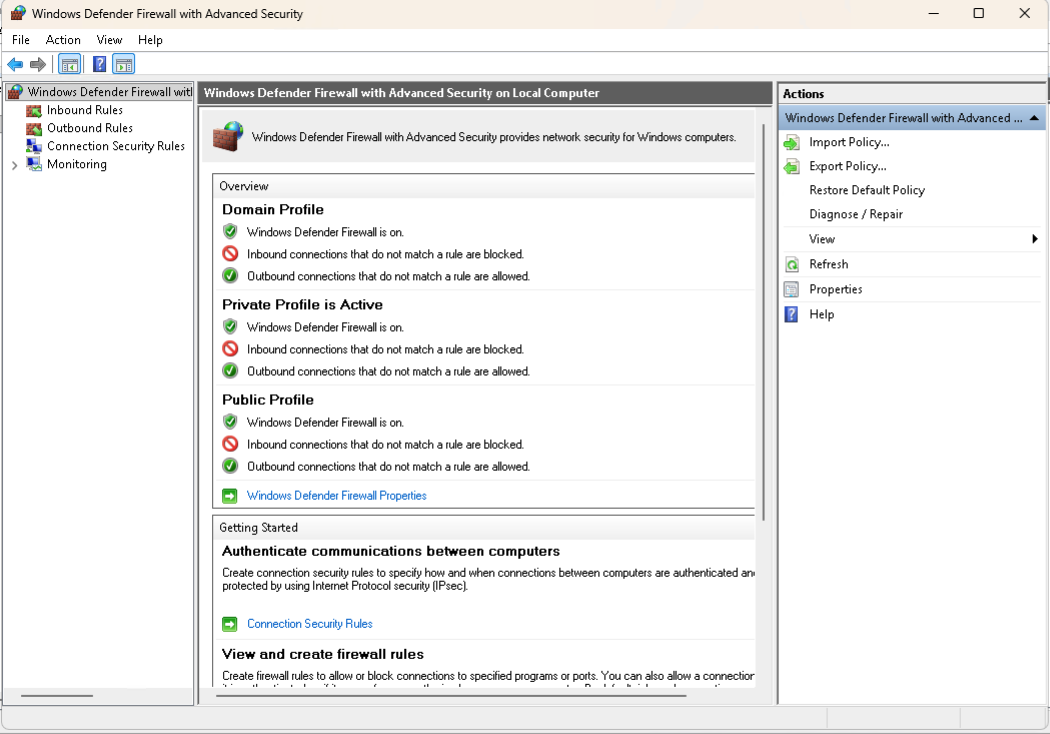
- Search for Windows Defender Firewall with Advanced Security and select “Run as administrator”
- You will be met with the below window:
Step 2. Create a rule for the NWRS BackgroundWorker
- Click Inbound Rules
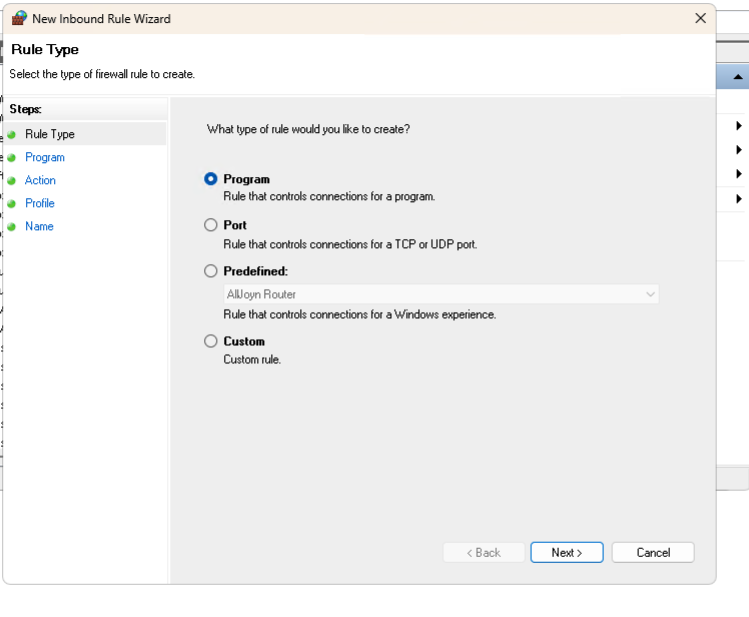
- Then click New Rule as depicted below:

- Select the Rule Type: Program and Click Next.
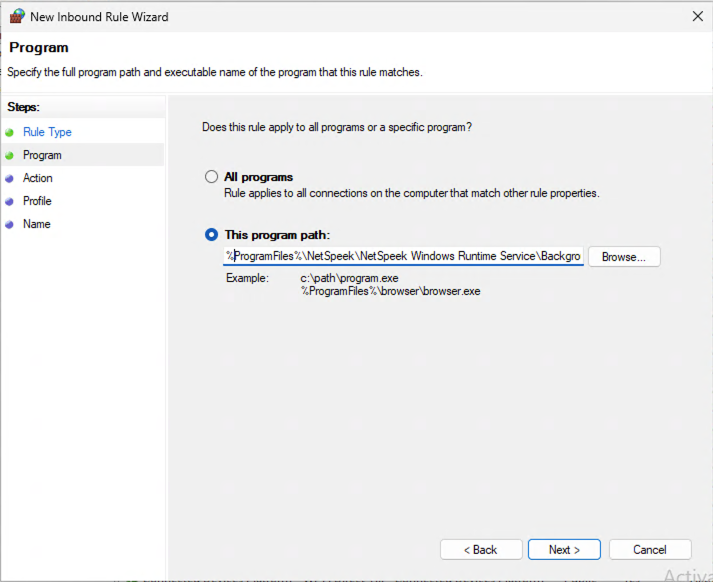
- Select This program path: on the Program screen, then enter the path to the NWRS BackgroundWorker executable:
%ProgramFiles%\NetSpeek\NetSpeek Windows Runtime Service\BackgroundWorker.exe
- Select Allow the connection on the Action screen and click Next.
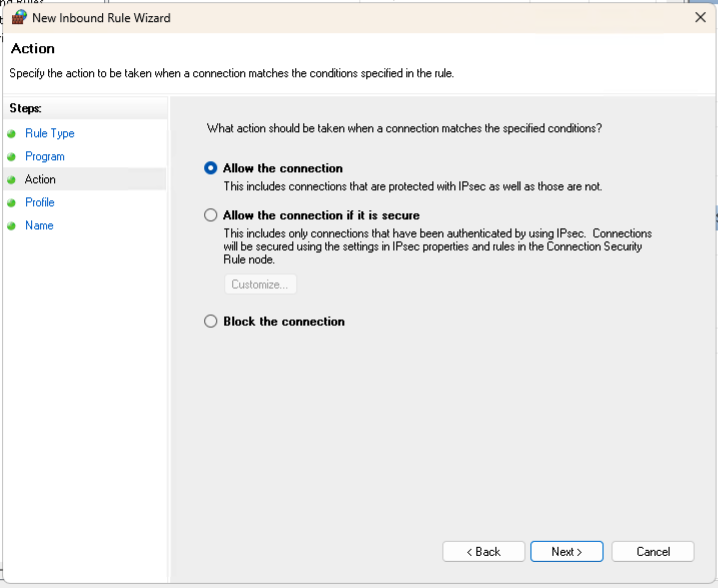
- Select your desired application of this rule to network types based on your organizational policies and how the device is used (configuration options shown below), and Click Next.

- Name the Rule, for example: NetSpeek Windows Runtime Service Inbound TCP 443 or similar and click Finish.

This concludes the Windows Firewall configuration requirements for the NWRS. You may wish to visit:
- NetSpeek Windows Runtime Service Installation Guide for Individual Devices
- NetSpeek Windows Runtime Service Installation Guide for Microsoft Intune
- NetSpeek Windows Runtime Service Integration Guide
Support
If you run into any issues during onboarding or have questions, contact NetSpeek Support at support@netspeek.com.