
Shure System API Server Integration Guide
This document serves as a comprehensive guide that outlines the prerequisites required to successfully integrate the Shure System API Server, which provides connectivity to audio components/devices (such as MXA microphones) and DSPs (such as P300 and ANIUSB), with the NetSpeek platform.
This device type uses a concept called “sub-integration” which means that the Edge VM uses another component to reach orchestrated devices. In the case of this integration, that component is the Shure System API Server, which is described in Shure’s documentation here. Please review Shure’s documentation and ensure that all requirements, specifically minimum firmware versions, are met.
For the full list of devices from Shure currently supported by NetSpeek via the integration method described here, see NetSpeek Supported Devices and Controls.
Note
The Shure IMX Compute system (also known as Intellimix Room Kit) is not addressed by this integration guide. IMX Compute is integrated directly with the NetSpeek Edge VM, and does not require the System API Server sub-integration described here. For the Intellimix guide, see Shure Intellimix Compute Integration Guide.
Prerequisites
Before beginning the integration, confirm the following:
- Your Shure System API Server, and any devices to be orchestrated through it, are powered on.
- The Shure System API Server must be connected to a network that is routable to/from your NetSpeek Edge VM – the downstream devices (eg microphones and DSP) must of course be network-accessible to the Shure System API Server, but it is not necessary for the NetSpeek Edge VM to communicate directly with the devices.
- You have deployed a NetSpeek Edge client as described here: https://docs.netspeek.ai/netspeek-edge-installation-guide/
- Note: This integration requires an Edge running software version
1.1or later.
- Note: This integration requires an Edge running software version
- Deploying and configuring the Shure System API Server, and Shure microphones, speakers, wireless receivers, DSPs, or other components controlled by the API server, is outside the scope of this document. This guide assumes an operational Shure environment.
Note
Traffic is relayed from Edge VM → Shure API Server → audio device (and the reverse path for responses) so the Edge VM does not need to send traffic to the the audio device’s IP address directly.
Step 1. Create Sub-Integration (Tenant-Level)
Sub-Integration Configuration
This step assumes an Edge VM is already deployed – the sub-integration is added as a configuration parameter to the Edge at the tenant level.
- Navigate to Settings → Tenant Management → (select tenant) → Integrations
- Click Add Integration
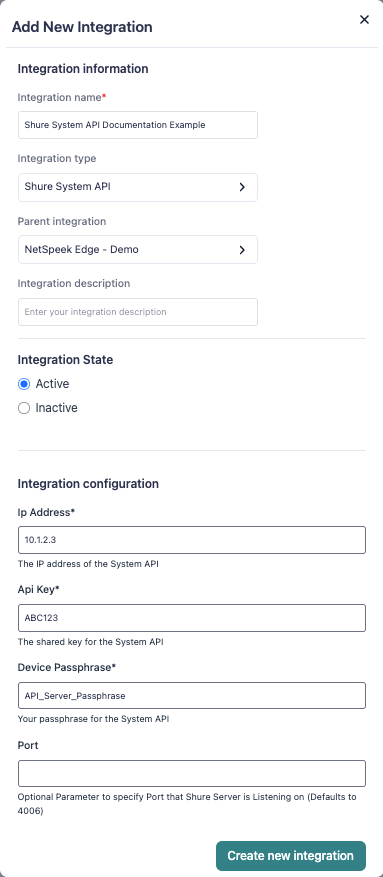
- Choose the Shure System API
integration type. - Note that for integrations where a sub-integration applies (and only those integrations), a “Parent Integration” field is shown.
- Select the appropriate NetSpeek Edge VM to serve as the parent.
Configure the relevant data about the System API Server (its IP address, API Key, Passphrase, and port if necessary) such as in the image below.
Step 2. Add Device to NetSpeek Room Canvas
Device Provisioning Flow
- In the NetSpeek Console, navigate to Room Management
- Select the room you wish to add your Shure device to
- Click Launch Room Canvas
- Click Add device to room
- Choose your desired device from the manufacturer → device model list.
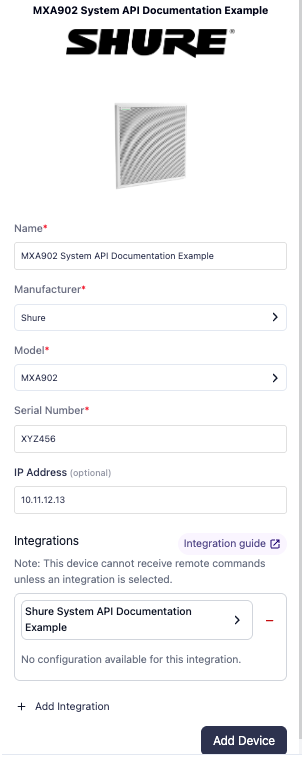
- Configure the appropriate values, and in the “Integrations” section, select the previously created NetSpeek Edge VM sub-integration from Step 1. Ensure that the Edge VM is on a network that can reach the Shure System API Server’s configured IP address.
- Serial Number (of the device eg microphone / DSP to be orchestrated)
- IP address is an optional field for informational purposes – the integration with the Shure System API Server is based on the Serial Number of the device (meaning microphone/DSP/etc) being orchestrated.
Verification
Once the relevant settings described above are configured, to validate the integration:
- Select a Shure device in the NetSpeek console, open the Device Actions Tab, and select an available device action. It is generally advisable to test by dispatching a non-intrusive command such as a
Get Status. - On the device, observe the selected action occurring.
Troubleshooting
Connection Issues
- Confirm the IP address of the Shure System API Server in the tenant-level sub-integration is correct and routable from the network segment where the NetSpeek Edge VM is deployed.
- Ensure the port used is not blocked by firewall rules on the machine running your NetSpeek Edge VM.
- Ensure the Shure System API Server is operational, and that components controlled by it are powered on and configured correctly.
Support
If you run into any issues during onboarding or have questions, contact NetSpeek Support at support@netspeek.com.