
NetSpeek Windows Runtime Service Installation Guide for Individual Devices
This document is a step-by-step guide for installing the NetSpeek Windows Runtime Service (NWRS) on an individual computer using a Windows operating system. This guide is a companion document to NetSpeek Windows Runtime Service Integration Guide. The NWRS is distributed as a downloadable MSI for this procedure (the distribution for Intune-managed fleets differs) and must be manually updated on individual PCs when new versions of NWRS are released.
NWRS acts as an on-premises component that listens for orchestration commands from your NetSpeek Edge VM and performs actions on its host PC (for example: display detection, system telemetry, OEM-specific commands, and other functionality).
Note
This guide is for installing NWRS on a single PC manually.
At scale, it is likely that installing and updating NWRS on a large fleet of Windows devices will be done via Microsoft Intune as described at: NetSpeek Windows Runtime Service Installation Guide for Microsoft Intune
Prerequisites
Before beginning the installation, confirm the following:
- The compute system/device is running a 64-bit Windows OS version from the list below:
- Windows 10
- Note that only 64-bit OS’es are supported – the 32-bit version of Windows 10 is not supported.
- Windows 11
- Windows Server 2016 or later
- Windows 10
- You have the required dependencies installed:
- .NET Core 8.0 Runtime (v8.0.26) (or later)
- ASP.NET Core 8.0 Runtime (v8.0.27) (or later)
- The PC is powered on and connected to a routable network from your NetSpeek Edge VM (a network path that allows the Edge to reach the PC’s IP address on port TCP 443 or your configured alternate listening port).
- You have administrator rights on the Windows PC (required to install the MSI and, if needed, modify the Windows Firewall).
- Relevant software for your use case is installed on the PC.
- You have the NetSpeek Windows Runtime Service MSI (
NetSpeekWindowsRuntime.msi) file downloaded from your NetSpeek tenant’s portal interface.
Extended Prerequisites – Acquiring the MSI file from your NetSpeek tenant
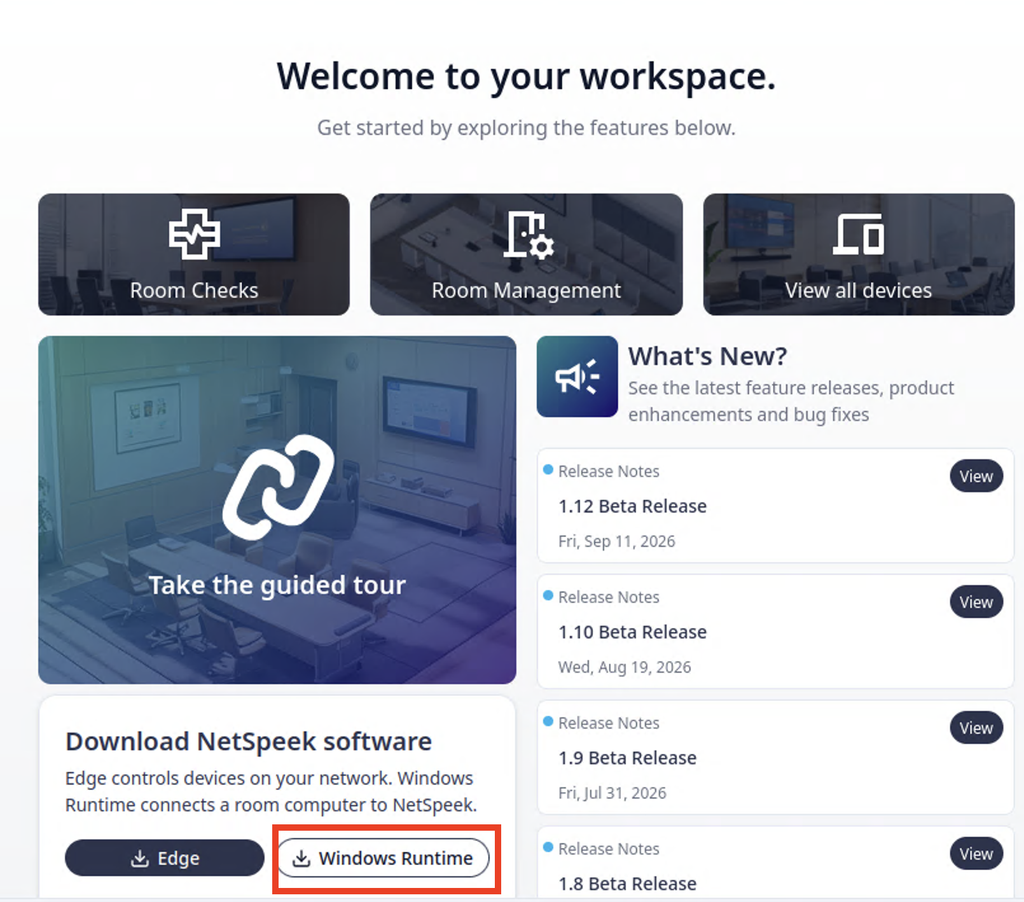
When starting a new chat, the welcome screen includes a section showing available downloads – click the Windows Runtime button as highlighted below. Note that this will download the NetSpeekWindowsRuntime.msi file to the local storage of the machine logged into NetSpeek – either login to the NetSpeek portal from the PC to be orchestrated, or otherwise make the installation file accessible to the target PC such as via a shared network drive.
Step 1. Install the NetSpeek Windows Runtime Service MSI
- On the target PC to be orchestrated, locate
NetSpeekWindowsRuntime.msi(the NWRS installer) as described in the prerequisites above. - Right-click the MSI file and select Run as administrator (if available), Install, or similar.
- Follow the installation wizard and complete the install (detailed walkthrough is below).
The installer does the following:
- Moves necessary files and runtime components to the machine’s program installation directory.
- Registers and starts the NetSpeek Windows Runtime Service within the Windows OS.
- Configures HTTPS listening on port TCP 443 (unless an alternate listening port is specified during installation) and creates an inbound rule in Windows Firewall to permit necessary traffic.
- Ensure the configured listening port is not used by other software on the Windows OS device – port conflicts can prevent NWRS and/or other applications from operating correctly.
Install wizard page-by-page guide
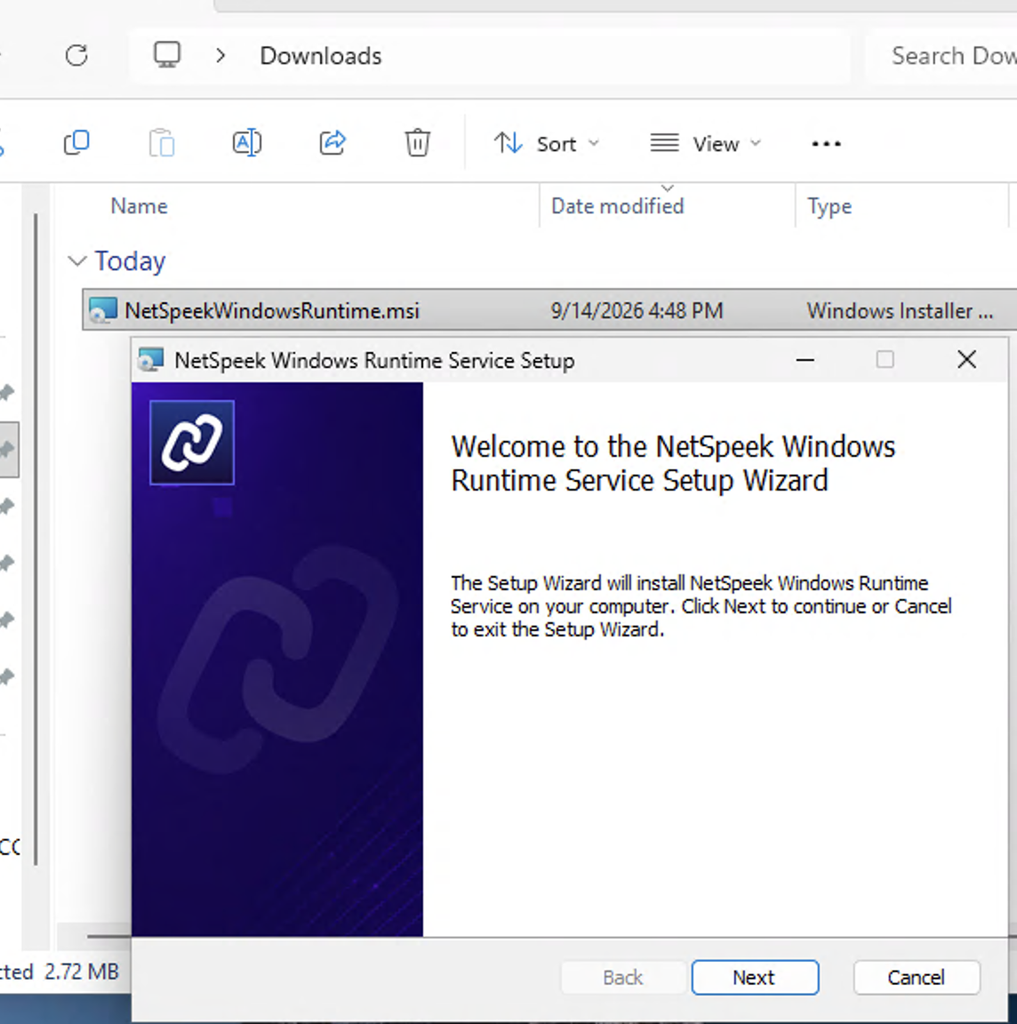
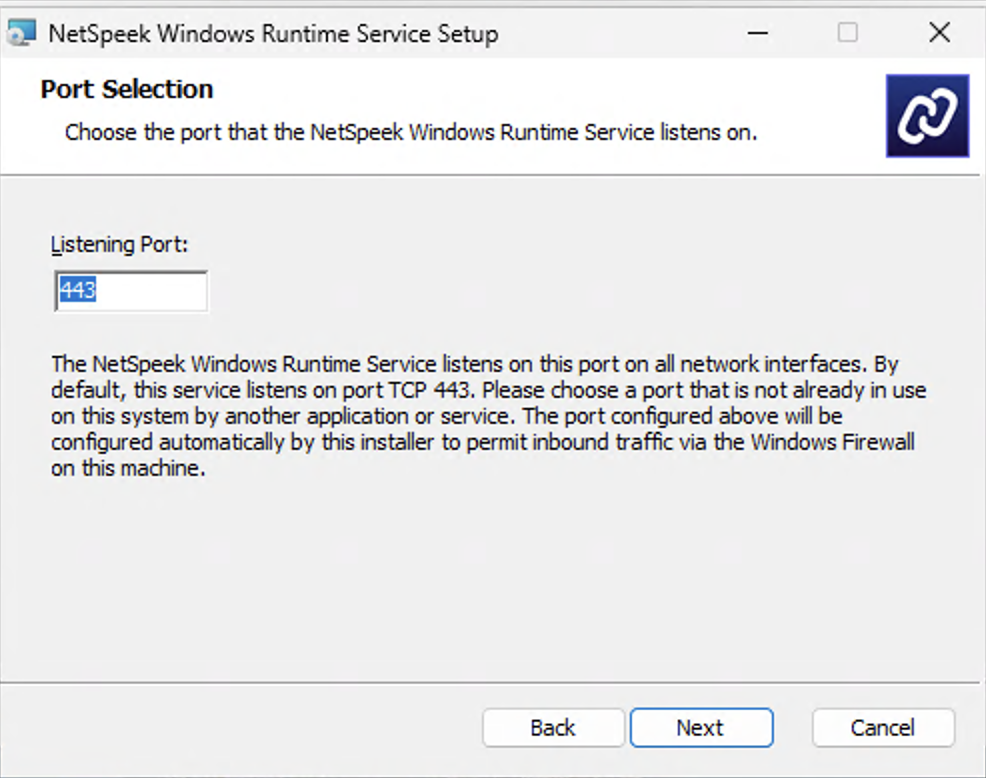
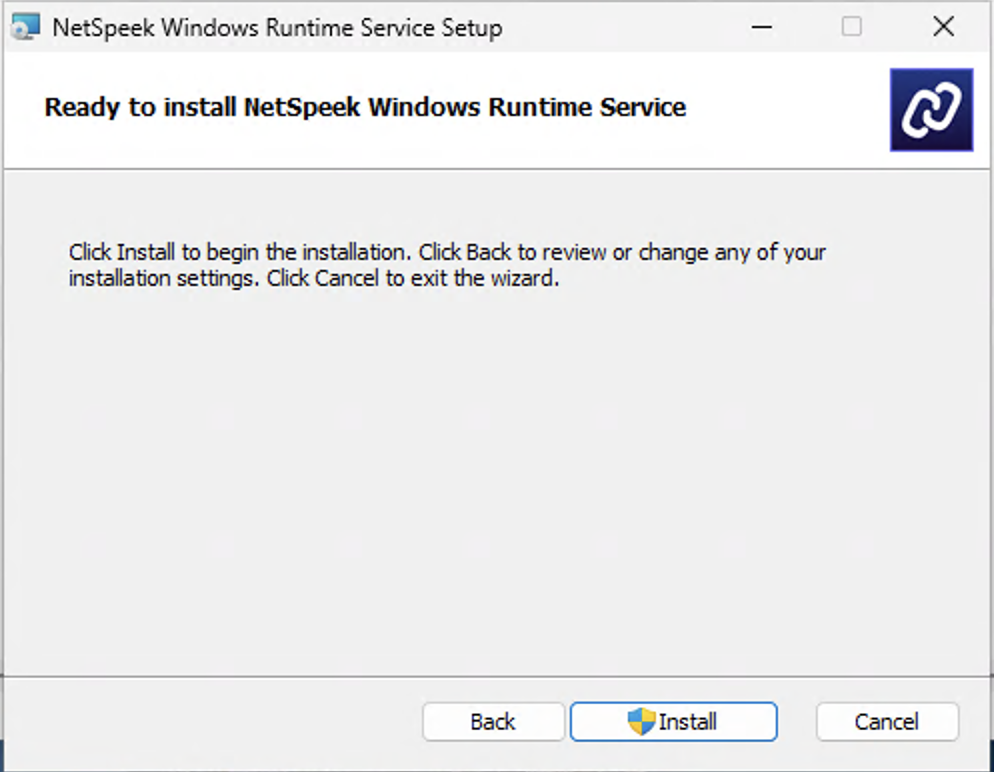
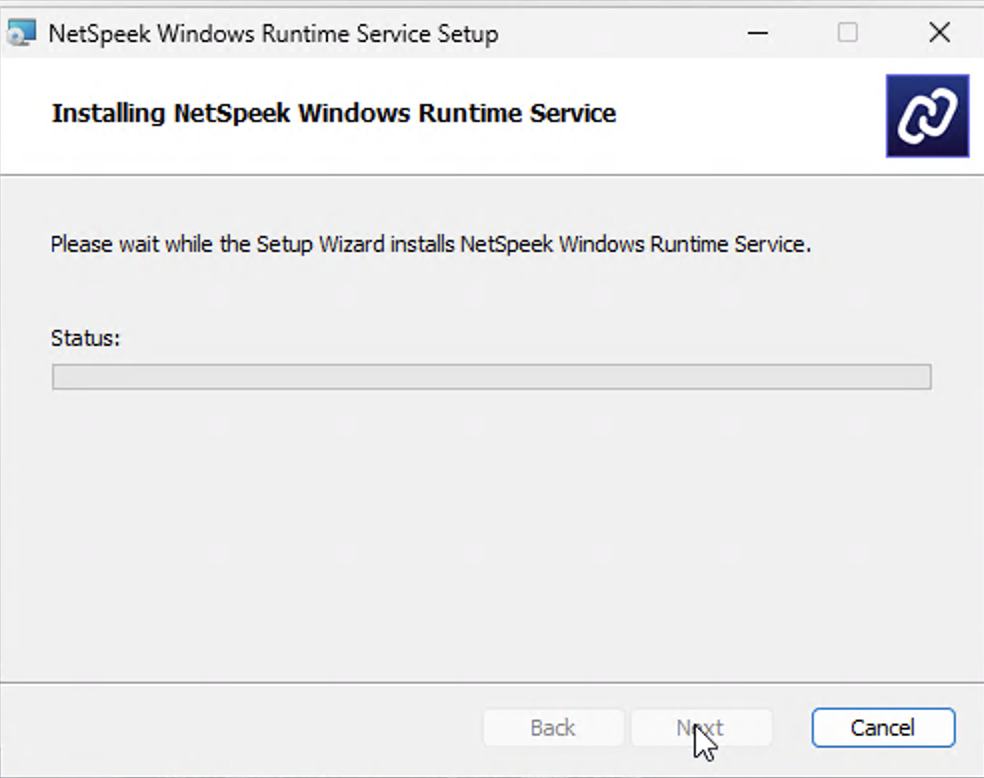
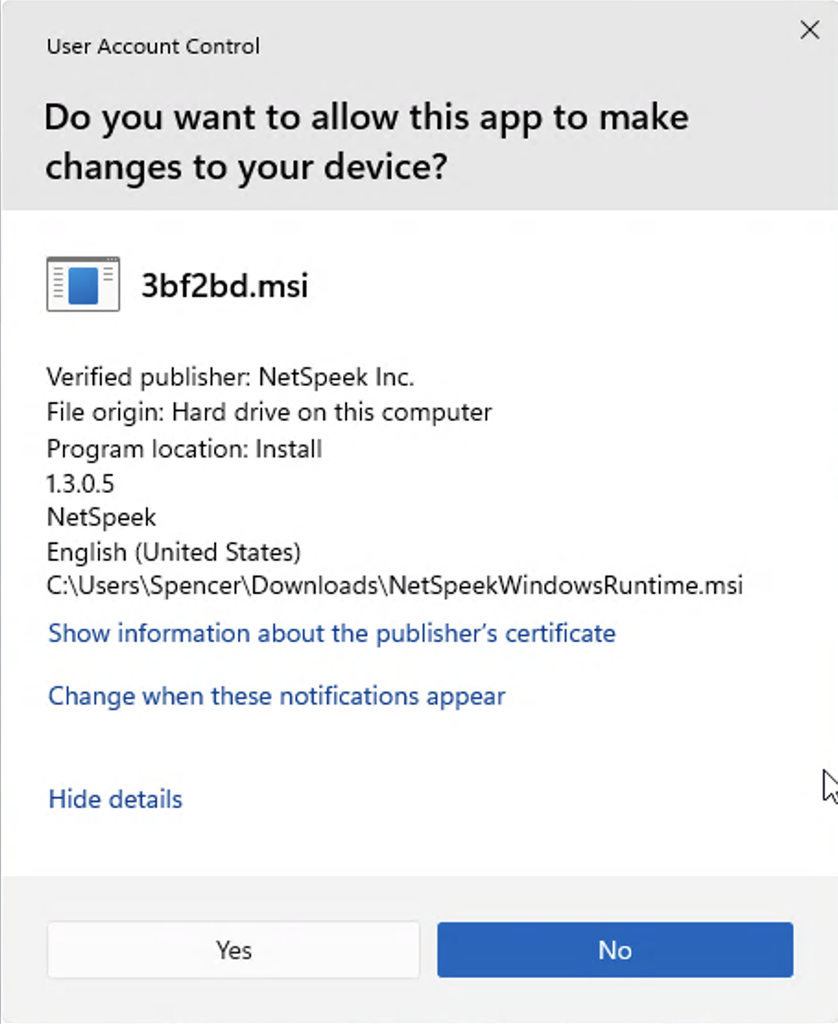
User Account Control interface like this may appear before installation progress can move forward.After selecting “Yes” in the interface above, you may briefly see PowerShell windows being created, running commands, and closing. This is expected as the installer wizard progresses through program setup, and creates the necessary rules in Windows Firewall.
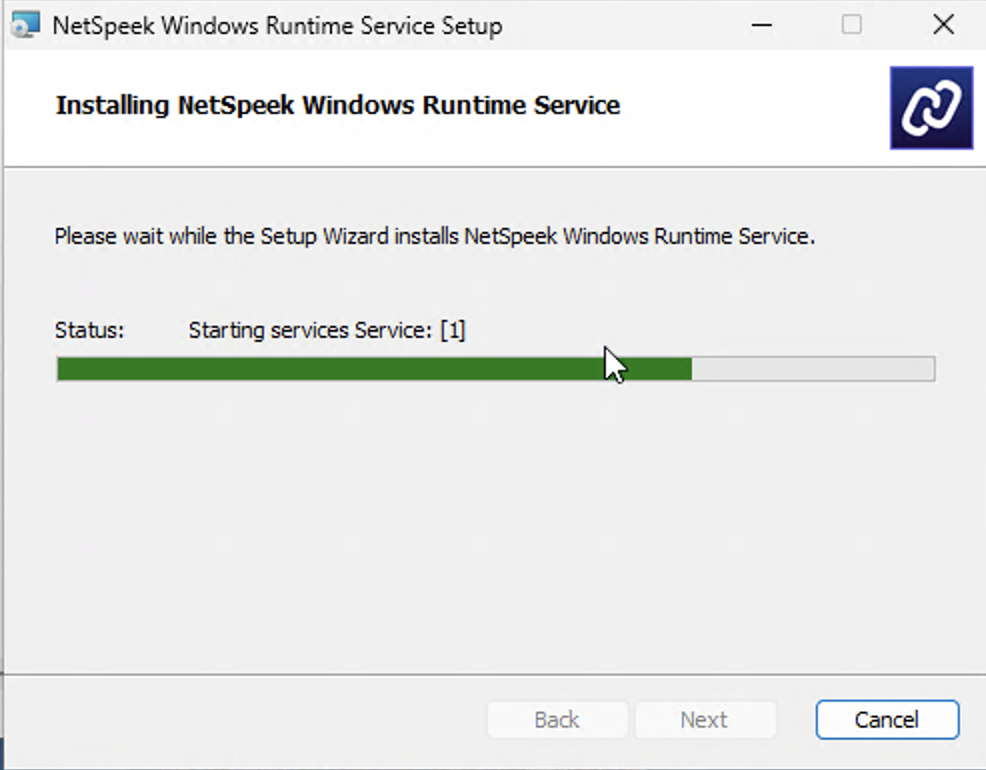
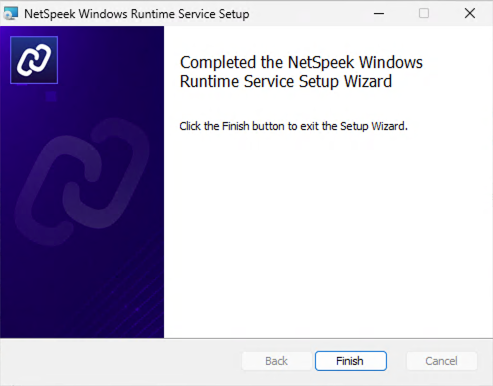
If your installation did not complete successfully, scroll down to the Troubleshooting section below – some common issues are described there.
If your installation did complete, you likely will want to confirm the service is running, and the required network connectivity is available, as described in the following steps.
Step 2. Confirm the NWRS is running in Windows Services
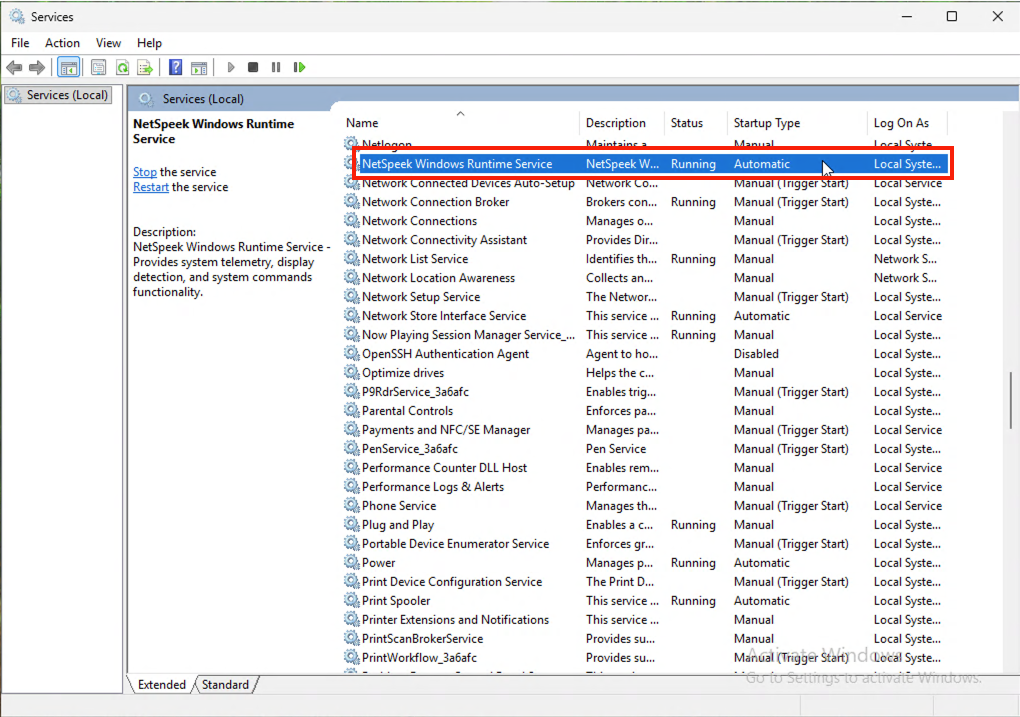
Use the Windows Services Console to verify the installer started the service correctly.
- Press the Windows button, type
services.mscand press Enter - In the list of services, locate NetSpeek Windows Runtime Service.
- Confirm:
- Status shows Running
- Startup type is Automatic (or matches your organizational policy).
- If the Service is neither Running nor has a Startup type of Automatic, contact your organization’s administrator to configure these settings.
If Status is blank or Stopped:
- Right-click NetSpeek Windows Runtime Service → Start.
- If NWRS fails to start, scroll to the Troubleshooting section at the end of this guide.
Step 3. Network, firewall, and listening port (default TCP 443)
In order for the NetSpeek Edge VM to orchestrate this PC over HTTPS:
- The hostname or IP address configured on a Windows OS device in the NetSpeek Canvas in Step 2 of the NWRS Integration Guide must match the network configuration of the Windows device. The NWRS is listening on port TCP 443 by default for commands from the Edge VM.
- If Windows Firewall or other software on the PC blocks inbound HTTPS connections, configure the PC to allow inbound TCP 443 traffic (or your configured listening port).
- As of NWRS version
1.3.0, the installation wizard will configure an inbound rule in Windows Firewall to permit traffic to the relevant listening port. Depending on your organizational policies, this task may need to be completed by your Windows OS administrator, or repeated periodically if Windows Firewall rules are modified after initial NWRS installation. For details, see: NetSpeek Windows Runtime Service Firewall Configuration Guide
- As of NWRS version
Verification
Verification requires configuring an Integration at the tenant level of the NetSpeek platform, and adding a Windows OS device to a Canvas at the Room level. For details about these steps, and verification once completed, refer to: NetSpeek Windows Runtime Service Integration Guide
Troubleshooting
Installation Issues
Attempting to install the NWRS without the .NET dependencies described in the Prerequisites section of this guide can result in symptoms such as:
- MSI installation failure or rollback
- Installation proceeding normally until final confirmation, then exiting without completing.
Error messages indicative of potential missing .NET dependencies include:
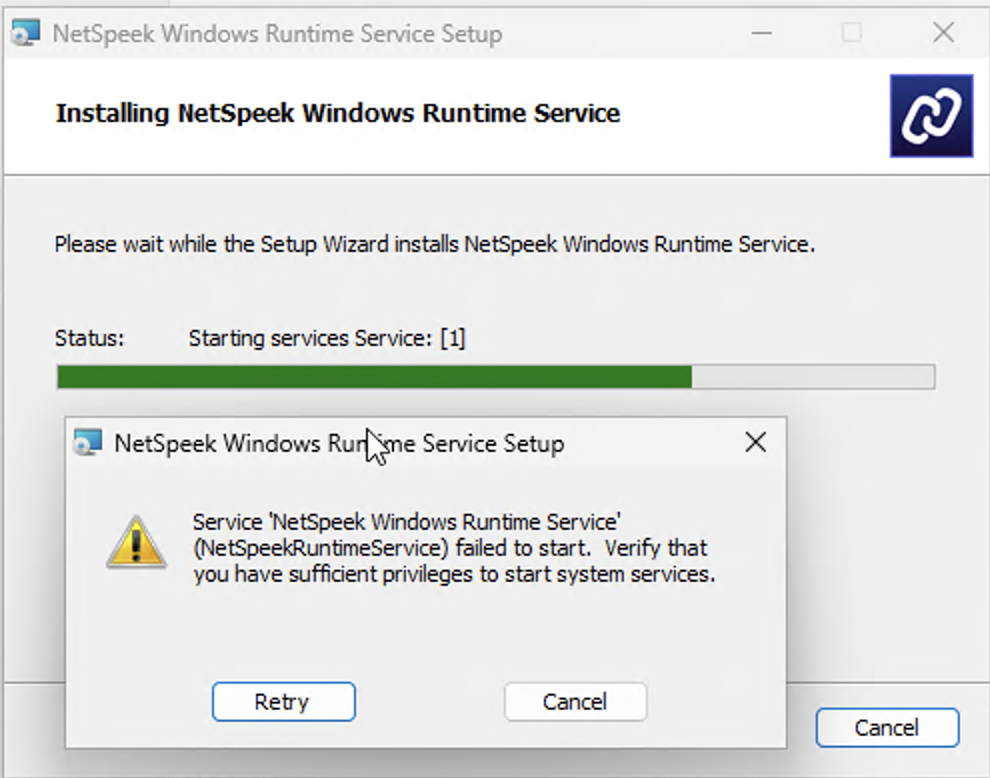
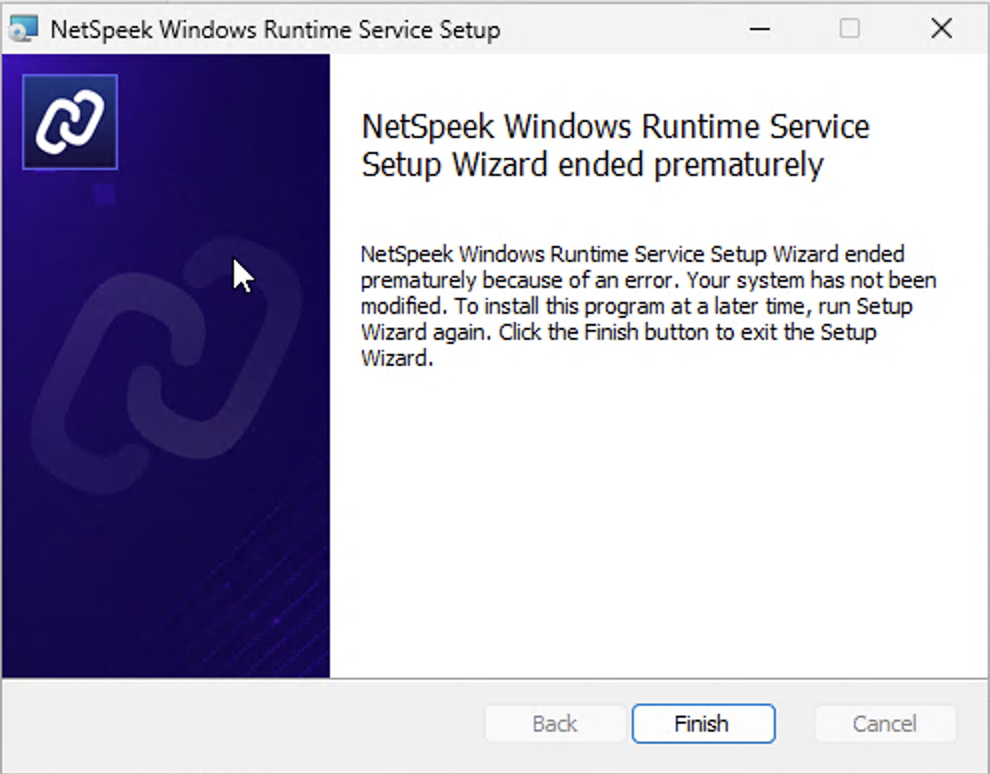
Windows Event Viewer contains a history of installation attempts. The images below show Event Viewer error messages from the time of the failed installation attempt depicted above, and are how Windows describes the missing .NET dependencies which blocked the installation attempt. Note these are found in Windows Logs → Application.
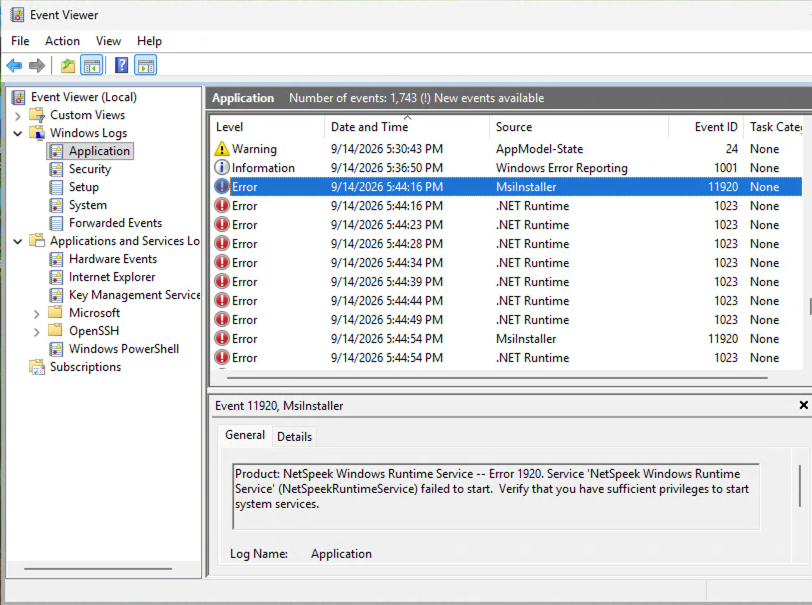
MsiInstaller error corresponds with privileges error shown in the install wizard interface.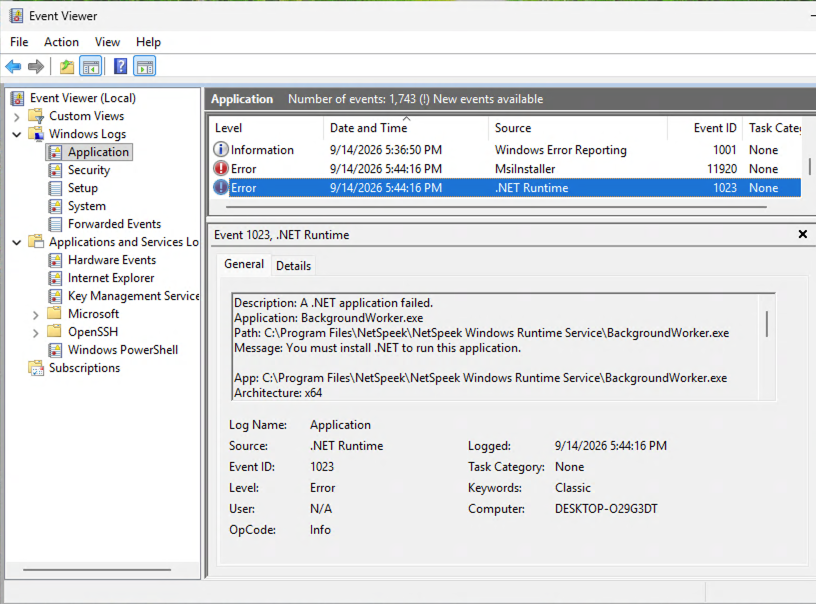
.NET Runtime error from the same timestamp indicates the underlying problem is not account privileges or permissions, but an attempt to install the NWRS without its .NET dependencies.Privileges / Other Issues
When possible, run the MSI as administrator. If problems persist, collect the installer logs and Event Viewer entries and contact NetSpeek Support.
For general investigations, first check Event Viewer → Windows Logs → Application from the timeframe of the installation attempt, for errors tied to NetSpeek, HTTPS, port 443 (or your configured listening port), or .NET.
Connectivity Issues
- Confirm the IP address / hostname in the NetSpeek Web Portal match (and firewall rules permit connectivity on your relevant listening port).
- Ensure the NetSpeek Edge VM can route to the subnet where your NWRS-orchestrated PC resides (VPN, VLAN, guest Wi‑Fi, and other segmentation approaches often block Edge-to-PC paths).
Support
If you run into any issues during installation or have questions, contact NetSpeek Support at support@netspeek.com.