BrightSign Cloud Integration Guide
This document serves as a comprehensive guide that outlines the necessary steps to create a BrightSign Cloud application, retrieve required API credentials, and connect it to the NetSpeek platform.
Enabling NetSpeek Integration for BrightSign Cloud
Prerequisites
Before beginning the integration, confirm the following:
- Access to the BrightSign Cloud portal, signed in with an account that has permission to manage applications and API access.
Note
While app.bsn.cloud is commonly used for certain BrightSign device management tasks, all procedures related to APIs and applications for this integration should be performed in the BrightSign Admin Panel at https://adminpanel.bsn.cloud.
Step 1: Sign in to BrightSign Cloud
- Go to the BrightSign Cloud admin portal.
- Sign in with an account that has permission to manage applications and API access.
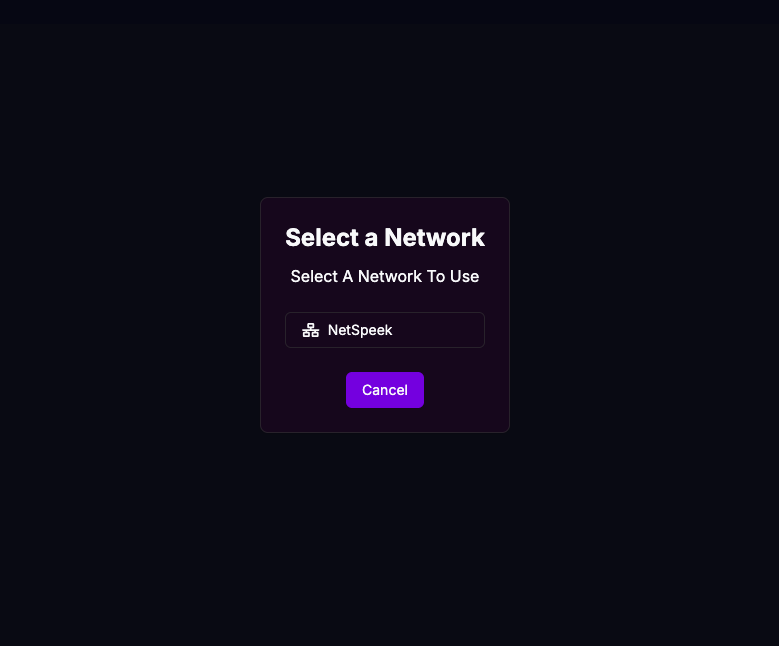
- Select Your Network
Step 2: Create an API Application
1. Navigate to your Account / Admin / Developer / Applications section (exact naming may vary by tenant).
2. Click Add Application.

3. Enter the required details (e.g., Application Name, Description).
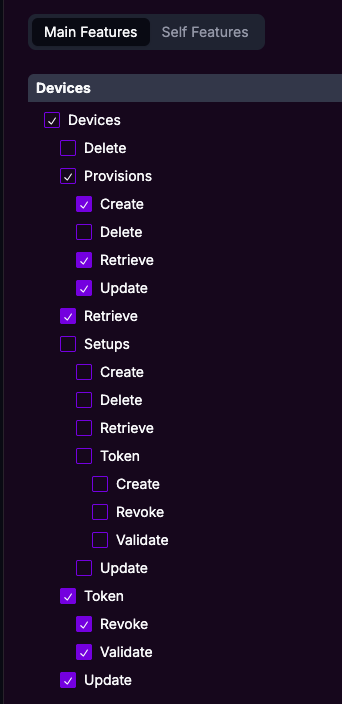
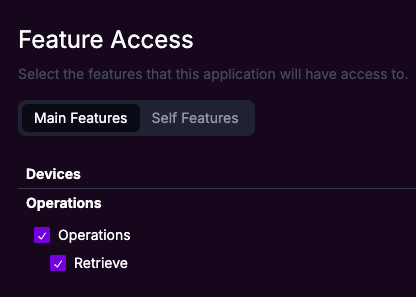
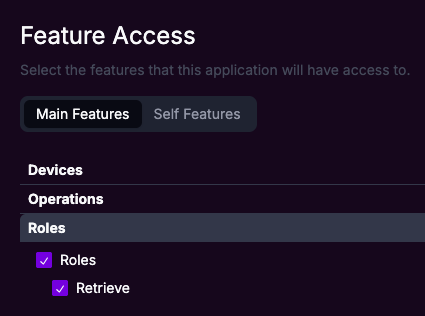
4. You’ll then need be prompted to select desired permissions for the App. Below are screen captures of the required permissions that will need to be enabled in order for the Integration to function properly (see details on permissions in the Resources section of this document).
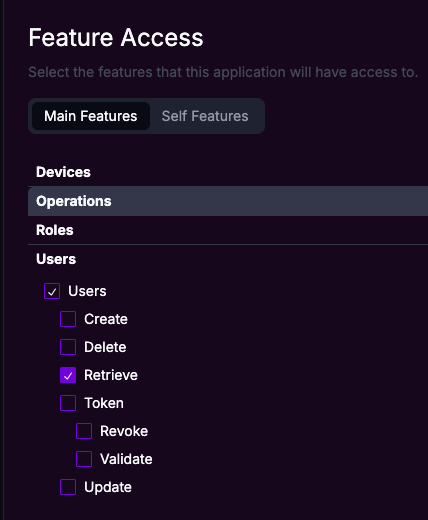
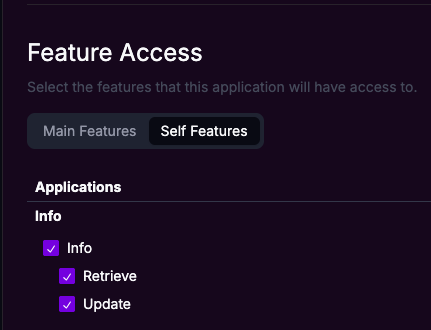
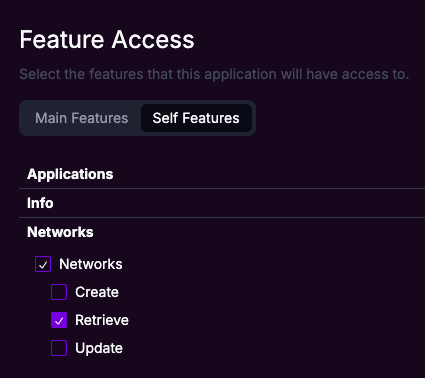
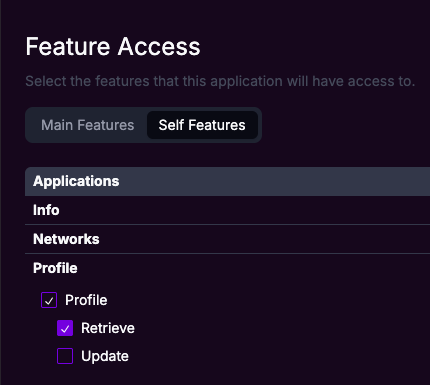
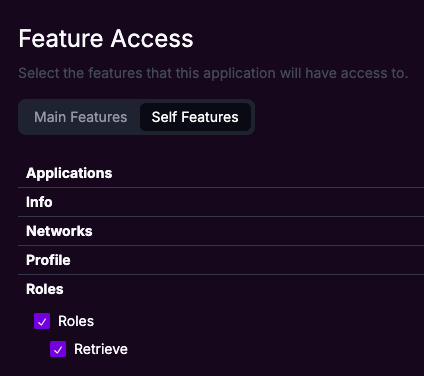
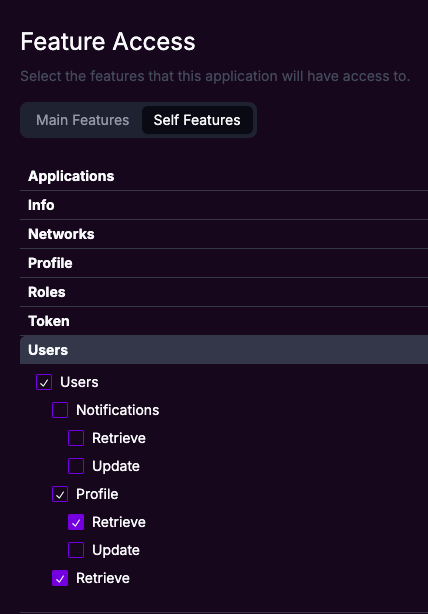
Once you’ve selected the required App Permissions, Save the application.
Step 3: Retrieve Application Credentials
After creating the application you will be shown a page containing:
- Client ID
- Client Secret
- Copy/store the Client ID and Client Secret credentials:
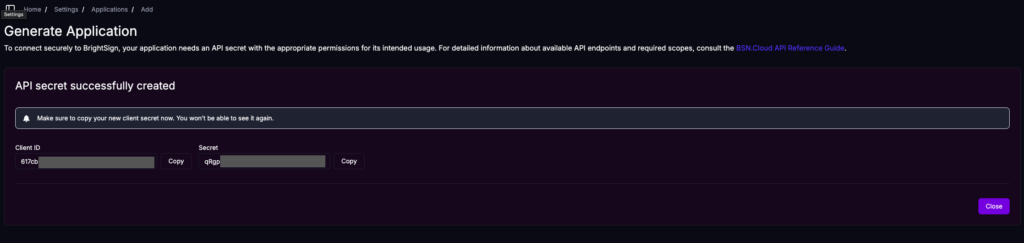
Note
The Client ID and Client Secret credentials will be required when adding the integration to the NetSpeek platform.
Step 4: Add BrightSign Cloud Integration in NetSpeek
- In NetSpeek, click your User Menu (bottom-left).
- Go to Settings → Tenant Management → Integrations.
- Click + Add Integration.
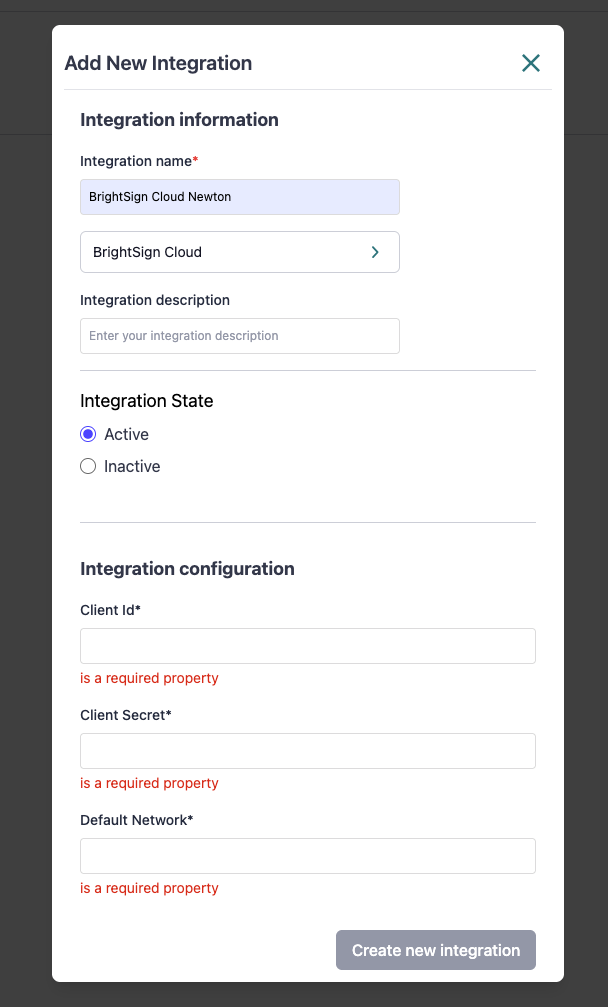
- Fill out the integration fields:
- Name: Choose any name (e.g., “MyCompanyName BrightSign Cloud”).
- Integration Type: Select BrightSign Cloud from the dropdown.
- Client ID: Paste the Client ID you copied.
- Client Secret: Paste the Client Secret you copied.
- Network Name: Enter your BrightSign Network name.
- Set Integration State: Active.
- Click Save / Update Integration.
Step 5: Onboard your BrightSign Device(s) into NetSpeek
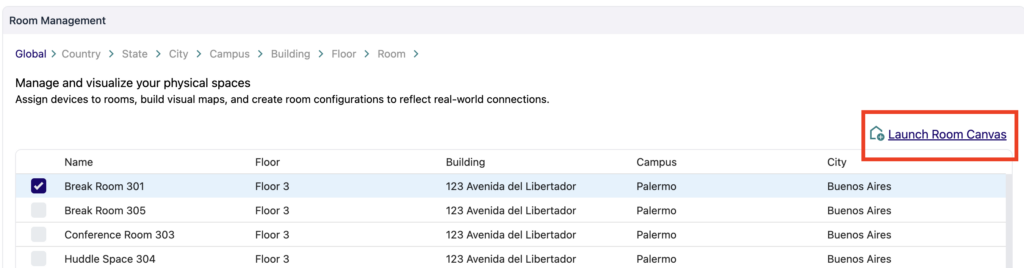
In the NetSpeek platform, go to Room Management.
1. Select a Room you wish to assign it to, then click Launch Room Canvas
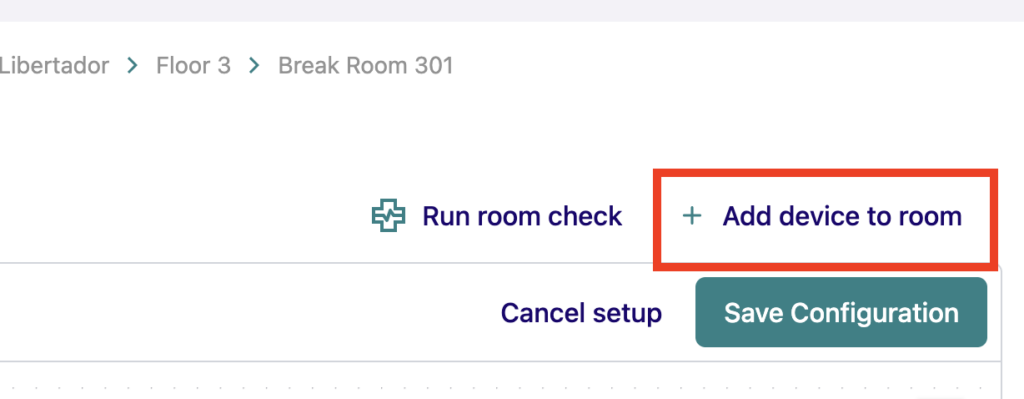
2. ClickAdd Device to Room.
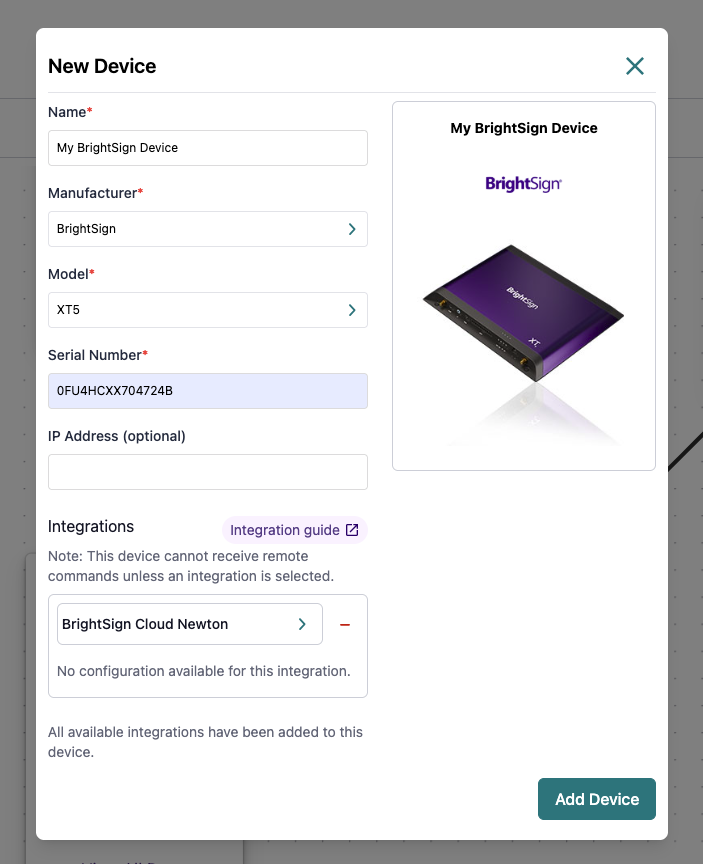
3. Select the Manufacturer and Model of your BrightSign Device.
4. Enter its Serial Number
5. Choose the previously created BrightSign Cloud Integration.
6. Click Add Device
Verification
After saving:
- If the credentials, permissions and device information are correct, you’ll be able to start controlling and monitoring BrightSign Devices within the NetSpeek platform. Simply navigate to the Devices List Panel by selecting the room your device has been added to and try dispatching a non-intrusive command such as a
Get Status.
Resources
Required App Permissions (Detailed Overview)
Main Features – Enabled Permissions
| Name | Permission Type | Description |
|---|---|---|
| Devices | Retrieve | Allows retrieving device lists and device metadata. |
| Devices › Provisions | Create | Required to provision/register new devices. |
| Devices › Provisions | Retrieve | Allows fetching provisioning details and status. |
| Devices › Provisions | Update | Enables modification of provisioning data during setup. |
| Devices › Setups › Token | Create | Required to generate tokens tied to device setups. |
| Devices › Setups › Token | Revoke | Allows invalidating setup-related tokens. |
| Devices › Setups › Token | Validate | Ensures setup-related tokens are valid for use. |
| Devices › Token | Revoke | Allows invalidating device tokens during lifecycle changes. |
| Devices › Token | Validate | Confirms device tokens are valid. |
| Devices › Token | Update | Allows modification of device token records. |
| Operations | Retrieve | Allows access to system or device operation logs. |
| Roles | Retrieve | Required to read available roles within the organization. |
| Users | Retrieve | Allows retrieving user information for authorization context. |
Self Features – Enabled Permissions
| Name | Permission Type | Description |
|---|---|---|
| Info | Retrieve | Allows reading the application’s own metadata. |
| Info | Update | Allows updating the application’s metadata or configuration. |
| Networks | Retrieve | Allows reading network metadata associated with the application. |
| Profile | Retrieve | Allows retrieving the application’s own profile information. |
| Roles | Retrieve | Allows checking the application’s own role assignments. |
| Users | Retrieve | Allows retrieving the authenticated user’s profile. |
| Users › Profile | Retrieve | Allows reading the user’s profile information. |
| Users › Token | Retrieve | Allows retrieving user token info for validation. |
Support
If you run into any issues during onboarding or have questions, contact NetSpeek Support at support@netspeek.com.