Microsoft Teams Integration Guide
This document serves as a comprehensive guide that outlines the necessary steps to successfully set up a Microsoft Teams integration with the NetSpeek platform.
Step 1: Create a New Integration in the NetSpeek Platform
- Log in to NetSpeek portal with your account.
- Navigate to Settings → Tenant Management -> click tenant name → click Integrations → click “+ Add Integration“
- Select Integration of type Microsoft Teams.
- Enter the following details:
- Tenant ID (your Microsoft Entra tenant ID).
- Admin User Email (the Microsoft 365 Global Admin who will approve consent).
- Save the integration.
- Ensure User assignment required? is set correctly (disabled or assigned to specific resource accounts as needed).
Microsoft Documentation: Finding your Microsoft Entra tenant ID
Step 2: Approve Permissions (Admin Consent)
- After you complete Step 1, NetSpeek will email your Global Admin a secure link.
- This link takes you to a Microsoft sign-in page where you’ll see the permissions the NetSpeek Connector app is requesting.
- Review the requested permissions and click Accept.
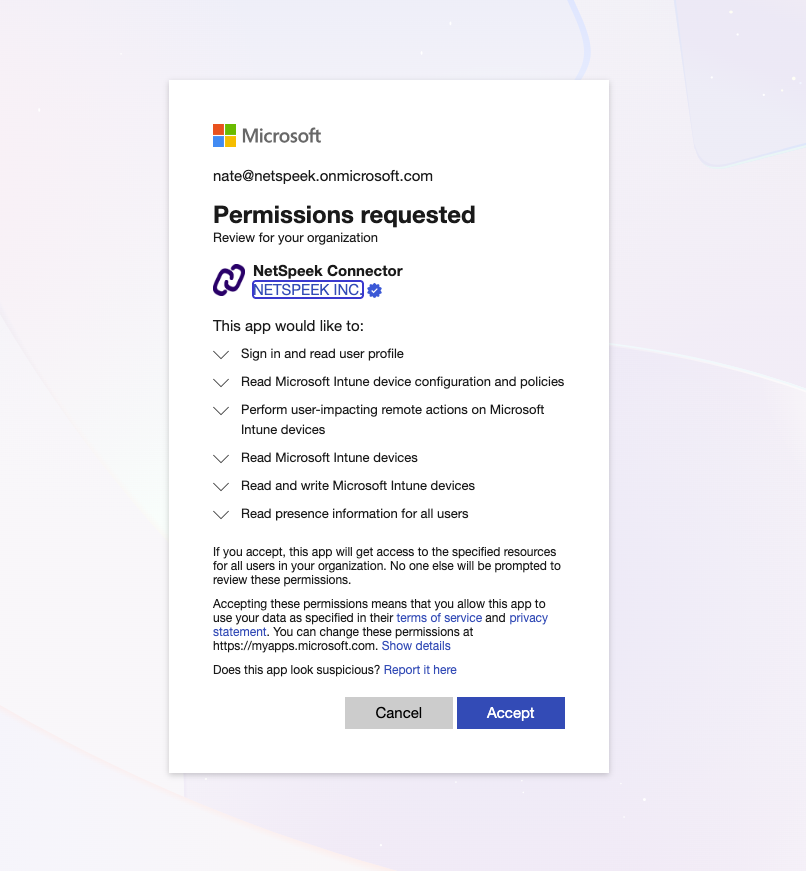
Actions Performed → Permissions Required
| Action Name | Description | API used | Required Permissions |
|---|---|---|---|
| REBOOT_DEVICE | Restarts a Windows device remotely for maintenance and update application | Intune | DeviceManagementManagedDevices.Read.AllDeviceManagementManagedDevices.PrivilegedOperations.All |
| GET_STATUS | Retrieves comprehensive device health information including power status, network status, system resources, updates, peripheral health, and Teams sign-in information | Intune/Teamwork Communications | DeviceManagementManagedDevices.Read.All Presence.Read.All |
| GET_TEAMS_DEVICE_OPERATIONS | Retrieves device compliance policy states and operation history to monitor device compliance status | Intune | DeviceManagementManagedDevices.Read.All DeviceManagementConfiguration.Read.All |
Microsoft Documentation: Grant admin consent
Note
The email containing the admin consent link described above will come from donotreply@netspeek.com – please ensure email security systems allow that address to send messages that arrive unmodified to your administrator.
When connecting your tenant to the NetSpeek application, you must sign in using an email account with admin rights for the tenant you wish to grant access to.
Only tenant administrators have the necessary permissions to approve and authorize our app.
Step 3: Confirm Enterprise Application Settings
After granting consent:
- Log in to the Microsoft Entra Admin Center.
- Navigate to: Enterprise Applications → All applications.
- Verify that NetSpeek Teams Integration appears in the list.
- Ensure User assignment required? is set correctly (disabled or assigned to specific resource accounts as needed).
Microsoft Documentation: Manage enterprise app settings
Step 4: Apply Teams Application Access Policy
Your Teams environment requires a policy to allow the NetSpeek app to manage room calendars.
- Open PowerShell as Administrator.
- Run the following commands (replace placeholders where necessary):
Install-Module MicrosoftTeams
Connect-MicrosoftTeams
New-CsApplicationAccessPolicy `
-Identity "NetSpeekTeamsIntegration" `
-AppIds "{NETSPEEK-APP-ID}" `
-Description "Allow NetSpeek integration app"
# Option 1: Apply globally (all users/rooms)
Grant-CsApplicationAccessPolicy -PolicyName "NetSpeekTeamsIntegration" -Global
# Option 2: Apply per room mailbox (recommended)
Grant-CsApplicationAccessPolicy -Identity "ROOM_OBJECT_ID" -PolicyName "NetSpeekTeamsIntegration"
Microsoft Documentation: Configure app access to Teams resources
Verification
- To validate the Microsoft Teams integration, select a Teams integrated device in the NetSpeek console, open the Device Actions Tab, and select an available device action, such as “Reboot”.
- On the device, observe the selected action occurring.
- Back in the NetSpeek portal, select the device, open the Device Integrations tab, and ensure the device displays as Connected/Paired for Microsoft Teams.
Permissions Requested → Business Outcome Justification
| Permission | Business Justification |
|---|---|
| DeviceManagementManagedDevices.Read.All | Essential for device monitoring and health reporting – Required to retrieve device status, health metrics, diagnostic information, and compliance data from Intune-managed Windows devices. This enables proactive device monitoring and troubleshooting capabilities. |
| DeviceManagementManagedDevices.ReadWrite.All | Required for device synchronization and update management – Necessary to trigger device sync operations and manage software updates. This ensures devices stay current with security patches and software updates. |
| DeviceManagementManagedDevices.PrivilegedOperations.All | Critical for device maintenance operations – Required to perform essential device management tasks such as device restarts, which are necessary for applying updates and resolving device issues. This permission enables remote device maintenance without physical access. |
| DeviceManagementConfiguration.Read.All | Necessary for compliance monitoring – Required to read device compliance policy states and configuration information. This enables monitoring of device compliance status and identification of devices that may require attention or remediation. |
| Presence.Read.All | Required for Teams integration status reporting – Used to retrieve user presence information for Teams devices, enabling accurate reporting of device sign-in status and user activity for comprehensive device management dashboards. |
| User.Read (Delegated) | Standard authentication requirement – Basic permission required for user authentication and accessing user profile information. This is a standard Microsoft Graph permission used for secure API access. |
Support
If you run into any issues during onboarding or have questions, contact NetSpeek Support at support@netspeek.com.