Poly Lens Integration Guide
This document serves as a comprehensive guide that outlines the necessary steps to successfully set up a Poly Lens integration with the NetSpeek platform.
Enabling NetSpeek Integration with Poly Lens
Prerequisites
- Poly devices are powered on, connected to the network, and registered to your Poly Lens tenant.
- You have administrative access to your Poly Lens tenant, in order to manage API Credentials (Managing Poly Lens Users / Account Members).
- You have access to your NetSpeek tenant with permission to manage Customer Integrations.
Step 1. Prepare the Poly Lens Environment
The Poly Lens documentation, such as the Video Devices Quick Start Guide instructs the Poly device administrator through the various steps of tenant orchestration, such as managing users, configuring location hierarchy, and enrolling devices. There are many decision to make about Lens setup, and multiple methods of device enrollment to choose from – those configurations are out of the scope of this NetSpeek documentation. This guide assumes the necessary steps to use Poly Lens have been completed, and that NetSpeek-compatible devices are enrolled and operational in Poly Lens (not to be confused with NetSpeek Lena) before you proceed.
Step 2. Export Device Serial Numbers from Poly Lens
A. Filter devices in Lens
- Go to Poly Lens → Devices and create a view/filter showing Lens-enrolled devices to be enrolled in NetSpeek. See the Lens video device inventory documentation for guidance on available information.
B. Export Lens Device List
- Poly Lens supports CSV export of device lists from the Devices view — verify the exported file contains a Serial Number column, populated with your organization’s correct device serial numbers. See the Lens Import/Export File Guidance documentation for additional instructions, if needed.

Note
Poly Lens as of this document’s publication has two export workflows. This integration describes the “Devices Page / Inventory Export Workflow” and does NOT use the “Advanced Tools Export Workflow”.
NetSpeek has chosen to guide our customers to the Devices Page method in Lens, because the Advanced Tools method omits/excludes from the exported file some devices with some enrollment histories and provisioning configurations.
Step 3. Connect Poly Lens to NetSpeek (Integration Setup)
A. Get Poly Lens API credentials
Obtain Client ID and Client Secret via Poly Lens by:
- Signing into the Poly Lens Portal
- Navigate to → Account → Your Organization Name → Settings
- Click API Credentials in the Left Sidebar
- You’ll then be met with the API Key Management Interface to create or select an existing API Key. Copy the Client ID and Client Secret
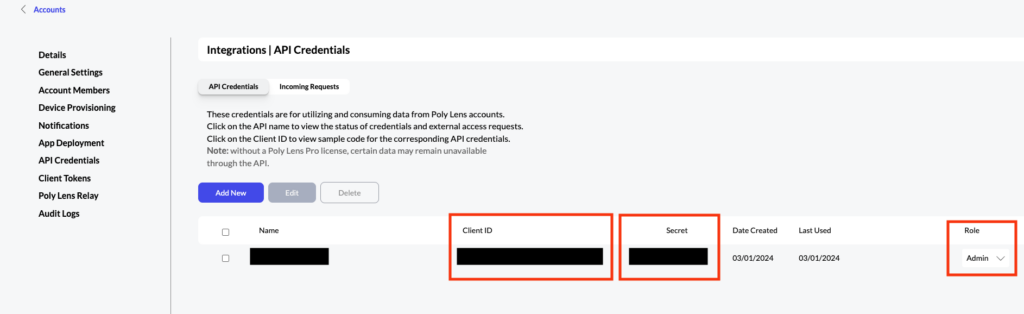
Make sure the API Credentials entity you choose has its Role set to Admin and store securely for later use. (If storing is undesired, it is possible to copy-paste immediately from the Lens interface to the NetSpeek interface shown in step B-4 below without storing the API credentials in a file.)
B. NetSpeek: Add the Poly Lens integration
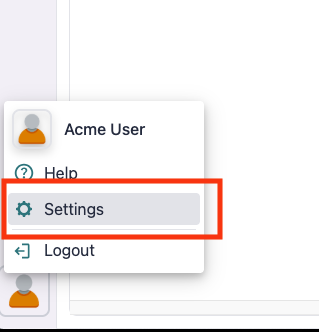
1. In the NetSpeek web app, click your User Avatar (bottom-left) → Settings.
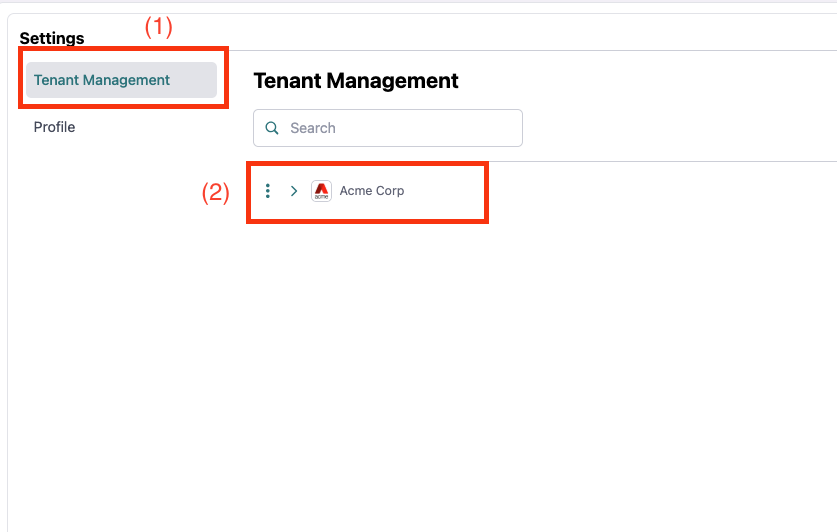
2. Click Tenant Management (1), and select your Organization (2)
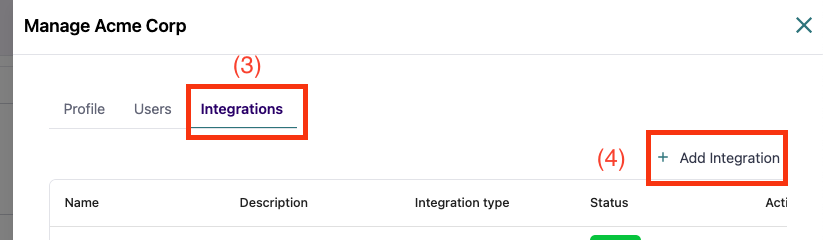
3. Click Integrations (3) then click Add Integration (4)
4. Fill required fields:
- Enter your desired Integration Name
- Select Integration Type → Poly Lens
- Add a description (Optional)
- Enter the Client ID
- Enter the Client Secret

Click Create new Integration.
Step 4. Onboard the Enrolled Device into NetSpeek
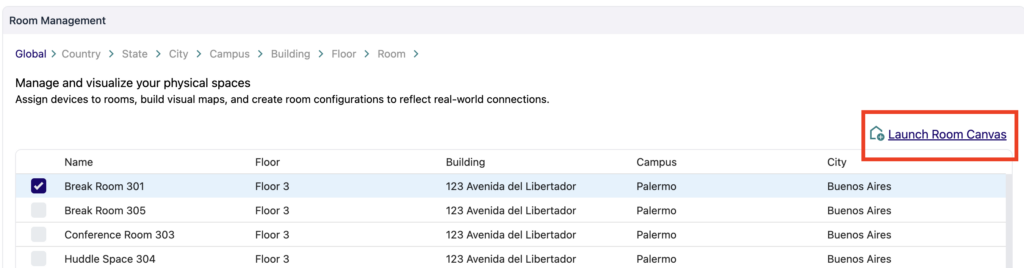
In the NetSpeek platform, go to Room Management.
1. Select a Room you wish to assign it to, then click Launch Room Canvas
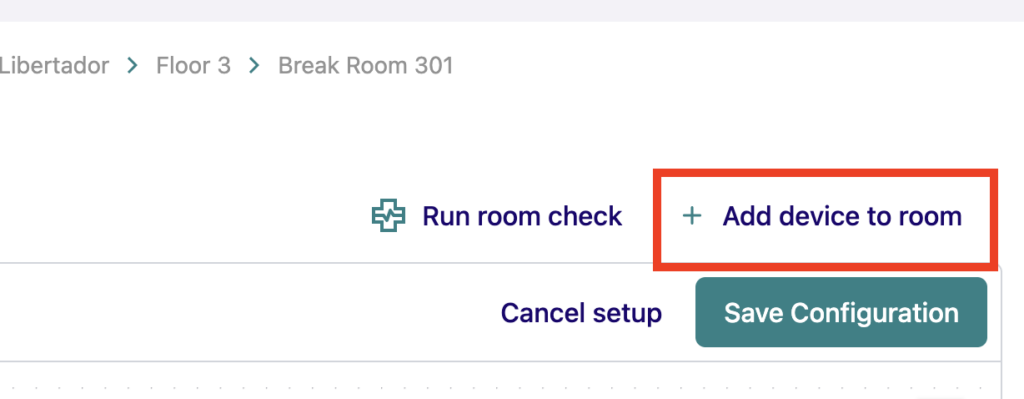
2. ClickAdd Device to Room.
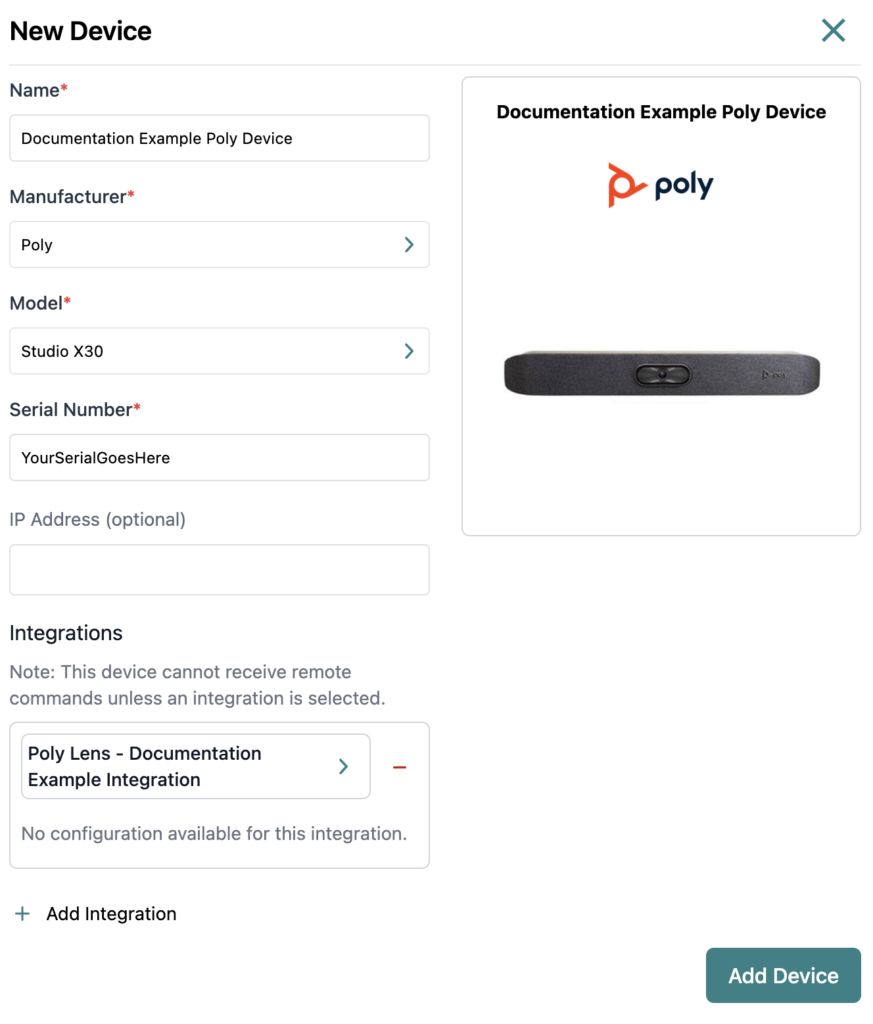
- Select the Manufacturer and Model of your Poly Device, and enter its serial number.
- Choose the previously created Poly Lens Integration.
- Enter the Serial Number value (from your CSV file export in Step 2) corresponding to the device being enrolled into NetSpeek.
- Click Add Device
Note
For rooms with multiple pieces of Poly hardware, the device and Serial Number exported from Poly Lens will need to be added individually to NetSpeek for each hardware item. For example, this means that an appliance such as an X30 must be added and saved, then a new device must be added to the NetSpeek Room Canvas for its controller such as a TC8.
Additional details: Lens Device ID’s
The actual mechanism by which NetSpeek sends commands to devices through Poly Lens leverages a value in Lens called lens_device_id which NetSpeek has chosen to obscure for multiple reasons. The NetSpeek integration uses the Serial Number value to query Lens for the associated lens_device_id value, thus it is necessary for Lens to respond accurately to this query for the NetSpeek integration with Poly Lens to operate as expected.
Support
If you run into any issues during onboarding or have questions, contact NetSpeek Support at support@netspeek.com.