Zoom Integration Guide
This document serves as a comprehensive guide that outlines the necessary steps to successfully set up a Zoom integration with the NetSpeek platform.
Enabling Server-to-Server OAuth Authentication for Zoom
Step 1: Enable API Control on Zoom Rooms
- Sign in to the Zoom web portal.
- Go to:
Admin ➔ Room Management ➔ Zoom Rooms - Locate the Zoom Room to integrate*.
- Click the Settings gear icon.
- Scroll to the Devices section and enable Control System API.
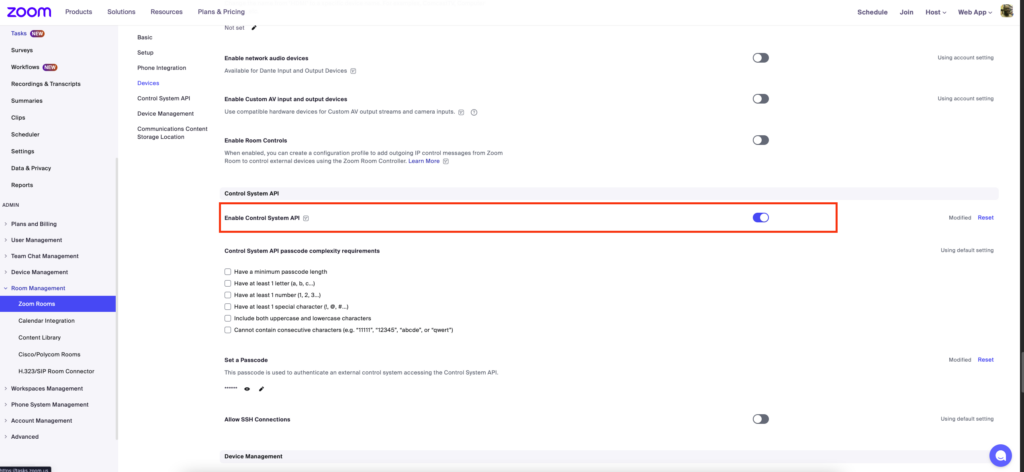
*The above example shows the Zoom Rooms Control System API being enabled for an individual room, and may be applicable to small-scale testing such as for the first Zoom Room being tested with NetSpeek integration. To enable the Control System API, or any other Zoom Rooms capability, more quickly to a large number of rooms it is generally advisable to manage settings at an appropriate level of your Zoom hierarchy (such as a region, building, floor, or other) or to enable the setting at the account level. See Zoom’s documentation on this hierarchy here: https://support.zoom.com/hc/en/article?id=zm_kb&sysparm_article=KB0063345
Step 2: Create a Server-to-Server OAuth App in Zoom Marketplace
- Go to the Zoom App Marketplace.
- Sign in with the credentials of an administrator for your Zoom account/tenant..
- Select Develop ➔ Build App.
- Choose Server-to-Server OAuth and click Create.
- Give the integration (app) a name in the Zoom App MarketPlace, and enter data in sections of the following workflow pages such as developer contact information, company details, and most importantly the Scopes described in Step 3.
Step 3: Assign Required Scopes
To allow NetSpeek to effectively manage Zoom Rooms, devices, and meeting details, specific scopes must be enabled on the Zoom OAuth app. These scopes authorize the required read/write access to perform automation, diagnostics, room control, and reporting functionalities.
Assign the following scopes to the application (you may want to copy-paste the scope text below into the Add Scopes pop-up in the workflow):
Devices
| Scope | Description |
|---|---|
device:read:zdm_device:master | Read device |
device:read:zdm_device:admin | Read device |
device:read:list_zdm_devices:admin | List devices |
device:read:list_zdm_devices:master | List devices |
device:read:list_groups:admin | List groups |
device:read:list_groups:master | List groups |
Devices (H.323)
| Scope | Description |
|---|---|
h323_device:read:list_devices:admin | View H.323 devices |
h323_device:update:device:admin | Update or edit H.323 device |
h323_device:delete:device:admin | Delete H.323 device |
h323_device:write:device:admin | Add new H.323 device |
Meeting
| Scope | Description |
|---|---|
meeting:read:past_meeting:admin | View a past meeting |
meeting:read:device:admin | View a meeting’s device test result |
meeting:read:list_past_instances:admin | View past meeting instances |
meeting:read:list_meetings:admin | View a user’s meetings |
meeting:read:invitation:admin | View meeting invitation |
meeting:read:participant:admin | View participants |
meeting:update:meeting:admin | Update a meeting |
meeting:delete:meeting:admin | Delete a meeting |
meeting:update:livestream_status:admin | Update livestream status |
meeting:write:meeting:admin | Create a meeting |
meeting:update:status:admin | Update meeting status |
meeting:write:invite_links:admin | Create invite links |
Room
| Scope | Description |
|---|---|
zoom_rooms:read:list_rooms:admin | View Zoom Rooms |
zoom_rooms:read:list_devices:admin | View Zoom Room devices |
zoom_rooms:update:room_controls:admin | Update room controls |
zoom_rooms:update:room_control:admin | Update specific control |
Step 4: Retrieve and Submit App Credentials
Copy the following information from your Zoom Server-to-Server OAuth app, to be provided to NetSpeek for communication with your Zoom account:
- Account ID
- Client ID
- Client Secret
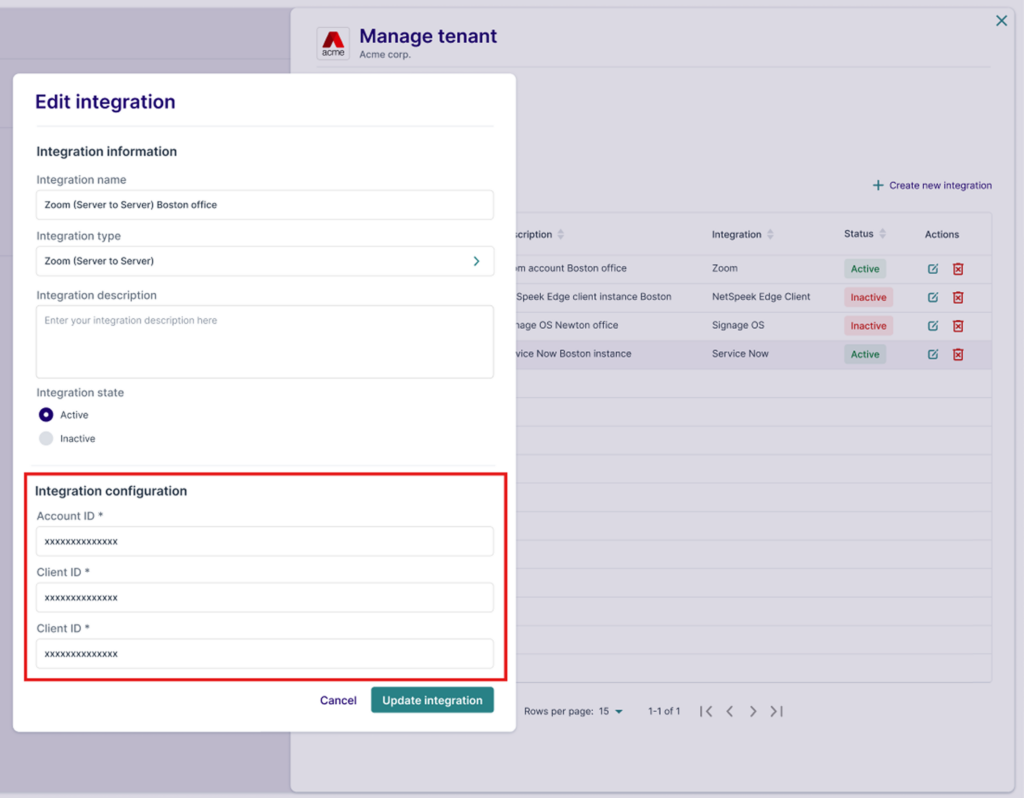
Submit these credentials within the NetSpeek web application’s interface for managing Tenant Integrations in the User Settings by:
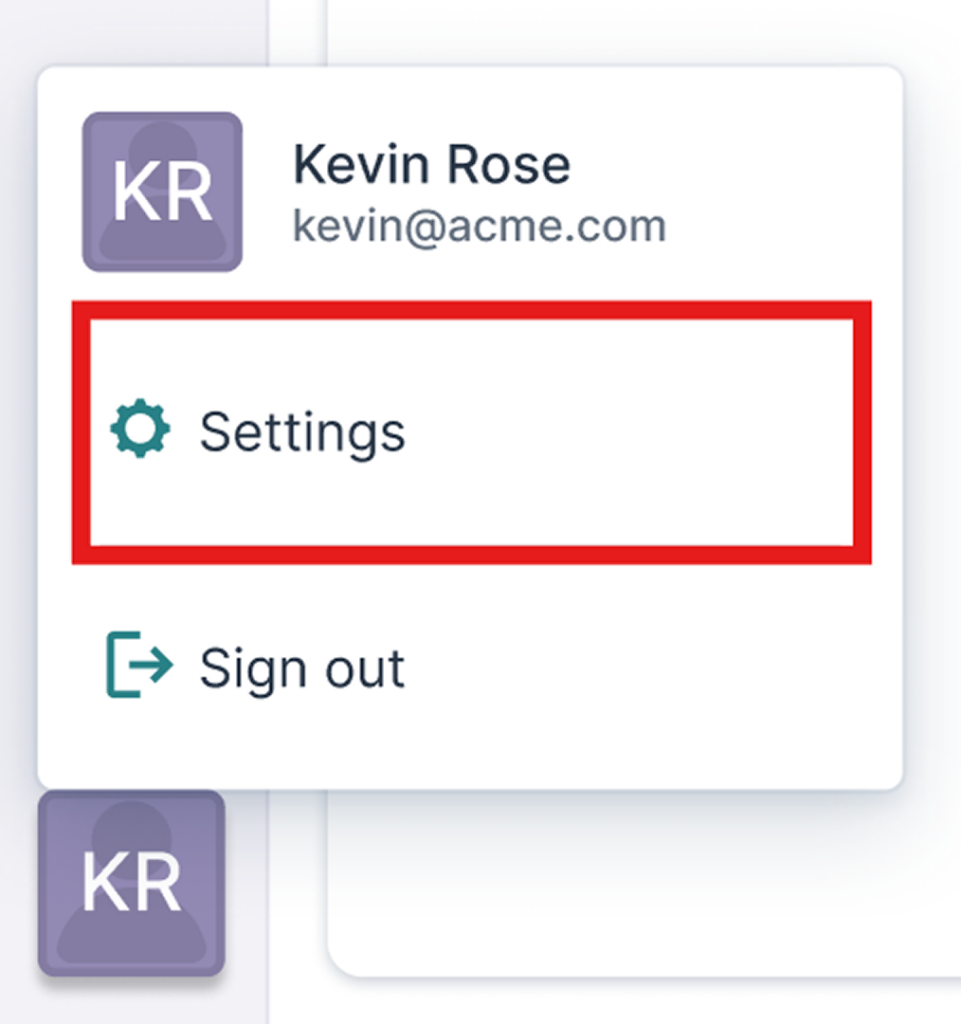
- Clicking the User Button at the bottom left – then click Settings
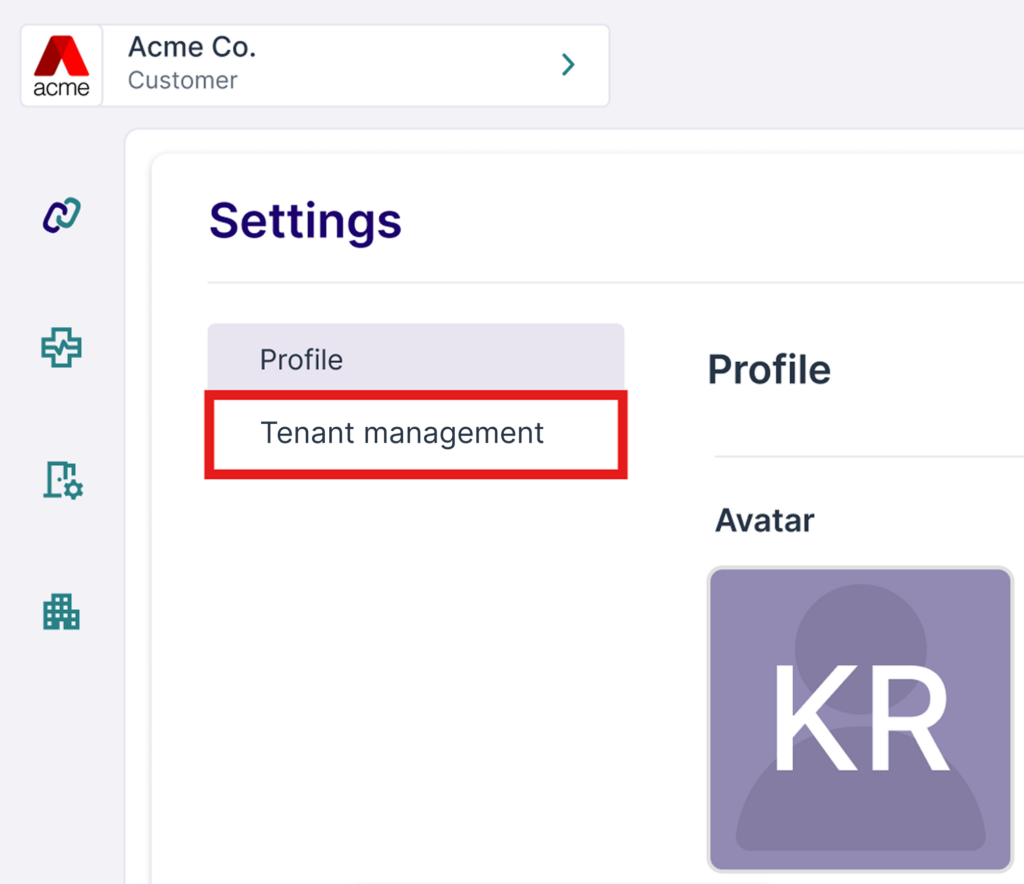
- Click Tenant Management
- Click Integrations
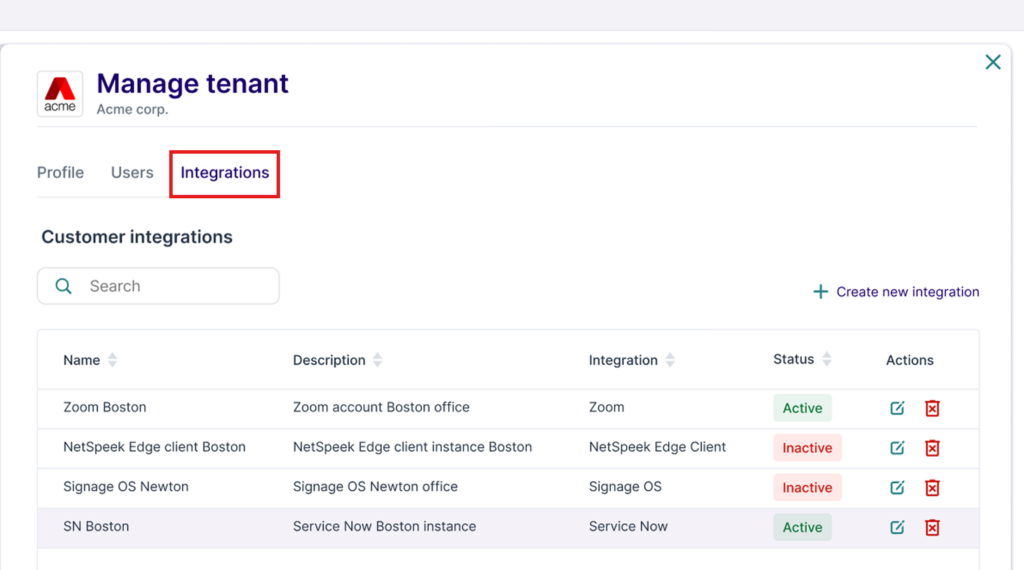
- Click + Add Integration
- Give the Integration your desired name
- Select Zoom (Server-To-Server) in the dropdown
- Set the Integration State to “Active”
- Enter the Account ID, Client ID and Client Secret.
- Click Save/Update Integration
Support
If you run into any issues during onboarding or have questions, contact NetSpeek Support at support@netspeek.com.