LG webOS Integration Guide
This guide outlines the steps required to enable webOS functionality and Wake-on-LAN on LG displays and configure them for integration with the NetSpeek platform.
Prerequisites
Before adding LG displays to the NetSpeek portal, confirm the following pre-requisites (with an emphasis on Wake-on-LAN compatibility):
- Your LG Display is running webOS 3.5 or later (prior versions do not support Wake-on-LAN).
- The display is connected to a stable internet connection (Wi-Fi or wired LAN).
- The display software is up to date:
- Go to Settings > All Settings > Support > Software Update → check for updates.
- On enterprise or VLAN networks, Wake-on-LAN often requires the device to be on the same subnet as the system sending the Wake-on-LAN packet (in this case the NetSpeek Edge VM) as the receiving device (the LG display).
- If crossing Layer 3 boundaries, ensure your IT team configures directed broadcasts for Wake-on-LAN.
Note
LG displays running Android do not include WebOS and are not compatible with WebOS features or this integration guide.
Step 1. Enable webOS Smart Features
To confirm that webOS smart features are active:
- Complete the initial Setup Wizard (language, location, time zone, network connection, and agreements).
- This ensures automation and smart features can function correctly.
- On your LG remote, press Settings.
- Navigate to Settings > General > Power.
- Enable Network Ready or Screen Off (based on model)
Step 2. Enable Wake-on-LAN (WoL)
Wake-on-LAN allows the display to be powered on remotely over the network.
- On your LG remote, press Settings.
- Go to Settings > Network.
- Enable Wake-on-LAN.
- Confirm the TV is connected via Ethernet or Wi-Fi.
- (Optional) If you encounter delays when waking the device, try disabling Quick Start+ in Settings > General.
Step 3. Supported Models
- webOS 3.5 and later (generally 2017 models and newer) support webOS smart features and Wake-on-LAN.
- For exact compatibility, check your TV’s model number in the user manual or on the LG Support site.
Step 4. Add the device in the NetSpeek Platform
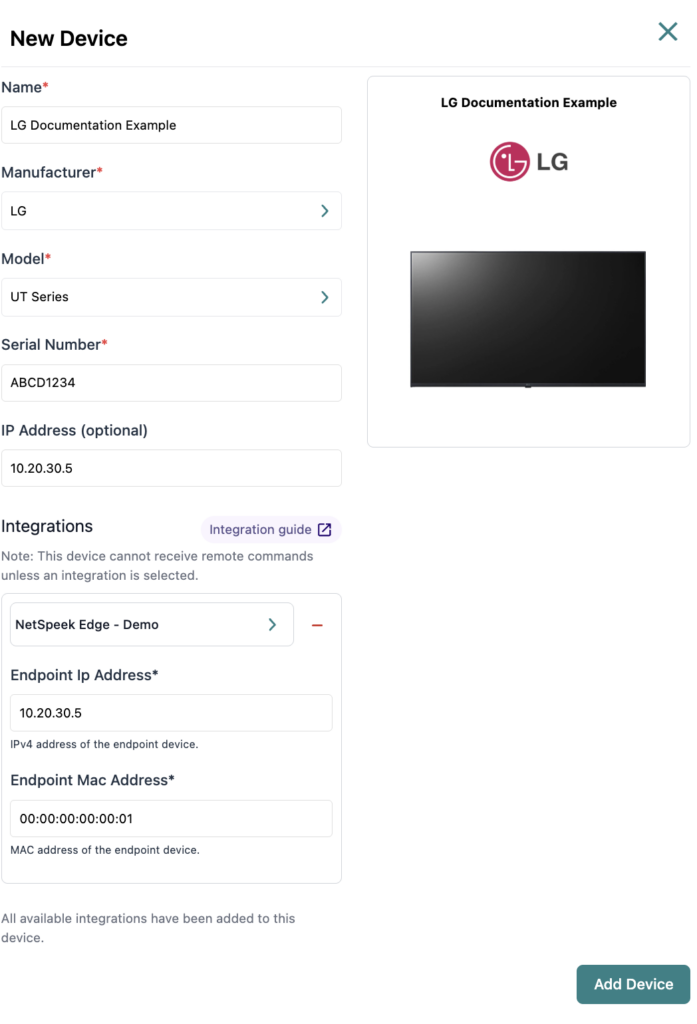
- In the device provisioning flow, add the device to a room, enter the display’s IP Address and MAC Address in the Configuration Menu (use the active interface’s MAC address—Wi-Fi or Ethernet—matching how the TV is connected):
Note
NetSpeek suggests to avoid future changes to the display’s IP address by configurating a reservation in your DHCP server, or statically assigning the IP to the display.
Note
To locate the MAC address for your LG display, you can check one of the following locations:
- Display Network Menu:
On the LG display, navigate to Settings → Network → Network Configuration. The MAC address will be listed in the network details section. - Network Equipment:
Often network equipment such as switches, routers, or WiFi Access Points will have a method of reporting MAC addresses for devices connected to them. This may be part of a local web portal provided by the network device, a cloud management portal, command line tools, or other methods. Consult your network device’s documentation to determine if MAC addresses can be discovered.
Note
Configuring the correct MAC address is required to ensure your device will accept and respond to commands from NetSpeek.
Step 5. LG Interface Approval (first time setup only)
- To initiate the LG display (aka TV UI) user interface approval process, select an LG device in the NetSpeek console, open the Device Actions Tab and select any available device action.
- On the display, watch for the confirmation dialog.
- Using the remote, select Allow/OK to grant access.
- Back in NetSpeek, send another command and ensure subsequent commands the initial approval work correctly, and that further approvals are not required.
Note
If no dialog appears: ensure the display is online and that TV On with Mobile / Turn On via Wi-Fi is enabled, then try Start Connection again.
This approval is remembered for future use and only needs to be repeated if the display is factory reset.
Common Issues with webOS / Wake-On-LAN
If you run into the below problems with webOS or Wake-on-LAN, try the following:
- Pairing Prompt Issues
- If no pairing prompt appears:
- Re-check that TV On with Mobile / Turn On via Wi-Fi is enabled.
- Confirm the display is connected to the network.
- If no pairing prompt appears:
- Wake-on-LAN Issues
- If the display won’t wake:
- Verify Quick Start+ is disabled in Settings > General.
- Confirm you are using the correct MAC address
- Use the WiFI MAC is the TV is connected to the Wi-Fi network
- Use the Ethernet MAC if the TV is connected to the wired network
- Double-check all network settings.
- Perform a hard reset: unplug the TV, hold the power button on the TV for 20 seconds, then plug it back in.
- If the display won’t wake:
Verification
Once credentials are configured:
- To validate the integration, select a Logitech device in the NetSpeek console, open the Device Actions Tab, and select an available device action.
- On the device, observe the selected action occurring.
Troubleshooting
Connection Issues
- Confirm the IP address is correct and accessible from the NetSpeek network.
- Ensure the port used is not blocked by firewall rules on the machine running your NetSpeek Edge.
Support
If you run into any issues during onboarding or have questions, contact NetSpeek Support at support@netspeek.com.