Logitech Sync Integration Guide
This document serves as a comprehensive guide that outlines the prerequisites required to integrate Logitech devices with the NetSpeek platform through Logitech Sync.
Note
There are two paths for integrating Logitech devices with NetSpeek – the Logi Sync API available through Logitech’s cloud offering, and the CollabOS API at a device’s local IP address documented here. Some organizations may want to use one method or the other, while some may want to orchestrate Logitech devices in their environment with both methods in parallel. Contact your NetSpeek Solutions Consultant to discuss this decision in more detail.
Prerequisites
Before beginning the integration, confirm the following:
- Logitech devices are already enrolled in Logitech Sync and connected to your organization.
- You have Admin access to your Logitech Sync portal.
- You have access to your NetSpeek tenant with permissions to manage Customer Integrations.
- You have a Paid Account in the Logitech Sync portal – the Sync API is not available at the free/Basic tier.
Step 1: Retrieve Your Sync Cloud API Credentials (Logitech Sync)
- Log in to the Logitech Sync portal.
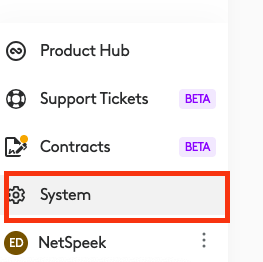
- In the left sidebar click System.
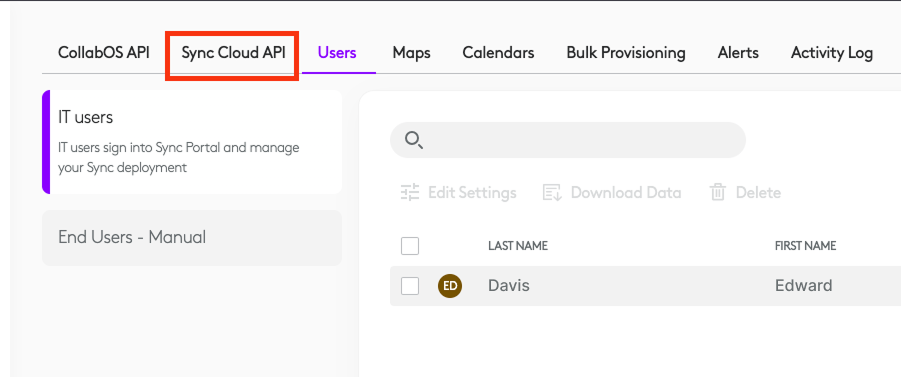
- You’ll be met with another dashboard. In the menu at the top click Sync Cloud API
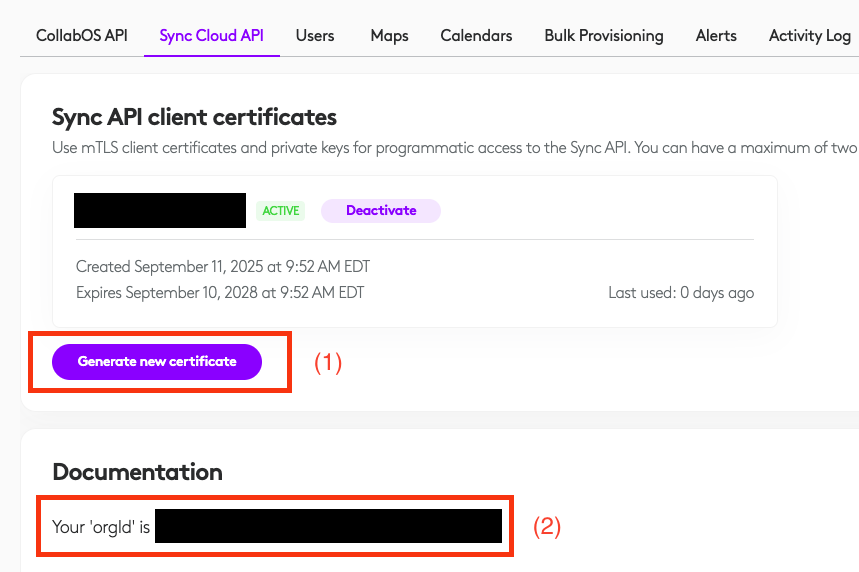
- Locate your Organization ID and Generate a new Certificate .
- Copy your Organization ID (2) and paste somewhere safe for later.
- Generate a new certificate (1) and do the same with the generated Certificate and Private Key contents.
- Note that Logitech Sync permits a maximum of two API certificates, regardless of the subscription tier.
Step 2: Configure Logitech Sync in NetSpeek (Customer Integration)
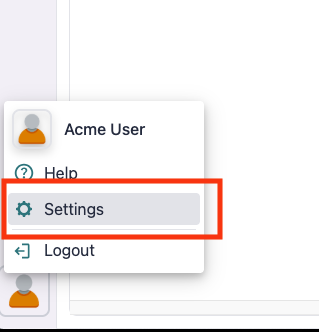
1. In the NetSpeek web app, click your User Avatar (bottom-left) → Settings.
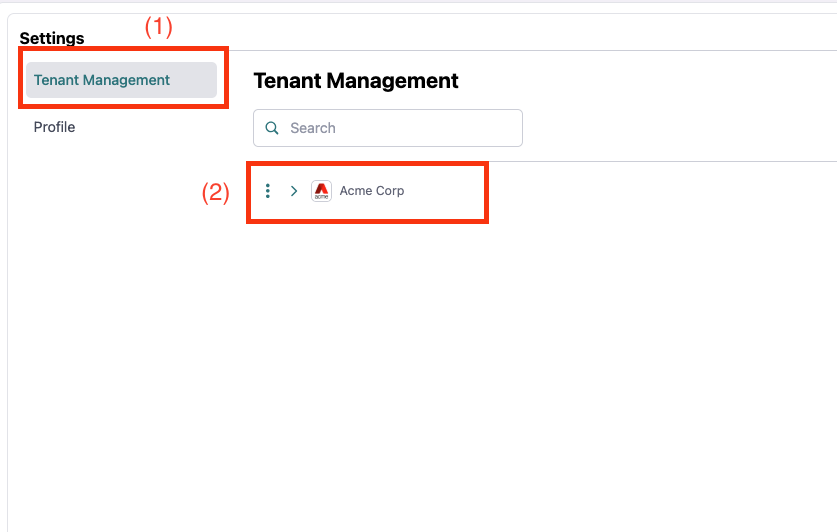
2. Click Tenant Management (1), and select your Organization (2)
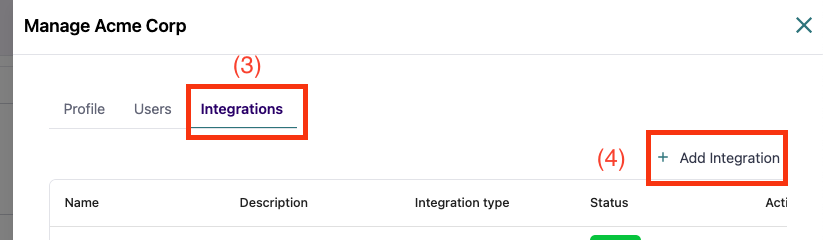
3. Click Integrations (3) then click Add Integration (4)
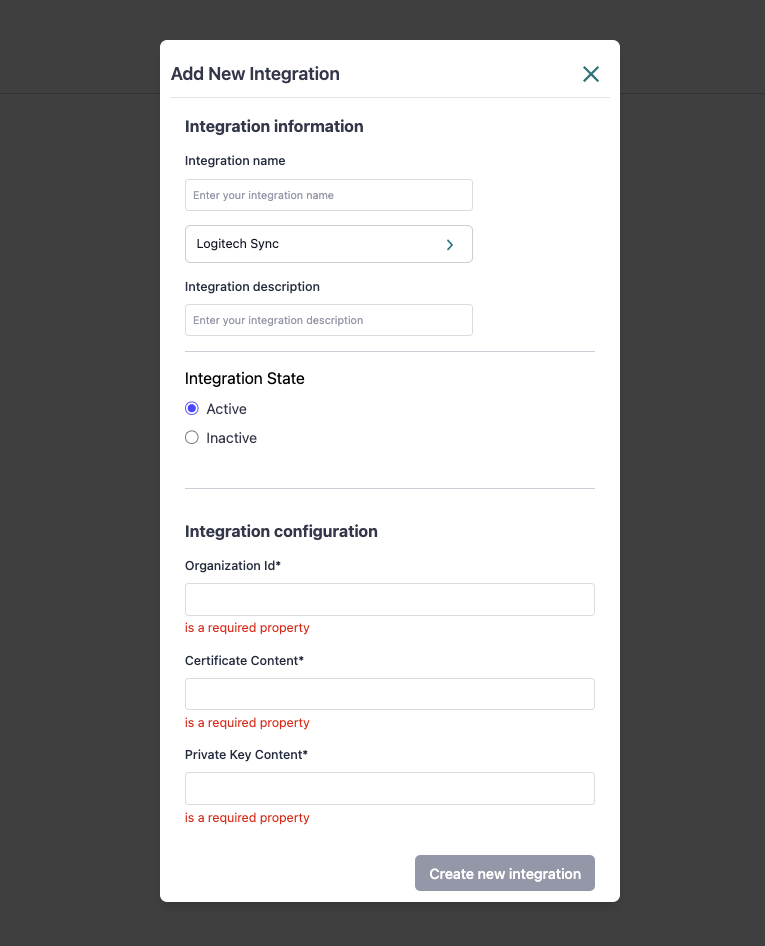
- Click + Create new integration.
- Enter a Name (e.g.,
LogiSync – HQ). - Set Integration Type = Logitech Sync.
- Set Integration State = Active.
- Enter your Organization ID, Certificate Content and Private Key Content.
- Click Create new integration / Update integration.
Verification
Once credentials are configured:
- To validate the integration, select a Logitech device in the NetSpeek console, open the Device Actions Tab, and select an available device action.
- On the device, observe the selected action occurring.
Troubleshooting
Connection Issues
- Confirm the IP address is correct and accessible from the NetSpeek network.
- Ensure the port used is not blocked by firewall rules on the machine running your NetSpeek Edge.
Support
If you run into any issues during onboarding or have questions, contact NetSpeek Support at support@netspeek.com.