Samsung Multiple Display Control (MDC) Integration Guide
This document serves as a comprehensive guide that outlines the necessary steps to integrate most Samsung commercial (meaning non-consumer) displays with NetSpeek using Samsung’s MDC (Multiple Display Control) protocol over TCP/IP.
Prerequisites
Before you begin, ensure you have the following:
- Samsung display(s) that support MDC (a.k.a. “Multiple Display Control”).
- Displays connected to your LAN (wired connection recommended)
- Each display is assigned an IP address either automatically via DHCP or manually using a Static IP.
- Admin access to each display’s settings.
- NetSpeek account with access to your Room Canvas.
- You have deployed a NetSpeek Edge client as described here: https://docs.netspeek.ai/netspeek-edge-installation-guide/
- Note: This integration requires an Edge running software version
Beta5or later.
- Note: This integration requires an Edge running software version
Note
- The MDC protocol works over RS-232 or RJ45 (TCP/IP). This guide covers TCP/IP exclusively.
- The default network port used by the MDC protocol is TCP 1515 and is accessible at each display’s local IP address.
Step 1. Enable remote control on the display
- On each display, enable the requisite features to allow external control:
Remote Management / MDC – the names of these features may vary somewhat by device type. Ensure remote control is permitted, assign a Device ID (these must be in the numerical range from 0–253 – for reasons explained below, NetSpeek suggests configuring all Device ID values to be0), and confirm network cabling. (Onscreen UI navigation may vary by model; look under Advanced Settings → Remote Management or similar.) The MDC ID range and configuration requirements come from the protocol specification.
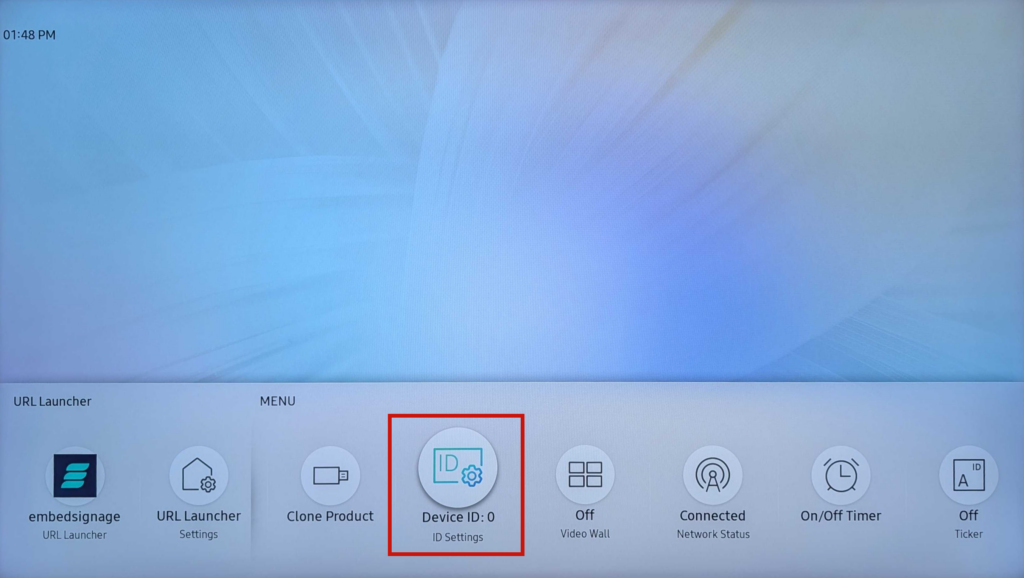
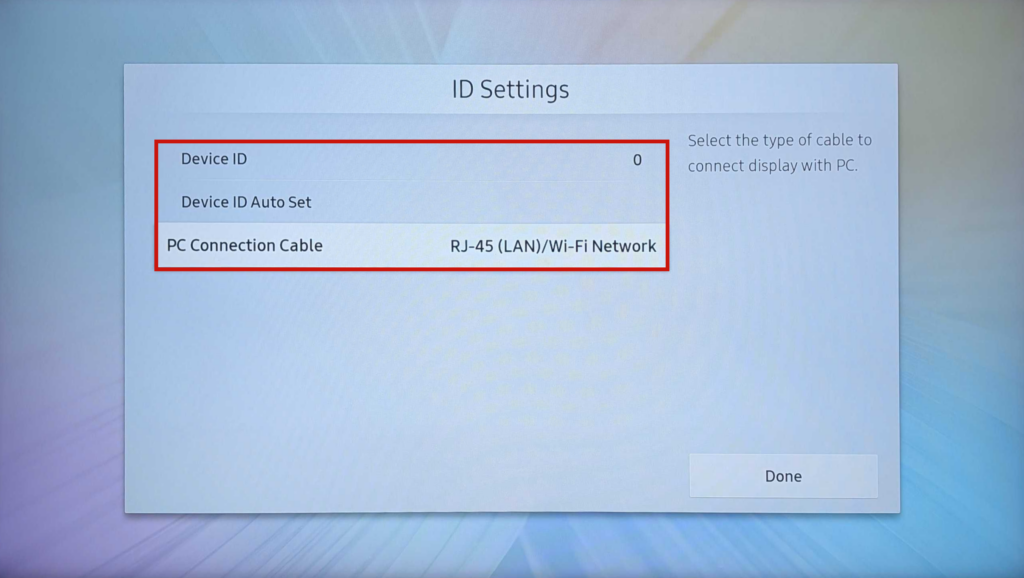
0Note
Where the Device ID comes from, and why it matters
The MDC protocol was designed originally for RS-232 and allowed for physically connecting / daisy-chaining a large number of displays together, with no natural differentiator for what display in the chain is being sent the command. Essentially the protocol was for a “party-line” type system, and the 0-253 ID numbers are for identifying which display in the string-of-devices a command is destined for.
The protocol was ported to TCP/IP, and the Device ID concept remained. While these 0-253 identifiers may not be familiar to some administrators, they are necessary (in addition to the device’s IP address) for control commands because of the development history of the MDC protocol. Since each display will have a unique IP address on the network, there is no necessity for unique Device ID values and NetSpeek recommends for simplicity configuring all Device IDs to 0.
For some additional detail on the MDC protocol if interested, see this explanatory video from Samsung.
Step 2. NetSpeek device provisioning
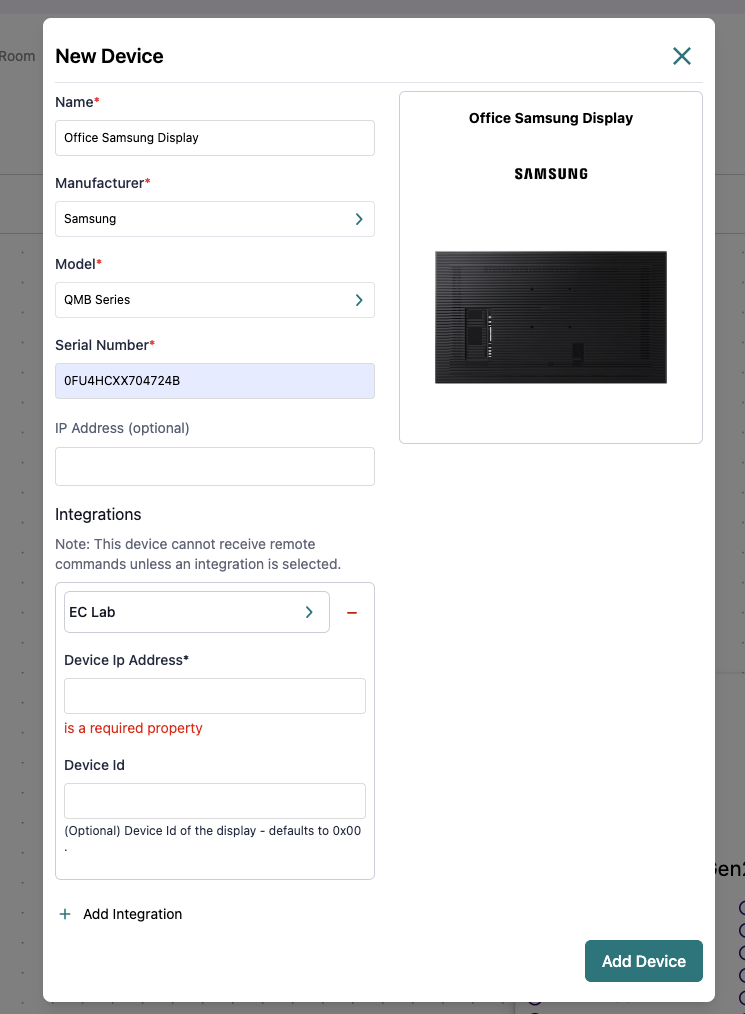
In NetSpeek → Room Canvas → Add Device → Samsung Display (MDC):
- Enter the Name of the Display
- Select Samsung as the Manufacturer
- Select the Model of your Samsung Display (Samsung devices are generally grouped by Series)
- Select a NetSpeek EdgeClient Integration and enter the following fields
- Device IP Address (required) — the display’s current IP.
- Device ID (optional) — enter a specific MDC ID if your environment has configured a value other than
0in your display’s settings. As described in the screenshot below, NetSpeek will by default send MDC commands to the display’s IP address with device ID of0x00which corresponds to an on-screen setup configuration of simply the number0. - Click Add Device
Network considerations
- Connections from NetSpeek Edge connector to the display on TCP port 1515 must be permitted.
Verification
- To validate the Samsung display integration, select a Samsung device in the NetSpeek console, open the Device Actions Tab, and select an available device action.
- On the device, observe the selected action occurring.
Troubleshooting
Connection Issues
- Confirm the IP address is correct and accessible from the NetSpeek Edge VM’s network.
- Ensure the port used is not blocked by firewall rules on the machine running your NetSpeek Edge or intermediate network equipment.
- Ensure that the MDC Device ID is set to
0, or if not, that the NetSpeek configuration for the display’s Device ID matches the display’s actual configuration.
Support
If you run into any issues during onboarding or have questions, contact NetSpeek Support at support@netspeek.com.