NetSpeek Edge Installation Guide
This document outlines the requirements and procedures for installing the NetSpeek Edge, including system prerequisites, port configurations, installation steps, resource planning, and troubleshooting guidance.
What is the NetSpeek Edge?
The NetSpeek Edge is a secure, virtual appliance designed to seamlessly connect your local environment to the NetSpeek cloud platform. Acting as a bridge between your on-premises devices and the cloud, NetSpeek Edge enables real-time, low-latency communication, device management, and monitoring; all without the need for dedicated hardware in every room or location.
Key Functions and Benefits
- Secure Connectivity: NetSpeek Edge establishes outbound-only, encrypted connections to the NetSpeek platform, ensuring your internal network remains protected from unsolicited inbound traffic.
- Local Device Management: Deployed as a virtual machine (VM) within your infrastructure, it can discover, control, and monitor devices on your local network, such as displays, AV equipment, and IoT devices, in harmony with the NetSpeek platform.
- Centralized Cloud Integration: All device commands, updates, and monitoring are orchestrated through the cloud platform, providing a unified dashboard for management and troubleshooting.
- No Hardware Hassle: Since NetSpeek Edge is a software-based VM, there’s no need for physical gateway appliances, one Edge Instance can manage dozens of devices across your site.
- Automatic & Secure Operation: NetSpeek Edge is designed to start automatically with its secure & hardened host system, recover from failures for maximum reliability.
- Real-Time and Scheduled Operations: It supports both instant, interactive commands (like live monitoring or device control) and scheduled tasks (such as firmware updates or maintenance), optimizing network usage and operational efficiency.
How It Works
- Deployment: NetSpeek Edge is delivered as a pre-configured virtual machine image (VMDK format), compatible with popular virtualization platforms like VMware and VirtualBox.
- Integration: Once deployed and networked, it connects securely to the NetSpeek cloud, allowing you to manage your devices from anywhere via the cloud dashboard.
- Management: A local web interface is available for initial setup and troubleshooting, but ongoing management is handled through the cloud for security and convenience.
Why Use NetSpeek Edge?
- Simplicity: Streamlines the process of connecting and managing local devices with minimal IT overhead.
- Security: Outbound-only connections and a hardened OS image minimize your attack surface.
- Scalability: Easily manage multiple devices and locations from a single cloud interface.
- Reliability: Designed for automatic recovery and robust operation in enterprise environments.
Installation Overview
To onboard your NetSpeek Edge, follow the steps in this guide in the order they are presented. The process will take you from initial setup prerequisites and configuration through validation and portal access, ensuring that your environment is properly prepared and your virtual instance is fully connected. Each stage builds on the last, so it’s important to proceed sequentially. By completing these steps, you’ll ensure a smooth onboarding experience and have your Edge instance ready for operation.
1. Resource Specifications
Virtual Machine Hardware Requirements
To ensure optimal performance, your virtual machine (VM) must meet the following hardware specifications:
Minimum System Specifications
These requirements represent the lowest configuration necessary for the VM to function reliably:
- CPU: 2 vCPUs (64-bit processor)
- Memory (RAM): 4 GB
- Storage: 8 GB available disk space
Recommended Specifications for High Usage Environments
For environments with heavy workloads, multiple concurrent users, or intensive processing, the following configuration is recommended:
- CPU: 4 vCPUs
- Memory (RAM): 8 GB
- Storage: 20 GB available disk space
2. Software Prerequisites
Before installation, ensure the following:
- Virtualization platform is installed and running.
- Admin access to the hypervisor.
- Latest NetSpeek Edge
.vmdkimage downloaded from provided NetSpeek download url. - Outbound internet access is required for cloud registration using the ports specified below.
3. Network and Firewall Requirements
Internal (Corporate) Network Communication (NetSpeek Edge ↔ Intranet)
| Port | Protocol | Direction | Supported Integrations | Purpose |
|---|---|---|---|---|
| 45 | TCP/UDP | In/Out | Sennheiser (SCPv1) | Device control & monitoring |
| 80 | HTTP | Outbound | BrightSign, NEC/Sharp, Sony, Logitech, MiddleAtlantic | Device control & monitoring |
| 443 | HTTPS | Outbound | Crestron, Vaddio, MiddleAtlantic, Logitech | Secure device control & command relay |
| 161 | SNMP | Outbound | SNMP Devices | Network device discovery |
| 1515 | TCP | Outbound | Samsung | Display control (TCP protocol) |
| 3000 | HTTP/WS | Outbound | LG WebOS | Display control |
| 3001 | HTTP/WS | Outbound | LG WebOS | Display control |
| 4000 | HTTPS | Outbound | Samsung | Embedded API control |
| 4003 | HTTPS | Outbound | Barco ClickShare | Device management |
| 8001 | HTTP/WS | Outbound | Samsung | Real-time display control |
| 8080 | HTTP | Inbound | Agent Web Interface | Local management |
Outbound Internet Communication (NetSpeek Edge ↔ NetSpeek Cloud)
| Port | Protocol | Direction | Supported Integrations | Purpose |
|---|---|---|---|---|
| 443 | HTTPS | Outbound | NetSpeek Cloud API | Configuration, metadata sync, API requests, monitoring, cloud updates |
| 443 | WSS | Outbound | NetSpeek Cloud API | Real-time action dispatch relay |
Outbound ports to NetSpeek platform must be open for *.netspeek.ai addresses.
Also, installers should be aware that the Edge Client VM has no default IP address, and will request network connectivity information from a DHCP server by default. If installing the Edge into a network environment with no DHCP server available, it is required to set a static IP address using the procedure described in the link in section 4.3.
4. Connection to NetSpeek Platform
1. Deploy the Virtual Machine
Import NetSpeek Edge .vmdk disk and/or .ovf image into your virtualization platform (e.g., VMware ESXi, VirtualBox, Fusion, WorkStation Professional).
- How to Install NetSpeek Edge on VirtualBox
- How to Install NetSpeek Edge on VMware Fusion
- How to Install the NetSpeek Edge on VMware ESXi
2. Power on the VM
Start the virtual machine and access its console or terminal.
3. Configure VM Network and Firewall for Cloud Connectivity
Set a static IP address or use DHCP to ensure the VM has reliable network access. Confirm that it can reach the internet and your internal network. Configure the hypervisor and/or host to allow required inbound and outbound ports through its firewall, NAT, and any host-level hypervisor settings. Ensure outbound HTTPS (TCP port 443) is open for communication with the NetSpeek platform, and allow any additional required ports specified in this document. Verify DNS resolution, gateway access, and routing are properly configured to support connectivity.
4. Navigate to the VM’s IP address
On your host or another device on the same network as the Edge VM, open a browser and navigate to:
http://<vm-ip>:8080
Note
If your browser defaults to HTTPS (which is certificate-secured connections to websites), you will need to manually specify an HTTP URL, including the port 8080, precisely as described in the example above. The NetSpeek Edge does not support HTTPS connections to the web UI in order to avoid browser compatibility problems with self-signed certificates.
Taking the HTTP and port 8080 requirements together to construct an example URL, if your VM has been assigned the address 10.1.2.3 your login URL would be:
http://10.1.2.3:8080
5. Log into your NetSpeek Edge web interface for initial configuration
Using the IP address above, navigate to NetSpeek Edge Service Management login, input your predefined passcode and Sign In to access the web interface.
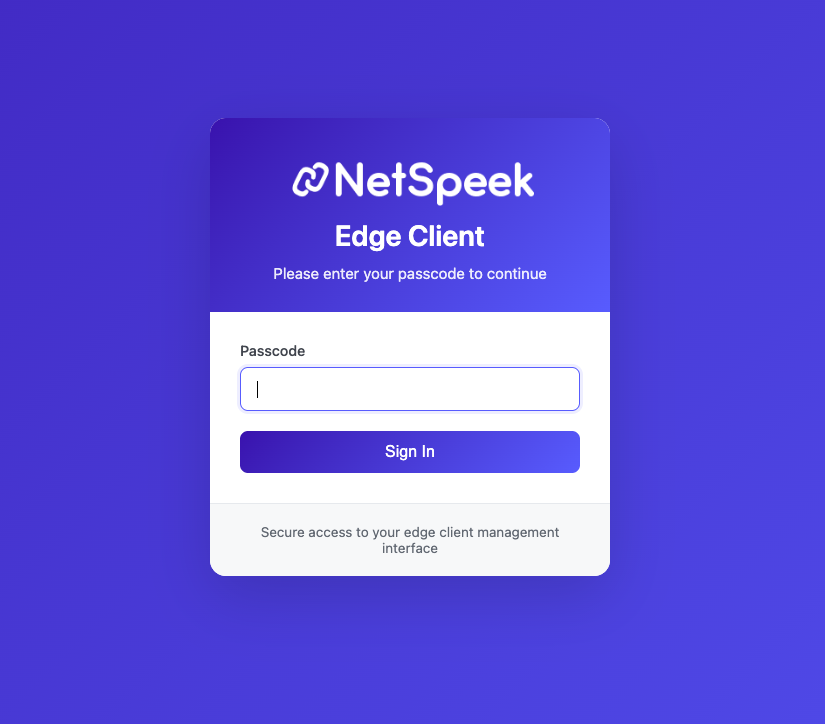
The unique password for your VM will be found in a file provided by your NetSpeek representative. We advise changing this password upon initial login, and documenting and rotating the password according to your organization’s policies.
6. Create API Key, and Confirm API Connection Health
The web interface lets you verify that your NetSpeek Edge is running correctly and provides tools to generate API Keys for connectivity to the NetSpeek platform, view logs, manage services, and confirm platform connectivity.
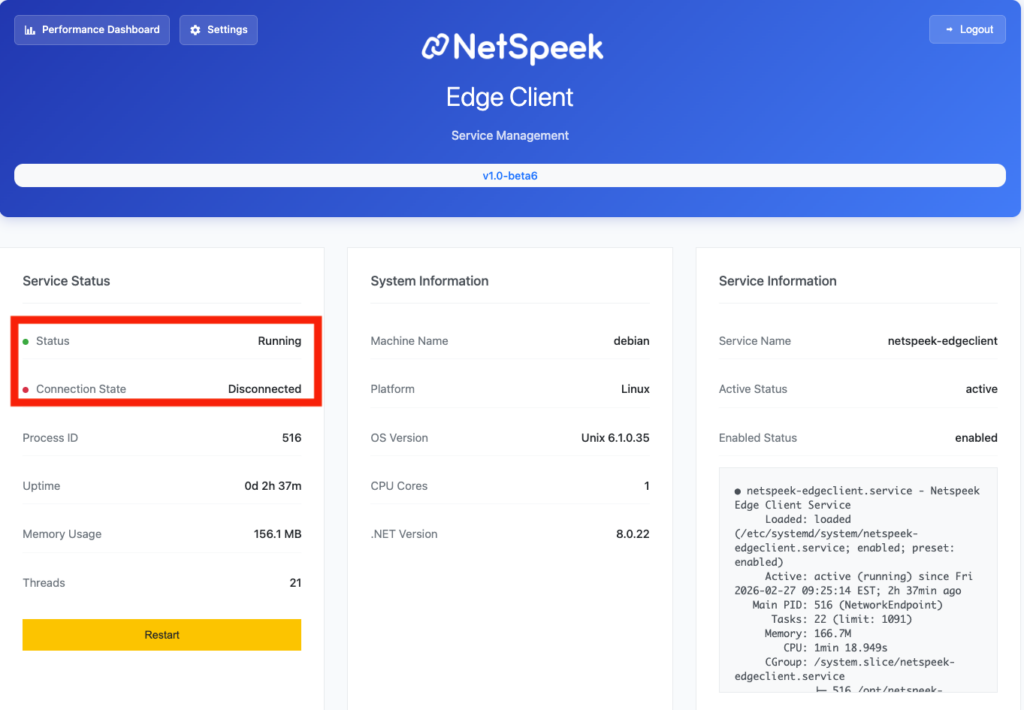
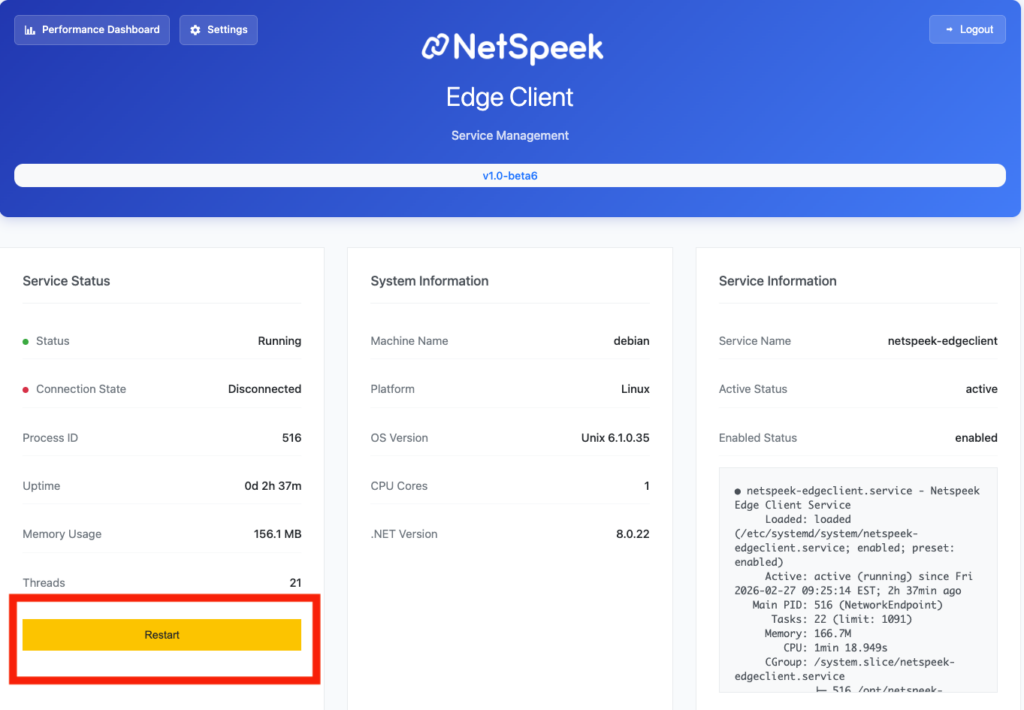
Upon initially logging into a newly-deployed Edge VM’s web UI, there is no API Key in place yet so the Edge cannot connect the NetSpeek platform. As a result, the Connection State highlighted in the image below will be “Disconnected” until an API Key is generated, applied to a NetSpeek tenant, and the Edge’s onboard services are restarted.
It is generally advisable when completing the next steps to have two browser tabs open – one logged into the Edge’s web UI, and the second logged into the NetSpeek tenant where the Edge will be integrated.
6.1 – Generate an API key on the Edge
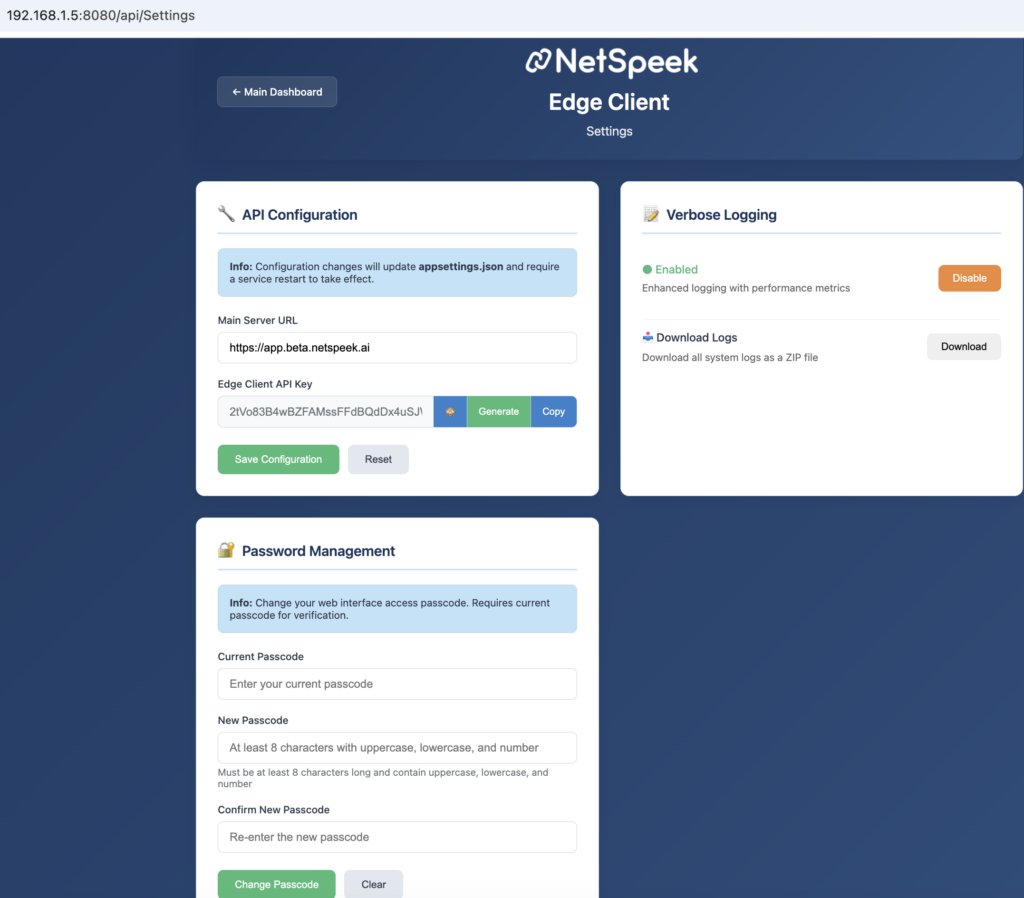
In the Edge web UI’s homepage/dashboard (shown in the prior image above), click the Settings button to access the interface shown below. By default, the API Configuration section will have a Main Server URL populated (in most situations this should remain unchanged) but the Edge Client API Key value will be empty. Click “Generate” to create an API key for this Edge to use, then click “Copy” to prepare to enter the key into the NetSpeek platform in the next step. Click “Save Configuration” before leaving this interface.
Note
After generating a new NetSpeek Edge Client API Key, make sure the API Key is copied to your clipboard (or stored according to your organization’s policies and pasted into your Integration Configuration settings in your Lena platform tenant before pressing “Save Configuration” and navigating away from this page.
Also note that a newly generated (or replaced/changed) API Key will not be used by the Edge Client software to connect to NetSpeek’s cloud until the “Restart” button is pressed on the Service Status section of the Edge Client web UI homepage (this button is shown in the image in step 6 above, and further highlighted in step 6.3 below).
6.2 – Apply the API Key to your NetSpeek Tenant’s Integrations
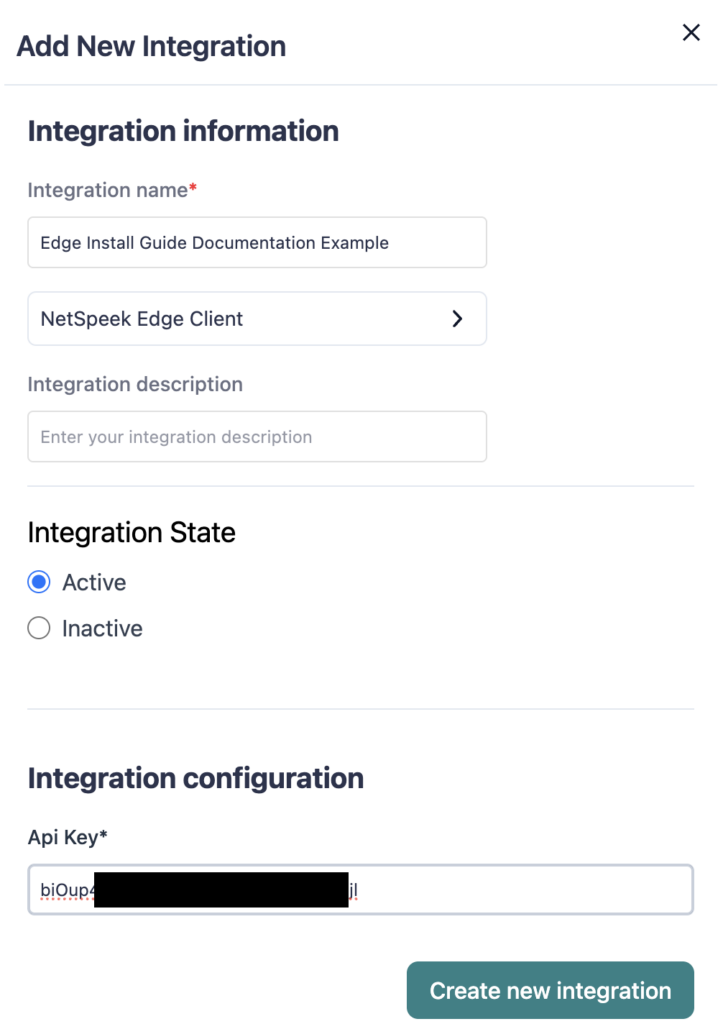
Create a NetSpeek Edge integration in the NetSpeek platform (under your tenant’s integrations list), paste the API key from step 6.1 into the interface as shown below, and click “Create New Integration“.
6.3 – Restart Edge from web UI and verify connectivity
After the above steps are done (API Key created and saved on the Edge, API Key pasted and saved in the web portal), restart the Edge’s services (from the main dashboard’s restart button highlighted below) and verify Connection State changes to Connected (this may take a few moments to change, as the Edge needs to verify connectivity to the NetSpeek platform before changing the status).
If the status does not change after a few minutes, confirm the API key matches in both Edge and the web portal, and ensure network connectivity between the Edge and the NetSpeek platform is available.
Addendums – Performance Dashboard, Other Settings, Installation Checklist, Troubleshooting
7. Edge Client Performance Dashboard
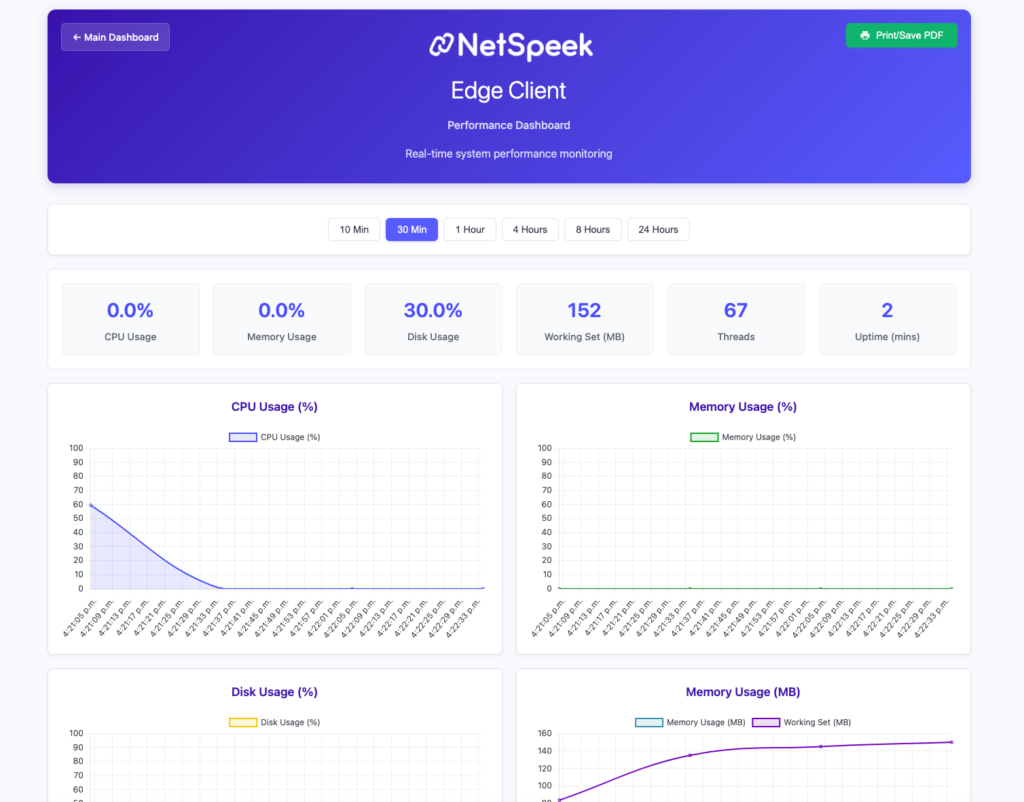
The Performance Dashboard provides incremental visibility into NetSpeek Edge’s resource utilization, including CPU, memory, and disk usage, along with other key performance metrics. You can adjust the reporting window to view metrics over different intervals, such as 10 minutes, 30 minutes, 1 hour, allowing you to monitor system health and ensure the client is running optimally.
8. Other Edge Client Settings
The Settings Dashboard allows you to manage configuration options for NetSpeek Edge. From this view, you can update API settings, adjust password management controls, and enable or disable verbose logging as needed.
9. Installation & Resource Checklist
| Task | Status |
|---|---|
| Disk image downloaded | ☐ |
| NetSpeek Edge VM deployed and powered on | ☐ |
| IP/network configured | ☐ |
| Firewall rules updated | ☐ |
| Edge successfully registered with NetSpeek platform | ☐ |
10. Troubleshooting
| Issue | Possible Cause | Resolution |
|---|---|---|
| Web UI Not Loading | Corrupted Image, or incorrect settings | Re-upload images to VM Software, doublecheck settings configuration |
| “Connection refused” when accessing Edge local web UI | Firewall blocking traffic, or other network connectivity problems | Ensure network path is available to the Edge VM’s IP address |
| DNS resolution failures | Incorrect DNS configuration | Update DNS settings on VM host |
| Slow performance, High CPU or memory usage | Insufficient resources | Allocate more vCPU/RAM |
| Image fails to obtain an IP Address | Network configuration/permissions on local machine | Try running ‘sudo dhclient’ in NetSpeek Edge VM console |
Support
If issues persist, contact NetSpeek Support at support@netspeek.com with:
- Edge VM logs (available in the NetSpeek Edge interface and later in the platform)