Collect NetSpeek Edge Logs
This document serves as a comprehensive guide that outlines the steps required to download logs from the NetSpeek Edge via its onboard web interface.
Log Retrieval via the NetSpeek Edge Client Web UI
Prerequisites
Before beginning the integration, confirm the following:
- You have deployed a NetSpeek Edge VM as described here: https://docs.netspeek.ai/netspeek-edge-installation-guide/
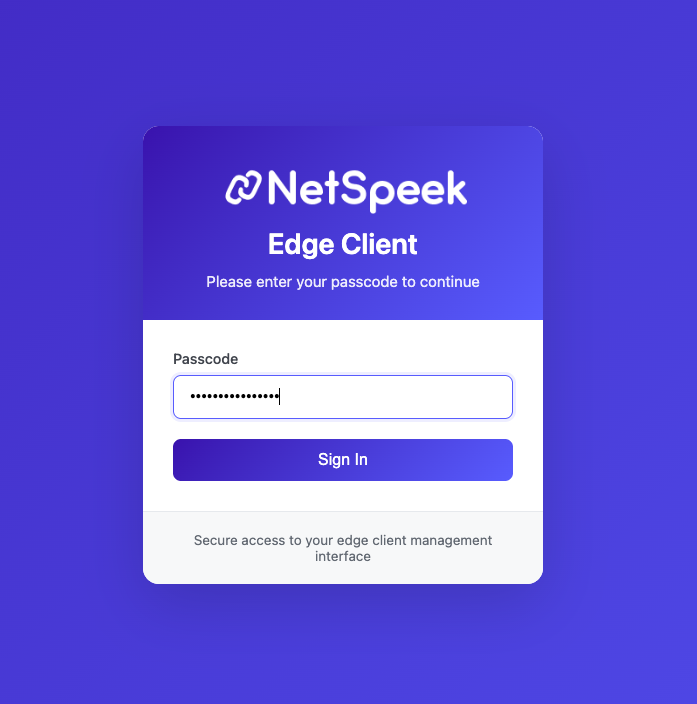
1. Sign In to the Edge Web Interface
- Open a browser and navigate to:
http://<vm-ip>:8080
Note the necessity of using HTTP (not HTTPS) and specifying the custom port of 8080 in the URL.
- Enter your configured passcode to log in.
2. Open the Settings Page
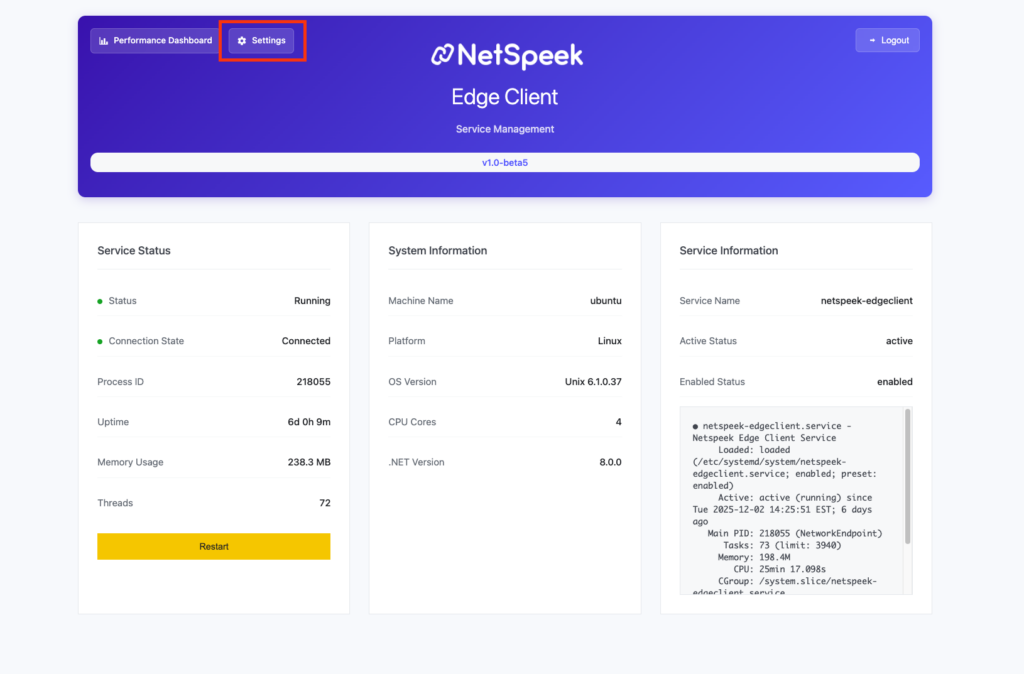
- After logging in, look at the upper left area of the page.
- Click Settings.
3. Download the Logs
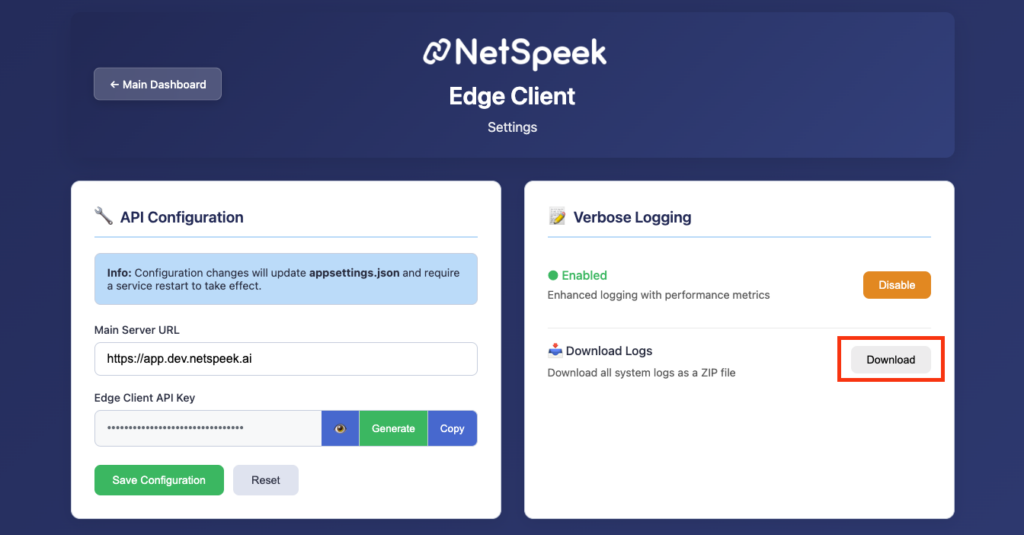
- On the Settings page, locate the Download button next to Download Logs as depicted below.
- Click it to begin downloading the log file.
4. Confirm Browser Prompts (If Shown)
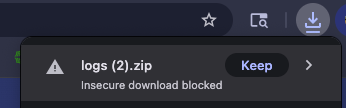
Because the Edge web UI transmits information via HTTP (not HTTPS), your browser may display a security prompt such as:
- “This file may be unsafe—Keep anyway?”
- “Are you sure you want to download this file?”
Select Keep, Download, or Confirm, depending on your browser.
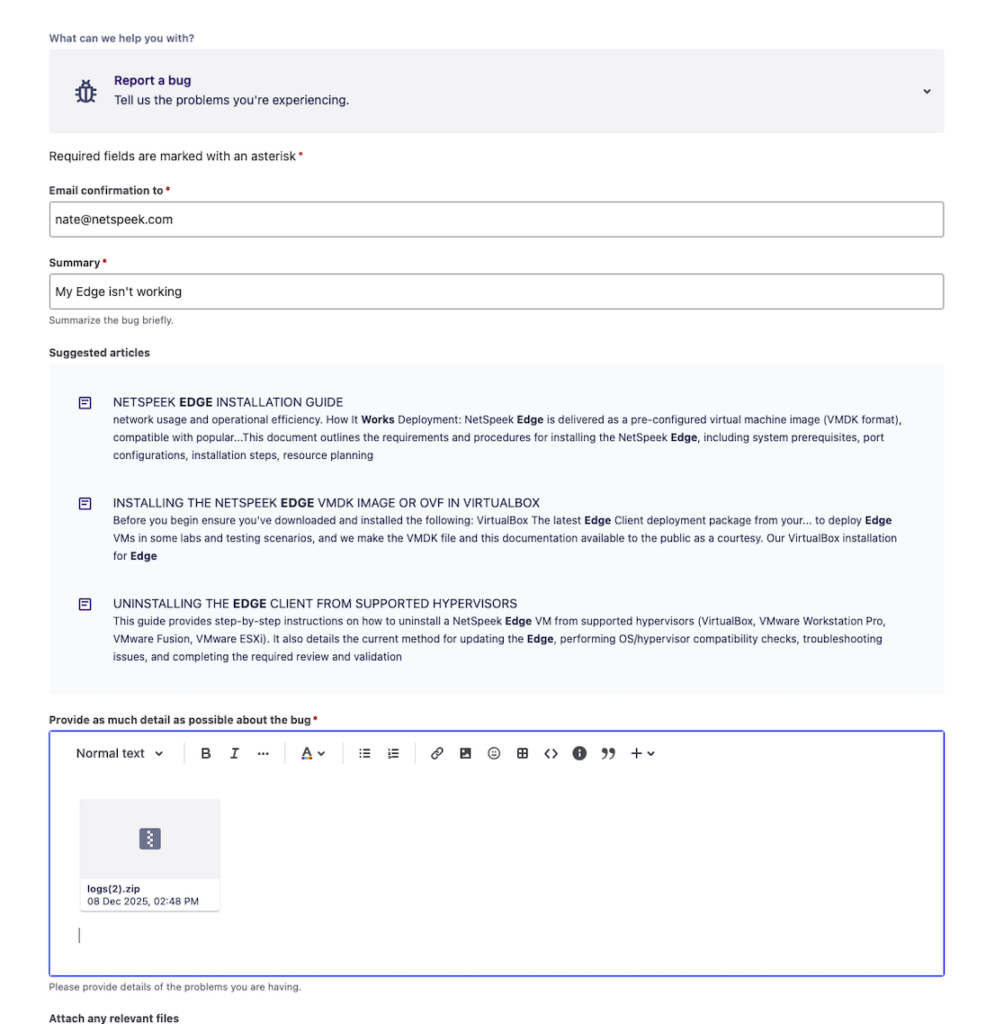
5. Report a Bug & Submit Logs on the NetSpeek Support Portal
After downloading your log file, you can open a support request using the NetSpeek Service Desk.
- Go to:
https://support.lena.netspeek.ai/ - Select Report a Bug.
- Enter your email address and a detailed summary of the issue.
- Attach the log file downloaded from your Edge in Step 3.
- Submit the ticket.
Support
If you run into any issues following this procedure or have questions, contact NetSpeek Support at support@netspeek.com.