Configure NetSpeek Edge with Static IP Address
This guide provides step-by-step instructions on how to configure a static IP address for the NetSpeek Edge Client Virtual Machine whether you’re connected to it via SSH or through the Terminal view in your Hypervisor.
1. Verify Current Network Configuration
Open a terminal session inside the VM and check the current network setup by running the following command (to access a read-only view of the network interface configuration):
cat /etc/network/interfaces
By default, the enp0s3 interface is configured for DHCP, like this:
allow-hotplug enp0s3
iface enp0s3 inet dhcp
This means the VM receives an IP dynamically from a DHCP server, when DHCP is provided by the network.
2. Edit the Interfaces File
We will change the VM’s configuration from DHCP to static.
Open the network interfaces file in the editor:
sudo nano /etc/network/interfaces
1. Update the enp0s3 section to use a static IP.
The configuration changes you’ll make will look this example:
iface enp0s3 inet static
address <new-ip-address>
netmask <your-subnet-mask>
gateway <your-gateway>
⚠️ Adjust address, netmask, gateway, to match your network’s required configurations.
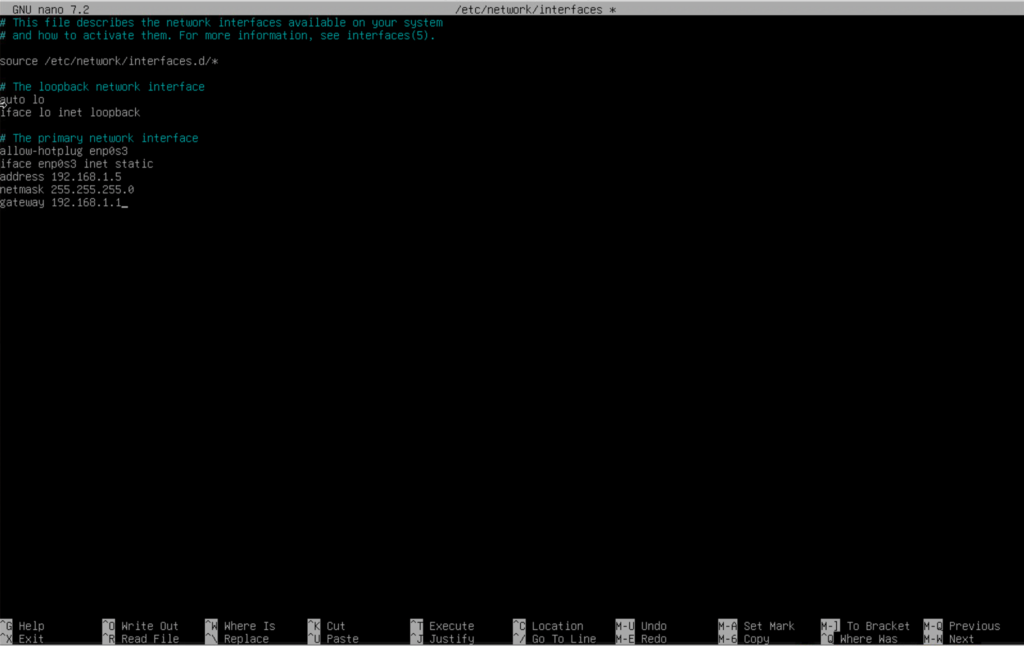
When the new network information is entered correctly, your terminal session should look similar to the below (but using the configuration appropriate to your VM on your network, of course).
2. Save and exit Nano:
Press “Ctrl + O” → Enter (to save)
Note
The first action is to hold the Ctrl key and subsequently press the letter “O”, then the nano editor will display the current filename at the bottom of the screen. Release Ctrl and O, and then press Enter or Return to confirm the filename and save your changes.
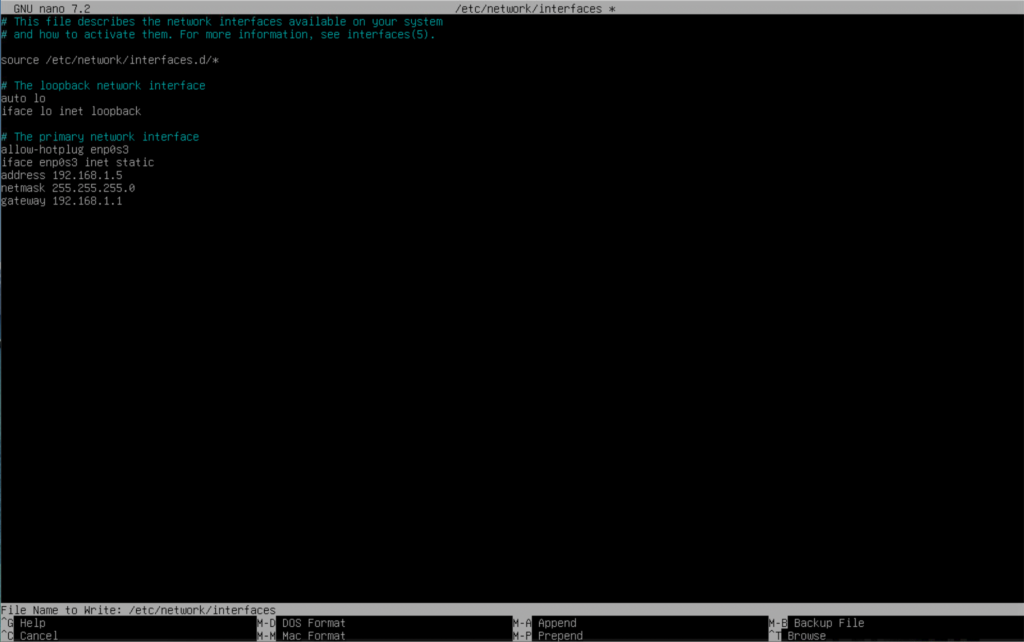
CTRL + O has been pressed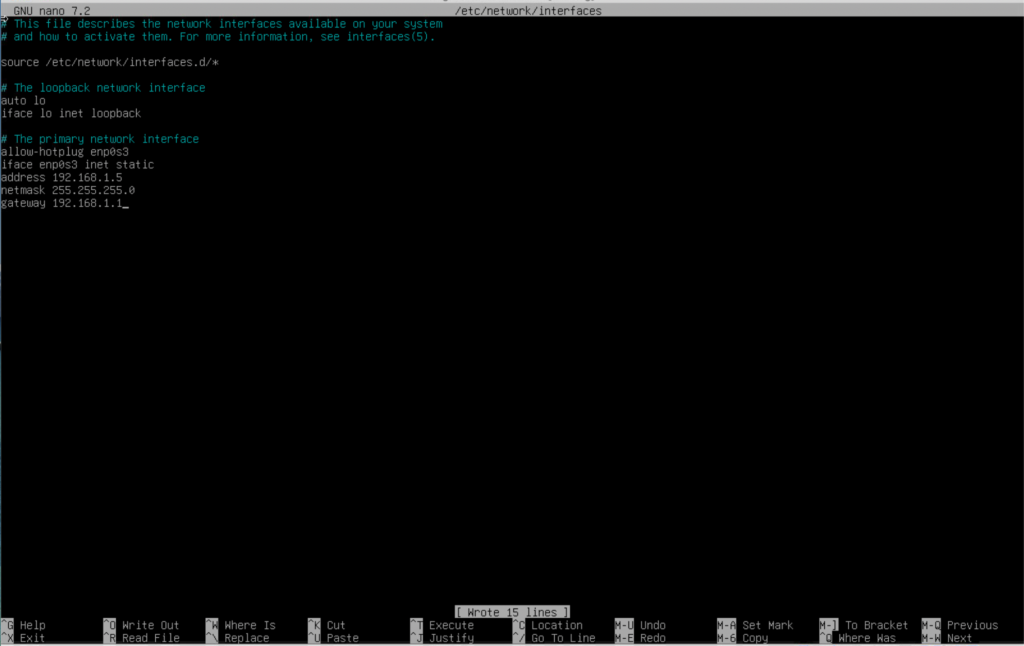
Enter has been pressed – nano confirms it wrote 15 lines into the file (see bottom center of the image)3. Press Ctrl + X (to exit)
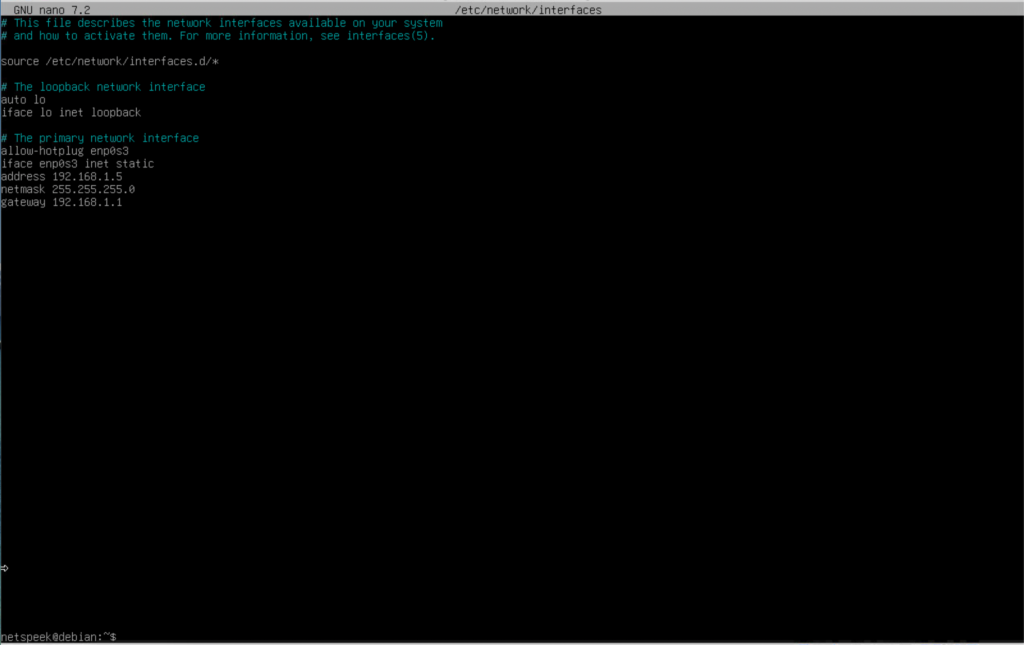
CTRL + X has been pressed, removing you nano and returning to the command line (see lower left of the image)3. Restart Networking Service and Verify the New Static IP
Apply the changes by restarting networking:
sudo systemctl restart networking
Check the IP configuration:
ip a
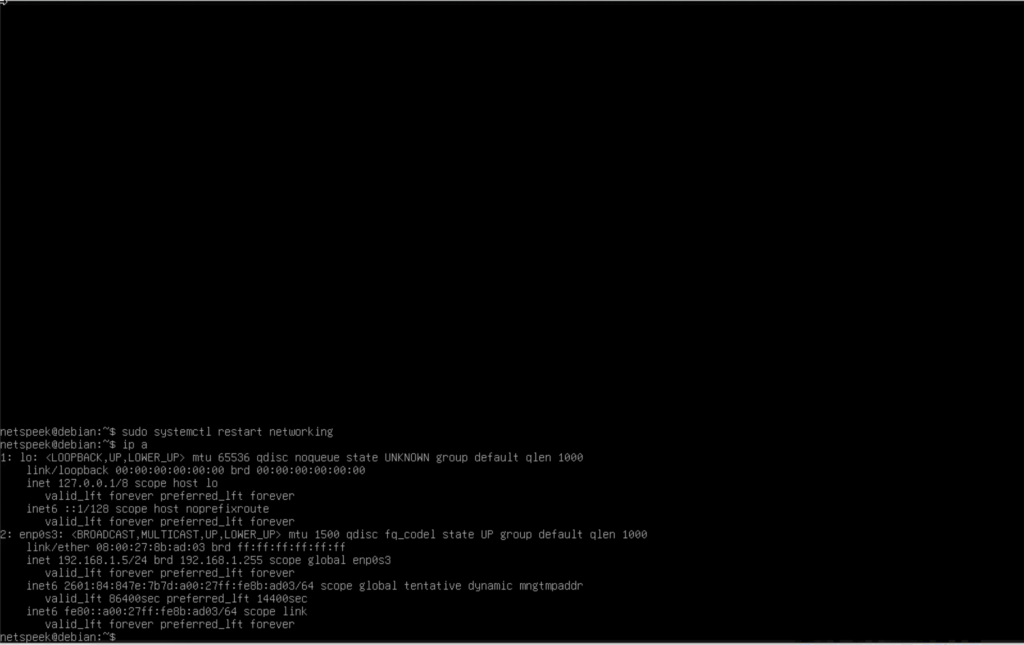
You should see the enp0s3 interface with your new static IP, for example:
inet 192.168.1.5/24 brd 192.168.1.255 scope global ens33
The image below shows an example of the commands described here – restarting the VM’s networking to apply the changes made in prior steps, and verifying the configuration is correct based on the output of the ip a command.
4. Verify Connectivity
On your host or another device on the same network as the Edge VM, open a browser and navigate to:
http://<vm-ip>:8080
Note
If your browser defaults to HTTPS (which is certificate-secured connections to websites), you will need to manually specify an HTTP URL, including the port 8080, precisely as described in the example above. The NetSpeek Edge does not support HTTPS connections to the web UI in order to avoid browser compatibility problems with self-signed certificates.
Taking the HTTP and port 8080 requirements together to construct an example URL, if your VM has been assigned the address 10.1.2.3 your login URL would be:
http://10.1.2.3:8080
If successful, the Edge Client VM is now accessible on its new static IP and will display the login page. You likely at this stage are ready for configuration of your Edge, which is addressed starting in step 5 of the main Edge Installation Guide.
5. Troubleshooting
- If you lose connectivity via SSH, reconnect using the new static IP.
- Ensure the chosen IP does not conflict with other devices on the network.