Deploy NetSpeek Edge in VMware Fusion as OVF
Before you begin ensure you have VMware Fusion installed.
1. Create a Custom Virtual Machine
- Open VMware Fusion.
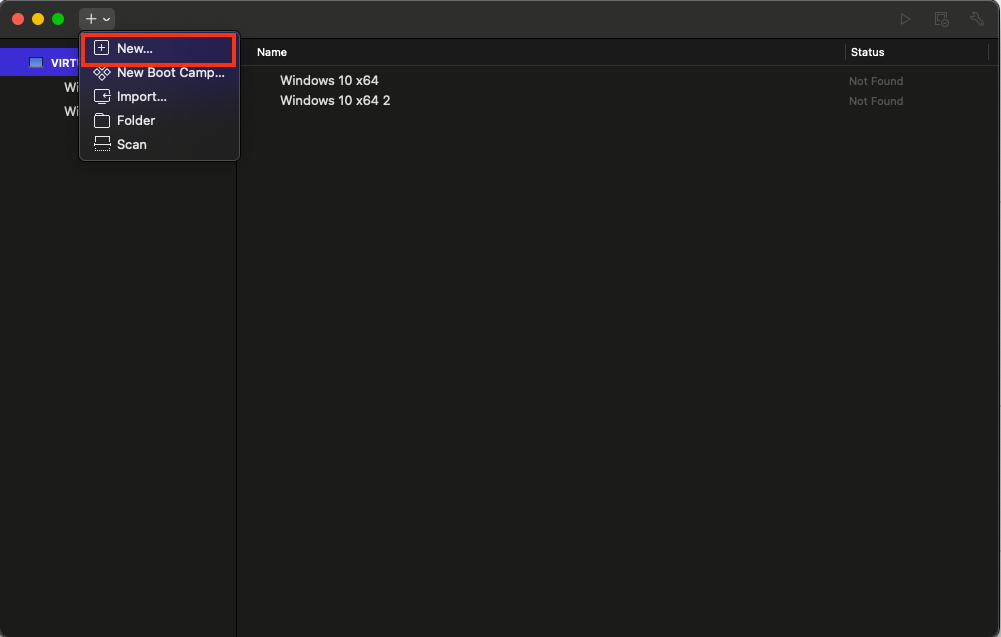
- Click the + > New… option
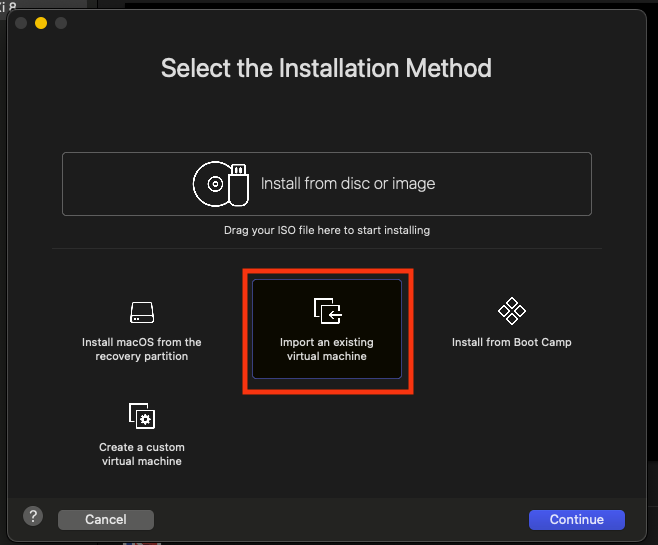
- In the installation method screen, select “Import an existing virtual machine”.
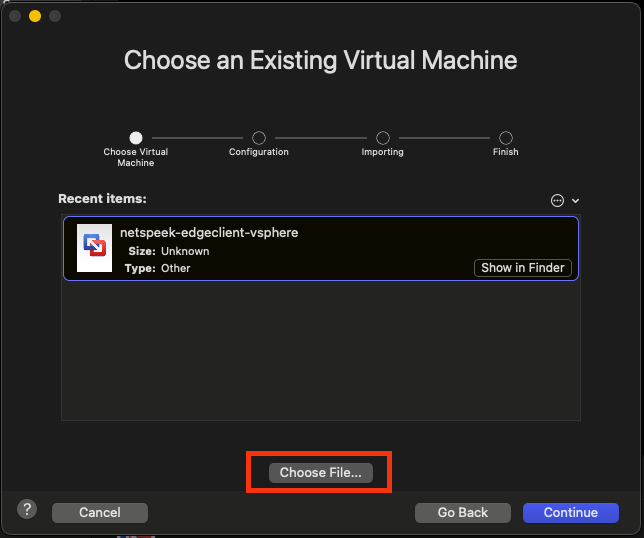
- You’ll be met with this view. Click “Choose File” and select the ovf file from the NetSpeek download link provided. Click “Continue”.
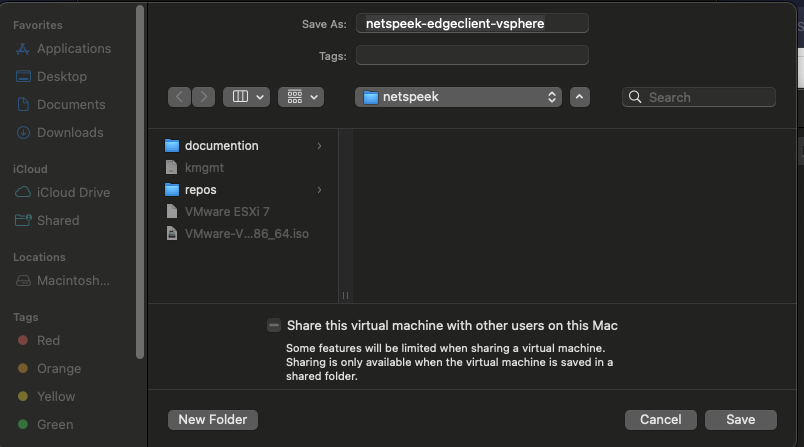
5. You’ll be met with a Finder window. Choose a location on the host’s file system to store the VM, and click “Save“.
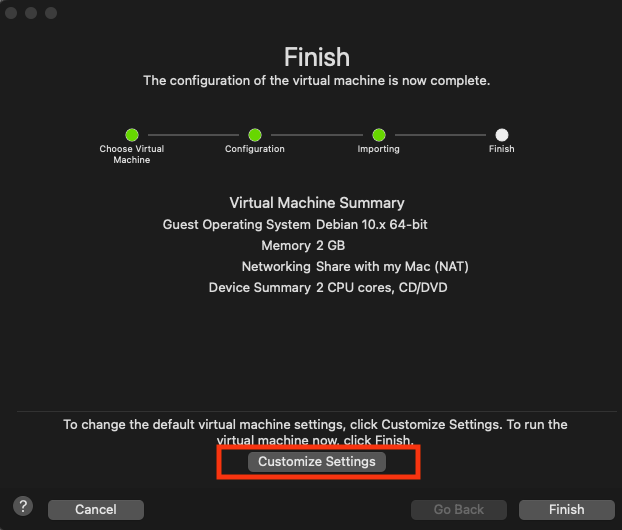
6. You’ll then be met with a loading/progress page and the installation will complete – you’ll then be met with this view. Click “Customize Settings“.
2. Adjust VM Network Settings
Note
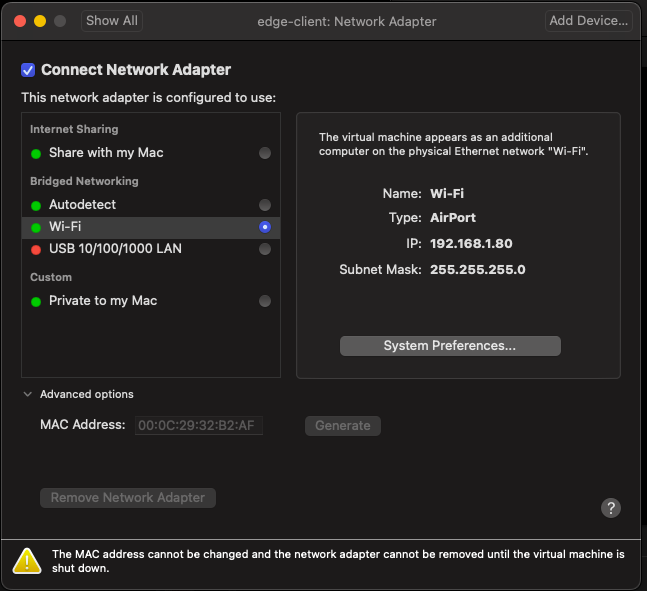
The below network configuration interfaces are examples from MacOS Catalina, to bridge a WiFi network connection held by the host machine. The precise steps to bridge a network connection in your environment will differ based on the OS and network connectivity method of your host (e.g., a host running VMware Fusion connected by Ethernet will have a different procedure than the example below, as could a host with a different OS version, etc).
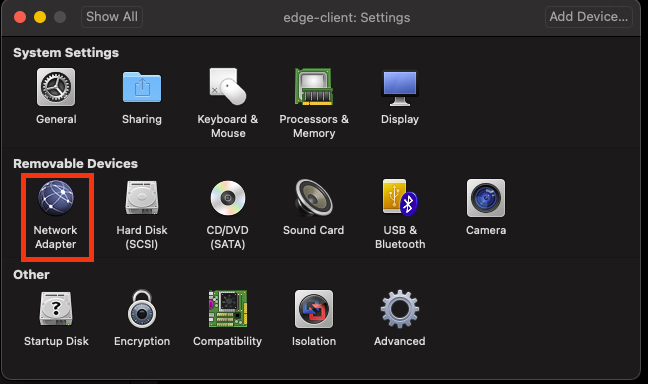
- After setup, click Settings on your powered-off VM
- Select Network Adapter
- Under Bridged Networking, select the host network to bridge to the VM (in this example, the host’s WiFi connection) to allow the VM to be accessible from your local network.
3. Start the VM and check networking
- Start the VM – VMware Fusion will automatically launch the console window.
- The console does not require login credentials and will show a command line interface similar to the image in section 4 below.
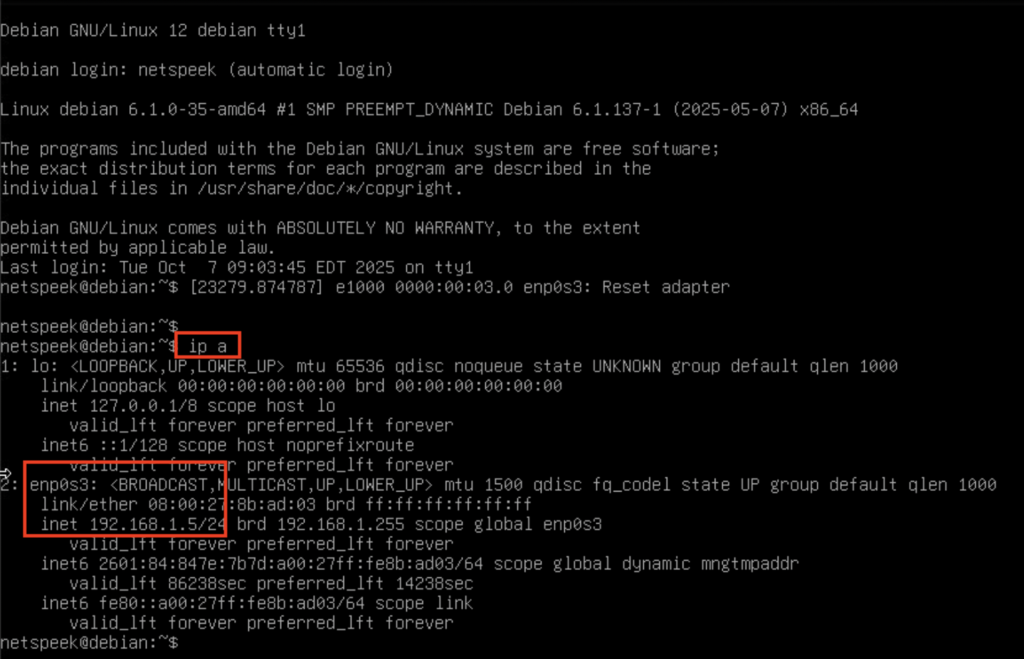
- Click inside the console interface to ensure keyboard input is being sent to the Edge Client VM and run the command
ip a
Look for an IP address assigned to a network adapter, likely labeled enp0s3 (e.g., in the below example image the IP address assigned to that adapter is 192.168.1.5)
4. Confirm the Edge VM is Running
On your host or another device on the same network as the Edge VM, open a browser and navigate to:
http://<vm-ip>:8080
Note
If your browser defaults to HTTPS (which is certificate-secured connections to websites), you will need to manually specify an HTTP URL, including the port 8080, precisely as described in the example above. The NetSpeek Edge does not support HTTPS connections to the web UI in order to avoid browser compatibility problems with self-signed certificates.
Taking the HTTP and port 8080 requirements together to construct an example URL, if your VM has been assigned the address 10.1.2.3 your login URL would be:
http://10.1.2.3:8080
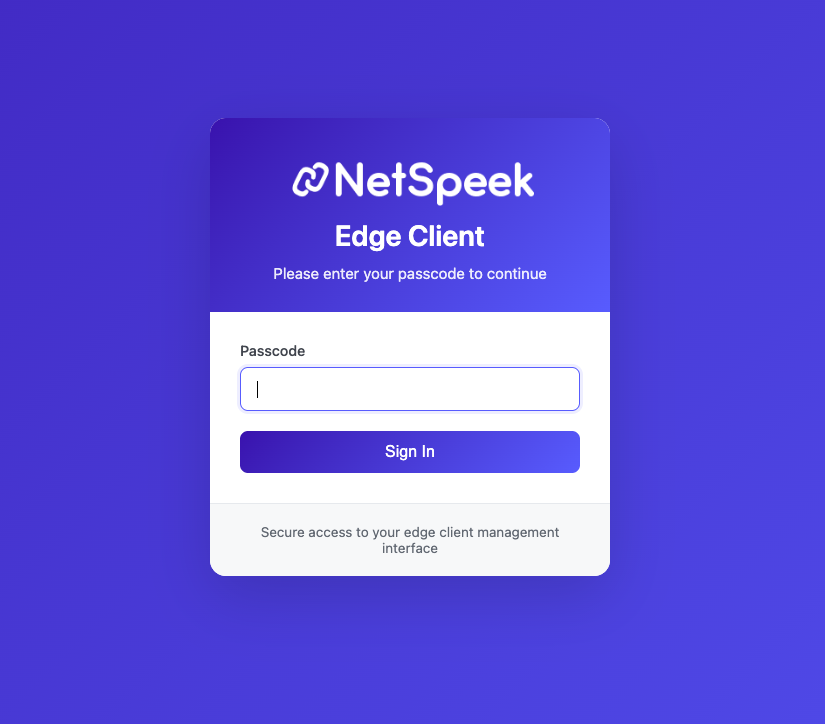
You should see the Edge Client Service Management UI login page, as shown below.
At this stage you have completed VM deployment and are ready for configuration of your Edge, which is addressed starting in step 5 of the main Edge Installation Guide.